H. PRE-MEET PRE-CAUTIONS
1. Check Available Record Time (hard drive)
Check to be sure you have adequate space on your hard drive.
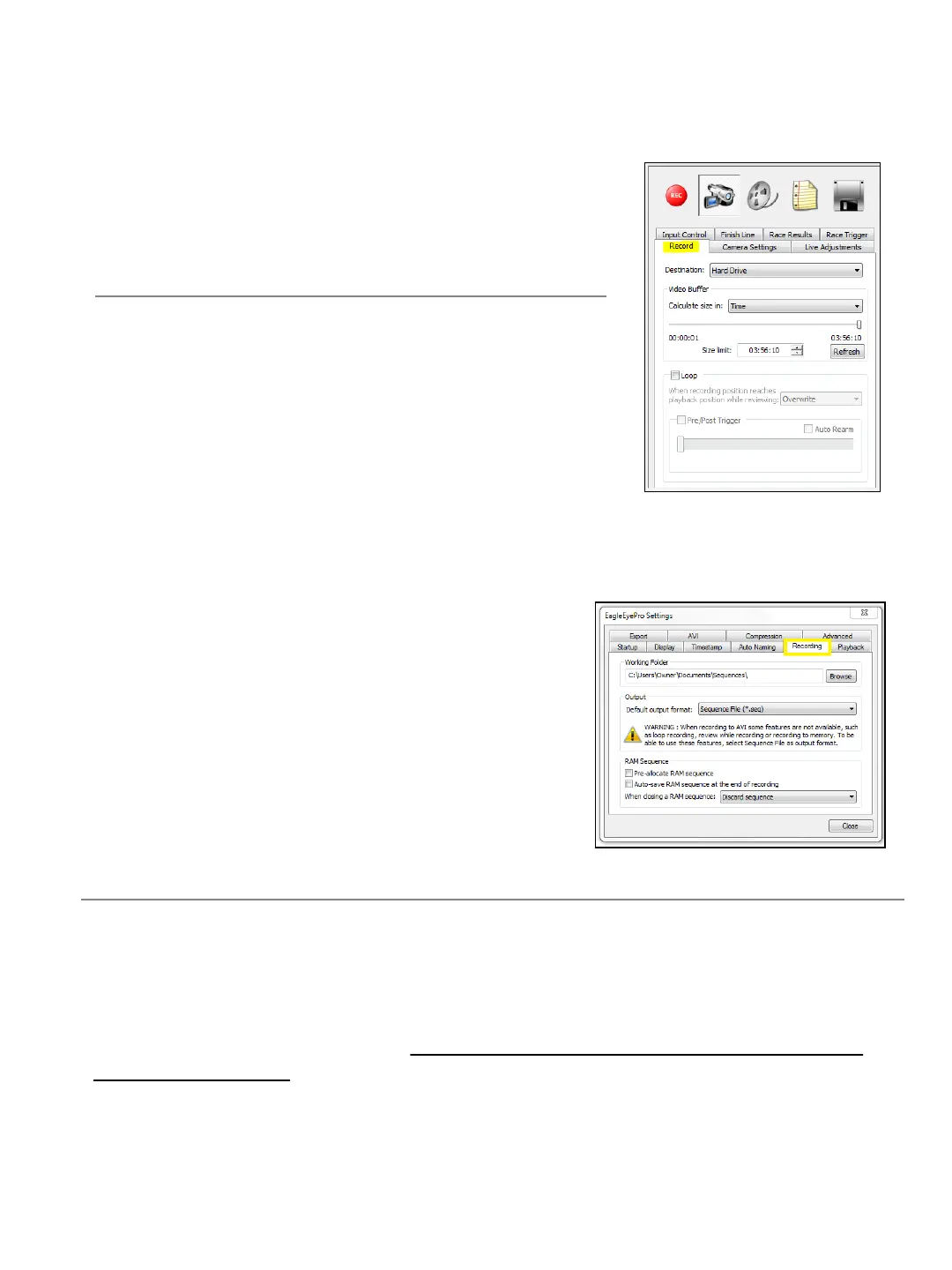
The example at right shows 3:56.10 minutes of available
recording time.
To Check Record Time
➔ SELECT the Record Tab and Calculate size in Time.
To Increase Record Time
To increase recording time you may need to create space on
your hard drive by deleting or moving existing video
(sequences) files.
1. ➔ To delete Individual videos SELECT the HISTORY via the Reel icon.
2. ➔ RIGHT-CLICK on the file and choose delete file to delete videos (sequences) in bulk,
DELETE directly from the destination folder
located at:
C: My Documents > Sequence (folder)
To Change Storage Location (optional)
1. ➔ SELECT TOOLS and Eagle Eye Pro Settings from
the top toolbar.
2. ➔ SELECT the RECORDING Tab and
3. ➔ BROWSE to a folder of your choice.
*If recording to an external drive, must be a 7200 rpm USB 3 hard drive.
2. Turn Off Anti Virus & Fire Wall Applications
IMPORTANT!
Programs running in the background while operating Eagle Eye Pro run the risk of creating an
interruption during a recorded race. It’s very important NOT to run a fire wall or anti virus
(Norton, McAfee, etc.) software program during a track meet. Because your computer is off-
line there is no risk of a virus.
Your Eagle Eye computer was shipped to you with the fire wall turned off for this reason.
19


 To Next Page