66 Installation and Service Guide
Replacing Parts
If the problem that you are troubleshooting persists, or if you are unable to perform steps 4 through step 6 above while
in Service Mode, you may conclude that the old motherboard was not the source of the problem and does not need to
be replaced. If so, do not transfer options to the new motherboard (described on page 66), do not install system
software, and do not replace the hard disk drive. Reinstall the old motherboard and return the new motherboard with
the unexpended motherboard replacement dongle to inventory. For more information about troubleshooting system
problems, see “Troubleshooting” on page 103.
If installing a new motherboard solved the problem that you are troubleshooting and you are able to print a Test Page
and send a print job over the network, you are ready to transfer options to the new motherboard. Service Mode ends
automatically when you transfer options to the new motherboard.
Transferring options and BIOS information to the new motherboard
After you verify that the new motherboard solves the problem that you are troubleshooting, you must use the
motherboard replacement dongle to transfer options to the new motherboard.
To transfer options and BIOS information to the new motherboard
Note: This procedure, which takes approximately 15-20 minutes, assumes that the E-35A is fully assembled with the
new motherboard, and verified in Service Mode (see page 65).
1 Verify that all power is turned off on the E-35A.
2 Insert the motherboard replacement dongle into a USB port.
3 Turn on the E-35A.
Wait until the E-35A reaches Idle.
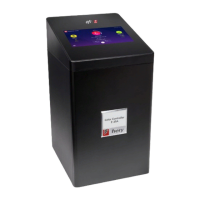
4 On the Fiery QuickTouch screen, press the server name at the upper left corner of the display.
5 Select Motherboard Replacement icon.
The screen displays “Reading dongle...”, then displays the number of licenses left to apply to the transfer.
6 Select Yes to confirm the license transfer.
The Fiery QuickTouch displays “Applying...” to indicate the transfer of options and the backup BIOS from the hard
disk drive to the BIOS chip on the replacement motherboard.
Note: If you select No, the process ends and you return to the Functions menu.
7 Reboot the E-35A.
8 Remove the motherboard replacement dongle after the E-35A reaches Idle.


 To Next Page