96
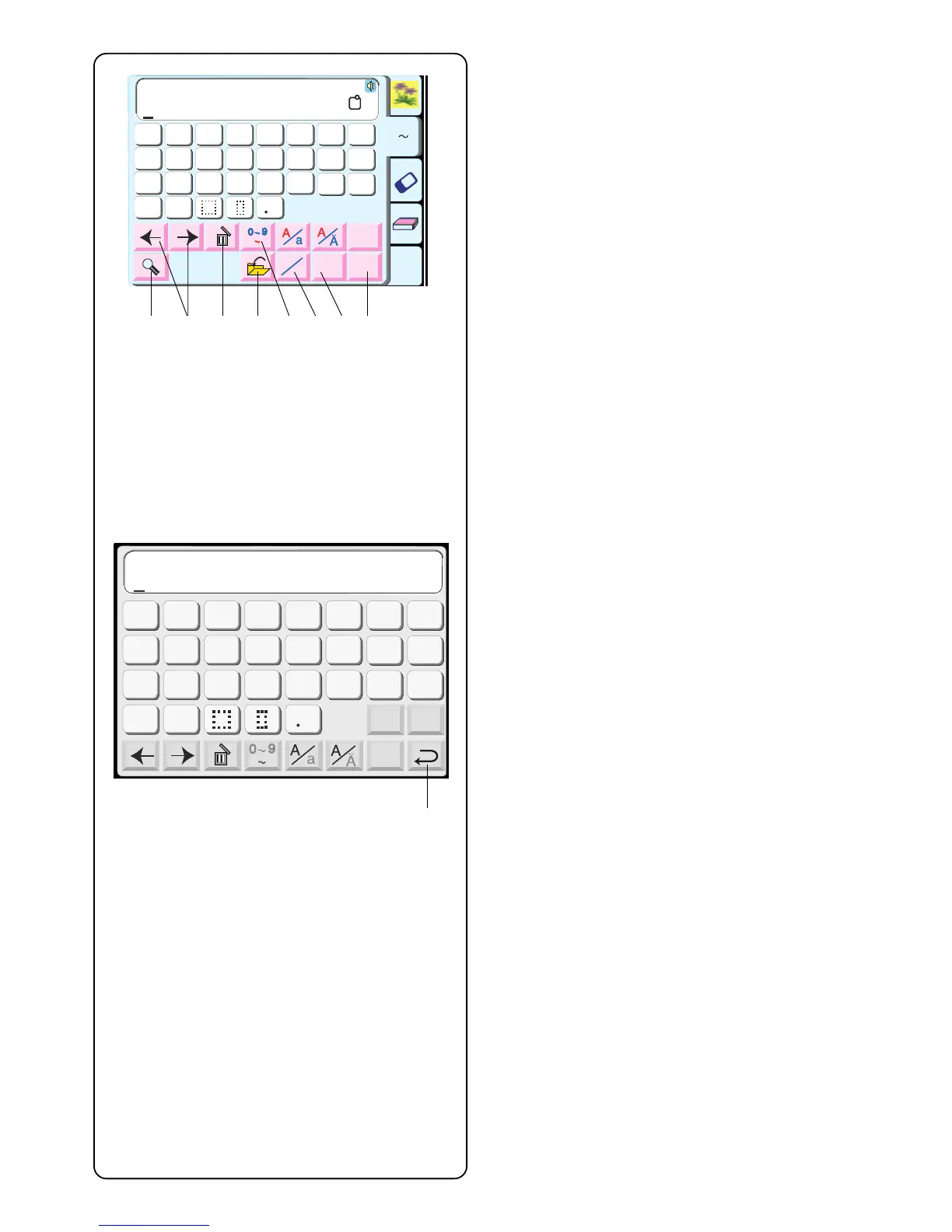
q Move Cursor keys
Touch either of these keys to move the cursor
(underline). The cursor location allows you to edit the
text. To add a letter, number or punctuation
(character), move the cursor until it is under a
character. When the new character is selected it will
be inserted on the left side of the cursor (underlined
character). See page 99.
w Delete key
A character can be deleted if the cursor (underline) is
under it. Use the Move Cursor keys until the
character to be deleted is underlined. Touch “Delete”
key. See page 99.
e Numbers/Punctuation key
Touch this key to switch between letters and
numbers/punctuation keys.
r Horizontal/Vertical key
Touch this key to switch the embroidery direction
between horizontal and vertical. See page 98.
t Alphabet Size key
Touch this key to switch between large, medium and
small size lettering. This key will not be active if the
font selection is 2 or 3 letters.
y Magnifier key
Touch this key to enlarge the keys so they are easier
to select o. Touch the “Return” key !0 to go back to
regular sized keys.
u OK key
When all characters have been selected, touch this
key to proceed to the ready to sew window.
i Save File key
Touch this key to save your selections in a file for
future use. See page 107.
y
Edit
Font
AB
OK
M
L
S
AB
G
H
IJKL
M
N
O
P
Q
RST
U
V
W
X
YZ
A
B
C
DEF
Gothic
AB
A(F)
A Z
G
H
IJKL
M
N
O
P
Q
R
S
T
U
V
W
X
YZ
A
B
C
D
EF
AZ
q w i e r t u
Font
OK
M
L
S
G
H
IJKL
M
N
O
P
Q
RST
U
V
W
X
YZ
A
B
C
DEF
A Z
AB
o
!0


 To Next Page