THIS DOCUMENT CONTAINS CONFIDENTIAL INFORMATION PROPRIETARY TO ENERGATE INC. NO PART OF ITS CONTENTS MAY BE DISCLOSED OR CONVEYED TO,
USED BY, OR COPIED TO A THIRD PARTY WITHOUT PRIOR WRITTEN CONSENT BY ENERGATE INC. PRINTED COPIES WILL BE CONSIDERED UNCONTROLLED.
AW000873-G 61
1. Log in to LMS and, on the Homes menu, click Manage Homes.
2. To search for the appropriate home configuration, enter information in one or more fields, and then click Submit.
For example, enter the account number.
3. In the list of homes, for the appropriate home, under Actions, click Provision.
4. On the Provision Devices Details page, for the pager module you provisioned, click Send Message.
5. On the Create Single Text Message page, enter the configuration and text for a message:
Start Time: Select Immediate if you are ready to test the pager module. To delay the message, select
Date/Time and select a time in the future.
Duration: Specify how long the message is displayed on the thermostat screen in hours and minutes.
Display for Smart Device: Enter a message of up to 241 characters to display on the screen.
Confirmation Required: Not used with pager communications.
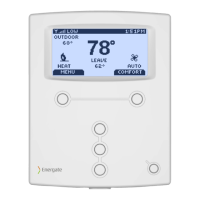
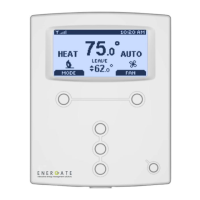
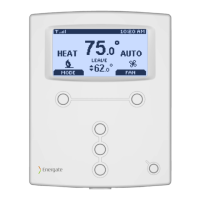
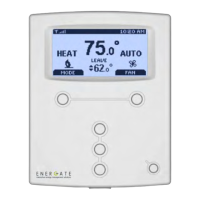
6. Click Submit and ensure that the message is displayed on the thermostat screen.
For pager module troubleshooting information, see 12.6 Troubleshoot the Pager Module Installation and Provisioning.


 To Next Page