THIS DOCUMENT CONTAINS CONFIDENTIAL INFORMATION PROPRIETARY TO ENERGATE INC. NO PART OF ITS CONTENTS MAY BE DISCLOSED OR CONVEYED TO,
USED BY, OR COPIED TO A THIRD PARTY WITHOUT PRIOR WRITTEN CONSENT BY ENERGATE INC. PRINTED COPIES WILL BE CONSIDERED UNCONTROLLED.
AW000873-G 58
11.2 Pairing the Foundation Thermostat and Meter Data Collector
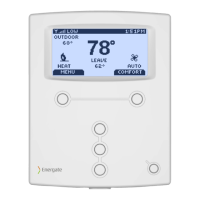
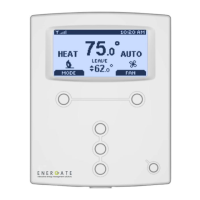
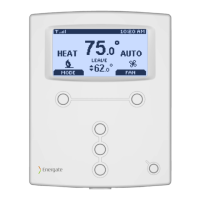
The Meter Data Collector works with Foundation Model FZ100C only.
Note: To successfully pair the thermostat and Meter Data Collector, you may need to repeat the following steps
after fine-tuning the placement of the collector’s optical sensor.
For information on installing and adjusting the optical sensor’s placement, see the Meter Data Collector
Installation Guide and 12.4 Troubleshoot the Link to the Meter Data Collector.
1. Ensure the Foundation thermostat is powered up.
2. Confirm that the Meter Data Collector is installed correctly as described in the Meter Data Collector Installation
Guide.
3. In Foundation’s Installer Setup menu, select Meter Data Collector.
4. Select Pair with Collector.
5. Select Yes to confirm you want to start the pairing process.
6. When prompted, enter the Installer password. The default password is INST.
The thermostat displays "Resetting" for a few seconds and then displays the Meter Data Collector menu.
The Link Info screen displays "Pairing with Collector" for up to 2 minutes.
7. To complete the connection, press the Reset button on the Meter Data Collector within a minute of initiating
the pairing process at the thermostat.
The red STATUS indicator starts flashing regularly, indicating that the optical sensor has detected the signal
from your meter.
Within 1 minute, the indicator starts to flash irregularly to indicate that the sensor is reading the meter’s output
correctly.
8. In the Meter Data Collector menu, select Link Info.
If the pairing is successful, within a few minutes, the Link Info screen displays the message "Connection Active".
9. If “Connection Active” is not displayed, see the troubleshooting information in 12.4 Troubleshoot the Link to
the Meter Data Collector.


 To Next Page