THIS DOCUMENT CONTAINS CONFIDENTIAL INFORMATION PROPRIETARY TO ENERGATE INC. NO PART OF ITS CONTENTS MAY BE DISCLOSED OR CONVEYED TO,
USED BY, OR COPIED TO A THIRD PARTY WITHOUT PRIOR WRITTEN CONSENT BY ENERGATE INC. PRINTED COPIES WILL BE CONSIDERED UNCONTROLLED.
AW000873-G 69
wireless network. Please select and connect your device to the Energate Wi-Fi network. If the problem persists, try
using another web browser or wireless device.
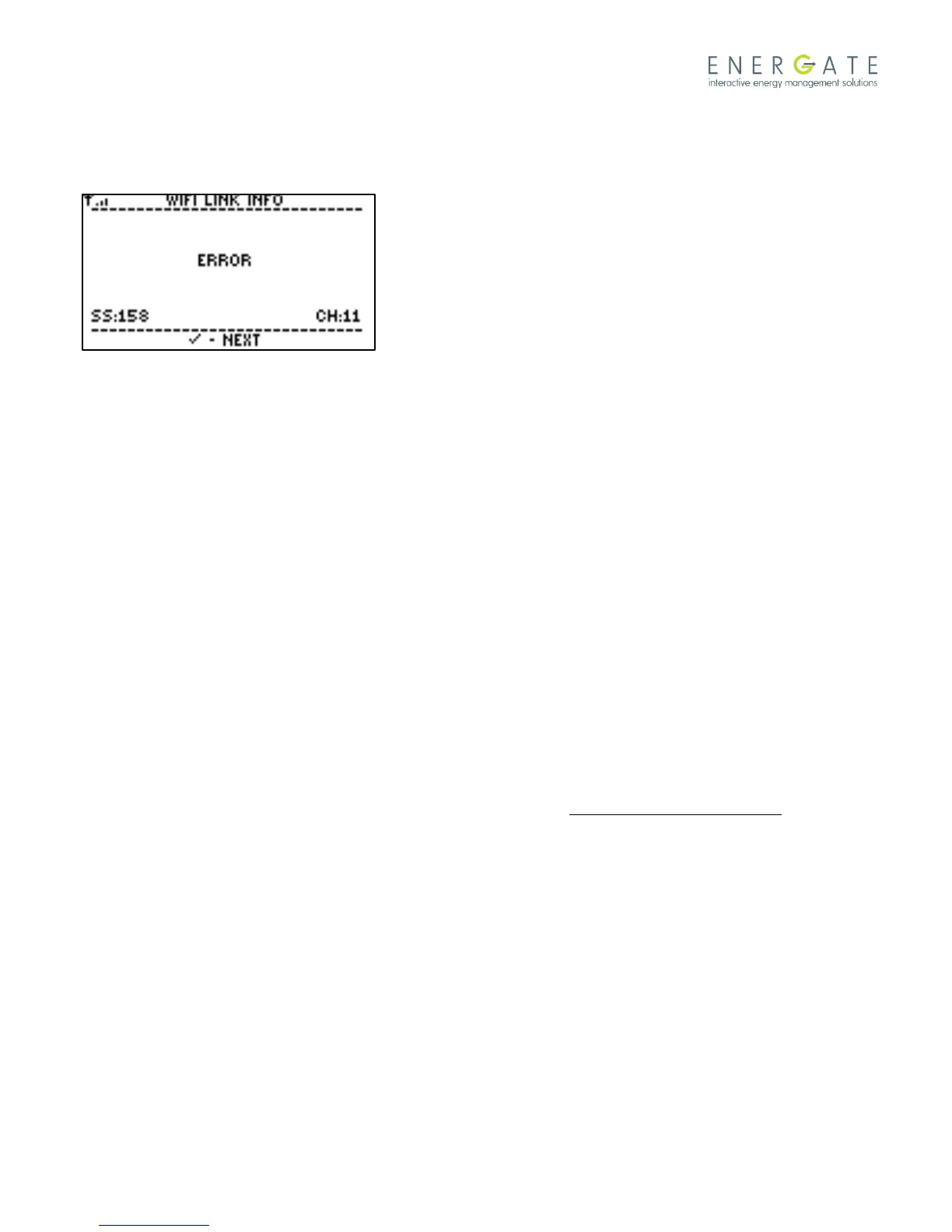
12.7.4 When I check the link Info, I see an error message as shown in the figure below
This error message is most likely because the Wi-Fi network password was entered incorrectly on the browser or the
wrong SSID was selected. Restart the connection procedure and ensure that the Wi-Fi network password and SSID are
correctly entered.
12.7.5 When I check the link info it says “Searching for ESP”
To resolve this problem follow the following steps:
a) Power cycle your Foundation thermostat and restart the connection process. You can power cycle the thermostat
by removing it from the backplate and re-attaching it. If this does not fix the problem proceed to next step.
b) Reboot your internet router and restart the connection process. If this does not fix the problem proceed to next
step.
c) Your router may not be connected to the internet. Check that your router is powered on and that your Ethernet
cable is connected to your router. Verify that your router is connected to the internet by using a computer or any
Wi-Fi enabled device to browse the internet. If this does not fix the problem proceed to next step.
d) Change your router settings:
If your provider is a cable modem and your router uses DHCP, enable it to “use unicasting” and disable
“always broadcast”.
If your provider is DSL and uses PPoE, ensure that “auto-reconnect” is disabled.
If your router supports 802.11 g and 802.11n, try setting it to use 802.11b and see if that fixes the problem.
e) If all steps fail to fix the problem, please contact Technical Support (see 15 Energate Technical Support).


 To Next Page