
 Need help?
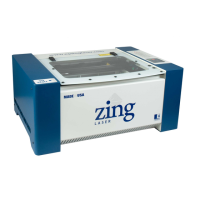
Do you have a question about the Epilog Laser Zing 10000 and is the answer not in the manual?
Outlines the manual's structure into parts and sections.
Details safety precautions related to the laser system and its components.
Outlines electrical safety precautions to prevent hazards.
Provides warnings and recommendations to prevent fire hazards.
Describes built-in safety features and compliance with standards.
Lists critical actions to avoid during laser operation and maintenance.
Provides essential maintenance advice for long-term machine operation.
Guides users through the initial setup steps for the laser system.
Explains the mandatory installation and connection of the exhaust system.
Details the power requirements and connection process for the laser.
Outlines methods for connecting the laser system to a computer.
Explains the process of connecting the laser via USB port.
Describes the Ethernet connection method for the laser system.
Provides detailed steps for installing the driver via Ethernet connection.
Guides on configuring TCP/IP settings on the computer.
Details the final steps for installing the Dashboard print driver.
Explains how to set up artwork for raster engraving or vector cutting.
Covers job setup, including artwork orientation and material placement.
Details the general settings for job type, resolution, speed, and power.
Explains raster mode for engraving, including line weight considerations.
Explains vector mode for cutting, including line weight and speed.
Explains resolution settings and their impact on print quality.
Explains how to map colors to laser functions for advanced control.
Explains the benefits and application of multiple passes.
Details the functions of the control panel keys for laser operation.
Describes how to view and adjust speed settings on the control panel.
Explains how to view and adjust power settings on the control panel.
Details how to disable axes for manual carriage movement.
Explains the air curtain's role in vector cutting safety.
Describes the vector grid/vacuum table for precise cutting and material hold-down.
Introduces the rotary attachment for cylindrical objects.
Guides on setting the home position for the rotary attachment.
Emphasizes the importance of cleaning and fire safety.
Provides detailed instructions for cleaning mirrors and lenses.
Covers factory settings for system calibration using the keyboard.
Details accessing factory settings via the Config key.
Explains speed settings for raster and vector modes.
Details power settings for cutting and engraving depth.
Presents tables with recommended settings for various materials and wattages.
Covers fire warnings and techniques for engraving and cutting acrylic.
Explains glass engraving techniques for a smooth frosted finish.
Describes settings and techniques for producing rubber stamps.
Provides information on engraving and cutting wood.
Provides contact information and steps for technical support.
Lists common print issues and their solutions.
Lists technical specifications for the Zing 16 x 12 model.
Provides recommendations for PC hardware for optimal performance.
Explains the process of upgrading the laser system’s firmware.
Details the procedure for transferring firmware to the laser system.
Covers printing and plotting settings from AutoCAD for laser output.
Explains using AutoCAD colors for laser job control via color mapping.
Step-by-step guide for installing the USB driver on Windows Vista.
Guides on configuring TCP/IP settings for Windows 7.
 General
| Brand | Epilog Laser |
|---|---|
| Model | Zing 10000 |
| Category | Measuring Instruments |
| Language | English |

 To Next Page