E
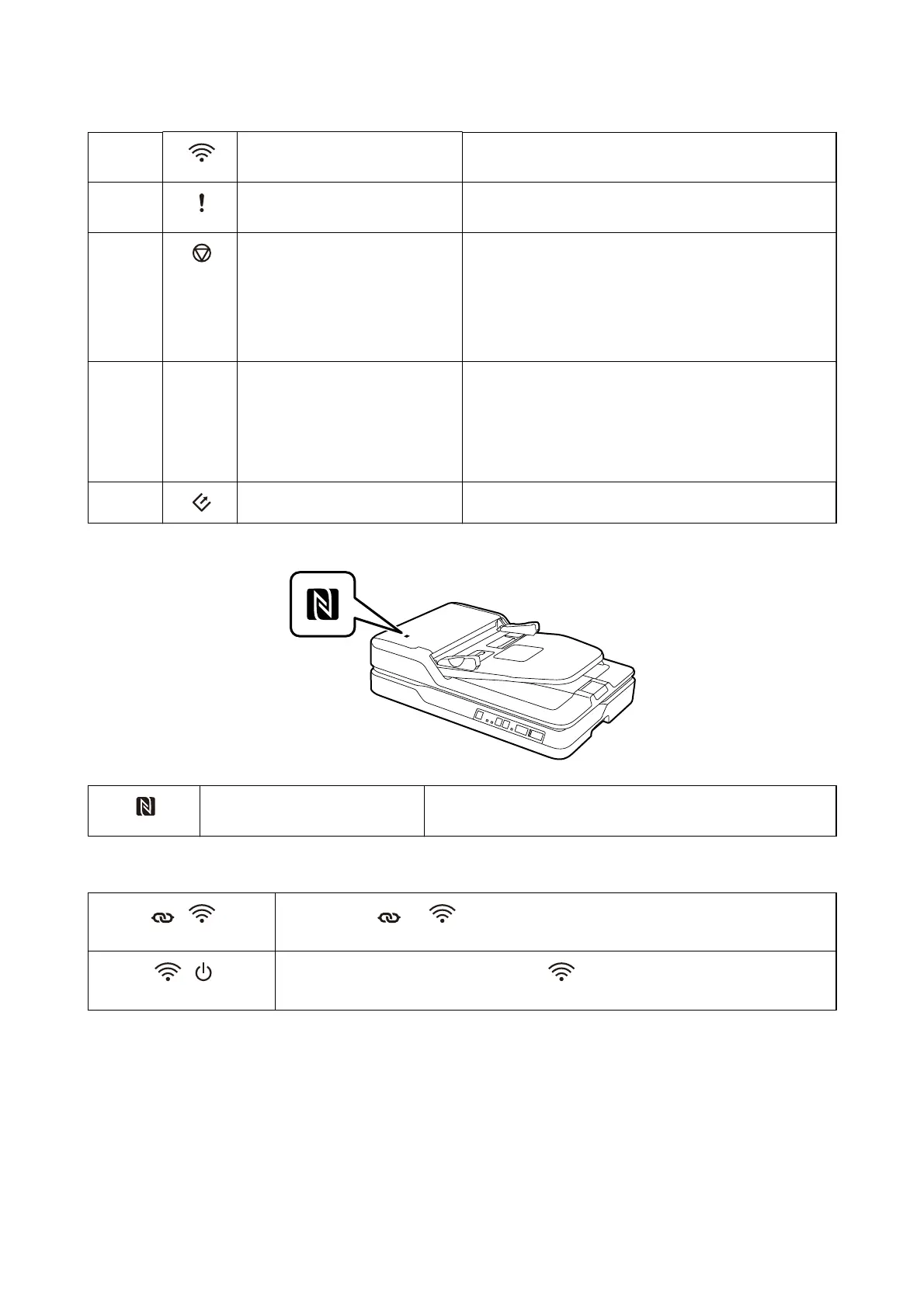
Wi-Fi on/o button Press this button for more than three seconds to turn o the
wireless signal. Press again to turn on the signal.
F
Error light Indicates that an error has occurred. See “Error Indicators of
Light” for more details.
G
Stop button o Cancels scanning.
o Cancels Wi-Fi settings by push button setup (WPS).
o Press this to release the error when a network connection
error occurs.
o Cancels a rmware update over a network connection.
H
– Ready light On : The scanner is ready to be used.
Flashing : The scanner is scanning, waiting to scan,
processing, or sleeping.
O
: The scanner cannot be used because the power is
o
or
an error has occurred.
I
Start button Starts scanning.
NFC tag Hold a smart device over this tag to scan directly from the smart
device.
Additional functions are available with dierent combinations of buttons.
+ Hold down the and buttons for more than three seconds to start PIN Code Setup
(WPS). See the chapter “Network Settings” for more details.
+ Turn on the scanner while holding down the button to restore the default network
settings.
Related Information
& “Network Settings” on page 55
& “Error Indicators” on page 15
& “Scanning from Smart Devices Using NFC Tag” on page 54
User's Guide
Scanner Basics
14



 To Next Page