Energy Saving
You can save energy by using the sleep mode or auto power o mode when no operations are performed by the
scanner. You can set the time period before the scanner enters sleep mode and turns o automatically. Any
increase will aect the product’s energy eciency. Consider the environment before making any changes.
1.
Start Epson Scan 2 Utility.
oWindows 10
Click the start button, and then select All apps > EPSON > Epson Scan 2 > Epson Scan 2 Utility.
o Windows 8.1/Windows 8/Windows Server 2012 R2/Windows Server 2012
Start screen > Apps > Epson > Epson Scan 2 Utility.
o Windows 7/Windows Vista/Windows XP/Windows Server 2008 R2/Windows Server 2008/Windows Server
2003 R2/Windows Server 2003
Click the start button, and then select All Programs (or Programs) > EPSON > Epson Scan 2 > Epson
Scan 2 Utility.
oMac OS X
Select Go > Applications > EPSON
Soware
> Epson Scan 2 Utility.
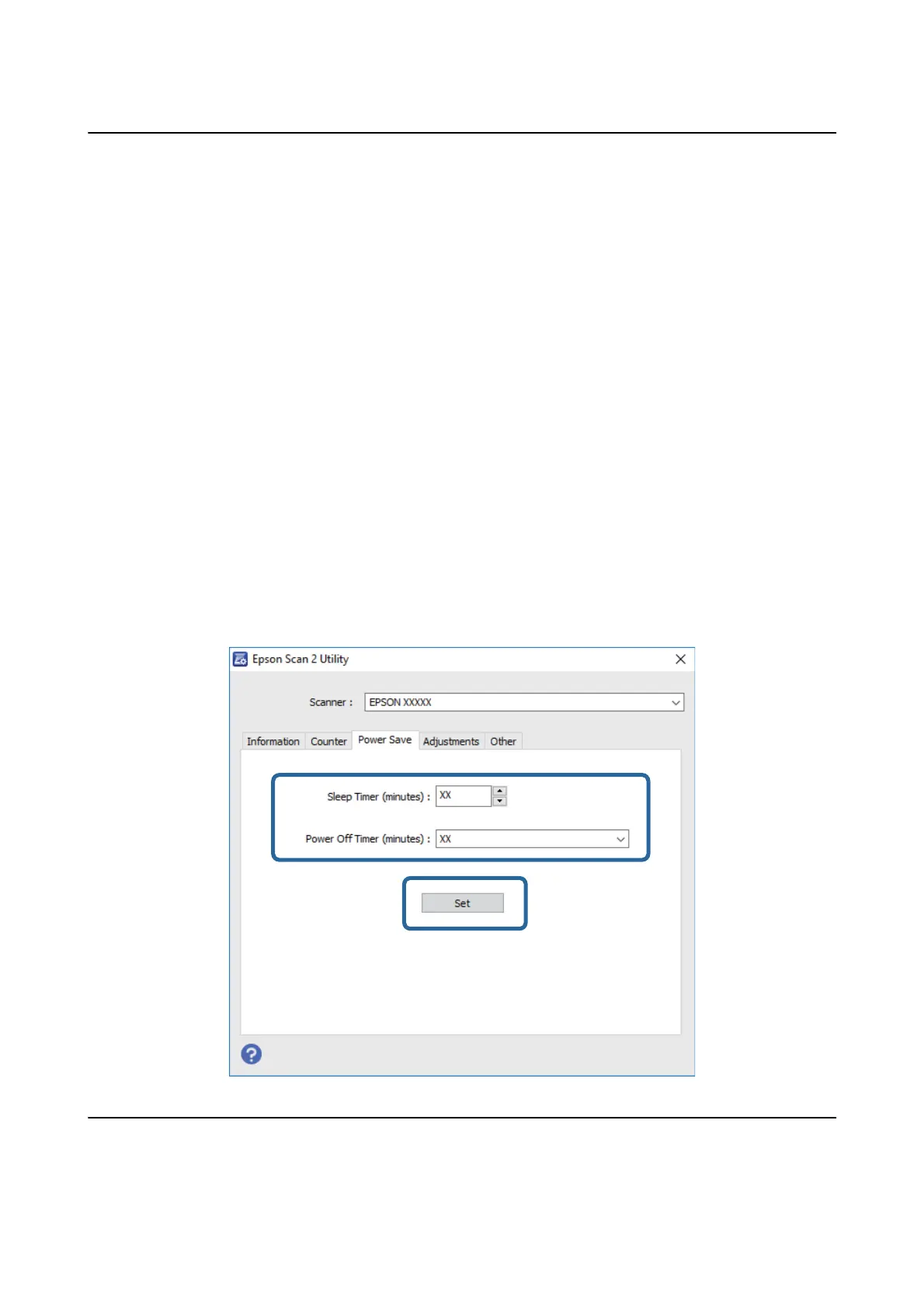
2. Click the Power Save tab.
3. Set the Sleep Timer (minutes) or Power O Timer (minutes), and then click Set.
Transporting the Scanner
When you need to transport the scanner to move or for repairs, follow the steps below to pack the scanner.
User's Guide
Maintenance
68



 To Next Page