& “Placing Originals on the Scanner Glass” on page 25
Scanning from Smart Devices Using NFC Tag
You can connect your smart device and the scanner automatically using the Epson DocumentScan application and
the NFC (Near Field Communication) function.
is feature is available for smart devices running Android 4.0 or later and that support NFC.
Before using this feature, enable the NFC function on your smart device.
Note:
o e location of the NFC antenna varies depending on the smart device. See the documentation provided with your smart
device for more details.
o If the scanner does not communicate with the smart device even aer touching it to the tag, try adjusting the position of
the smart device and touch it to the tag again.
o If there are obstacles such as metal between the scanner’s NFC tag and the NFC antenna of the smart device, the scanner
may not be able to communicate with the smart device.
o If the scanner is already connected to the Wi-Fi network before using this feature, your smart device will be connected to
the scanner using this network. If not, the scanner and your smart device will be connected in AP mode. In AP mode, you
can connect up to four devices to the scanner at the same time.
1. Place the original.
2. Make sure that Epson DocumentScan is installed on your smart device.
If not, touch the NFC tag antenna of the smart device to the scanner’s NFC tag. Install Epson DocumentScan
on the displayed application page.
3.
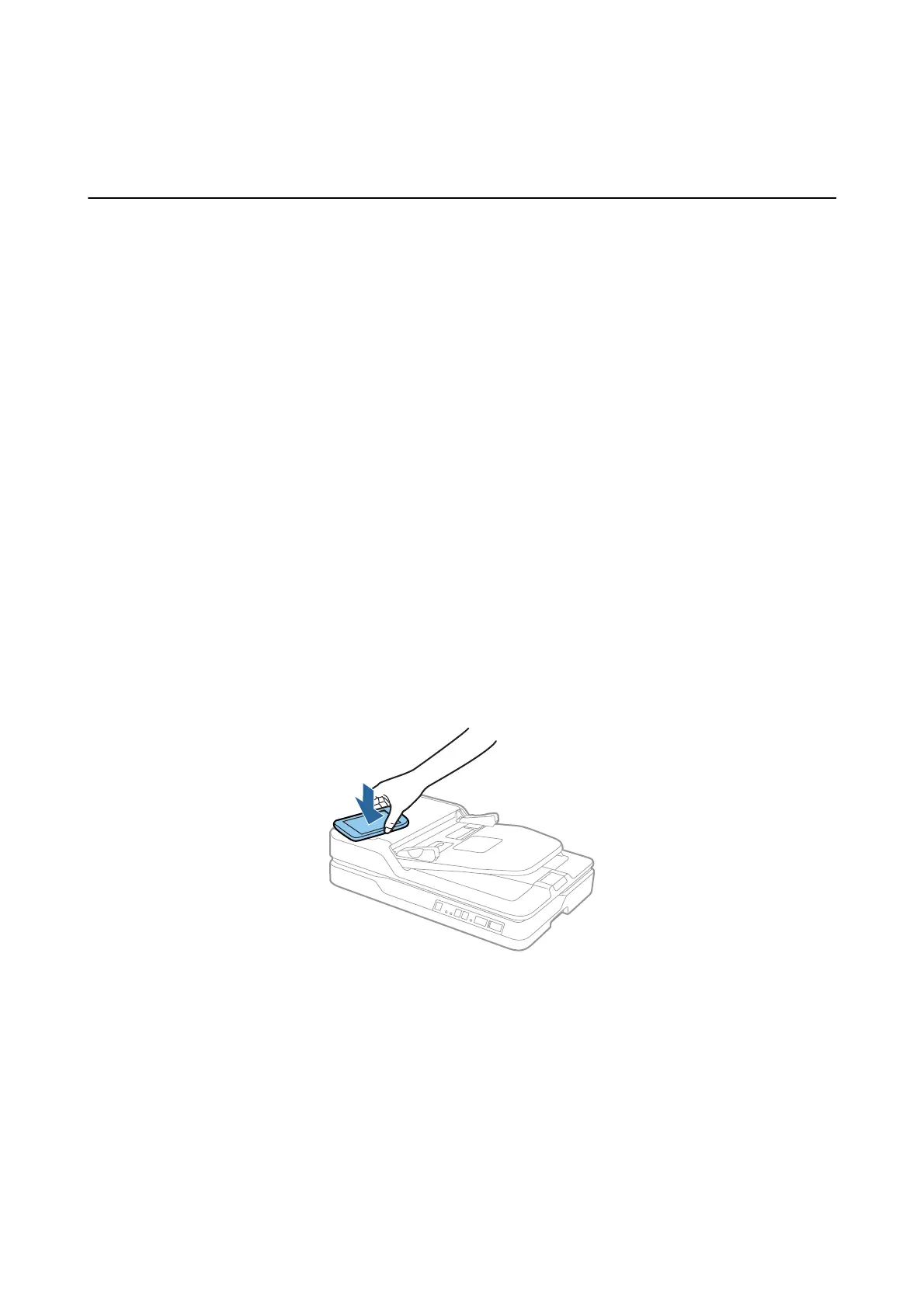
Touch the NFC antenna of your smart device to the scanner’s NFC tag.
Epson DocumentScan starts, and the scanner and the smart device are connected automatically.
4. Follow the Epson DocumentScan on-screen instructions for information on scanning.
Related Information
& “Buttons” on page 13
& “Placing Originals into the ADF” on page 22
& “Placing Originals on the Scanner Glass” on page 25
User's Guide
Advanced Scanning
54



 To Next Page