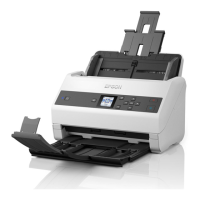
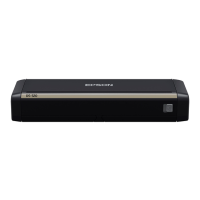
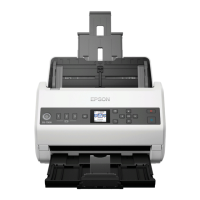
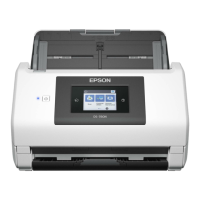
To sort scanned images, you can use a variety of detection methods such as blank pages inserted between the
originals or barcodes on the originals.
1. Place the originals including indicators, such as blank pages, between the pages where you want to separate the
scanned images.
2. Start Document Capture Pro.
3. Click
.
e Scan window is displayed.
4. Make the scanning settings, and then click Scan.
5. Check the scanned images, and edit them if necessary.
6.
When you have
nished
checking the image, select the destination.
e Batch Save window or the Transfer Settings window is displayed.
7. Click File Name & Separation Settings.
8. Select Apply job separation, and then click Separation Settings.
9. Select the separation method and the method for specifying the folder name on the Job Separation Settings
window, and then click OK.
10. Make other settings on the File Name & Separation Settings window, and then click OK.
11. Make other settings on the Batch Save window or the Transfer Settings window, and then click OK or Send.
Scanned images are saved separately based on the separation method selected.
Related Information
& “Scanning Using Document Capture Pro (Windows)” on page 32
& “Placing Originals into the ADF” on page 22
&
“Placing Originals on the Scanner Glass” on page 25
Scanning to a Cloud Service
You can upload scanned images to cloud services using Document Capture Pro (Windows) or Document Capture
(Mac OS X).
Note:
o Create a cloud service account before using this function.
o If you want to use Evernote as the destination, download the Evernote application from the Evernote Corporation
Website, and then install it before using this feature.
1. Place the original.
2. Start Document Capture Pro (Windows) or Document Capture (Mac OS X).
User's Guide
Advanced Scanning
49



 To Next Page