Related Information
& “Brightness” on page 43
You can adjust the brightness for the whole image.
& “Text Enhancement” on page 41
You can make blurred letters in the original clear and sharp. You can also reduce the oset or unevenness of the
background.
Text is Blurred
o In Epson Scan 2, select the Advanced Settings tab, and then Image Option > Text Enhancement.
o In Epson Scan 2, when Image Type on the Main Settings tab is set to Black & White, adjust the reshold on
the Advanced Settings tab. When you increase the reshold, black becomes stronger.
o If the resolution is low, try increasing the resolution and then scanning.
Related Information
& “Text Enhancement” on page 41
You can make blurred letters in the original clear and sharp. You can also reduce the oset or unevenness of the
background.
& “reshold” on page 44
You can adjust the border for monochrome binary (black and white). Increase the threshold, the black color area
becomes larger. Decrease the threshold, the white color area becomes larger.
&
“Setting a Resolution
at
Suits the Scanning Purpose” on page 32
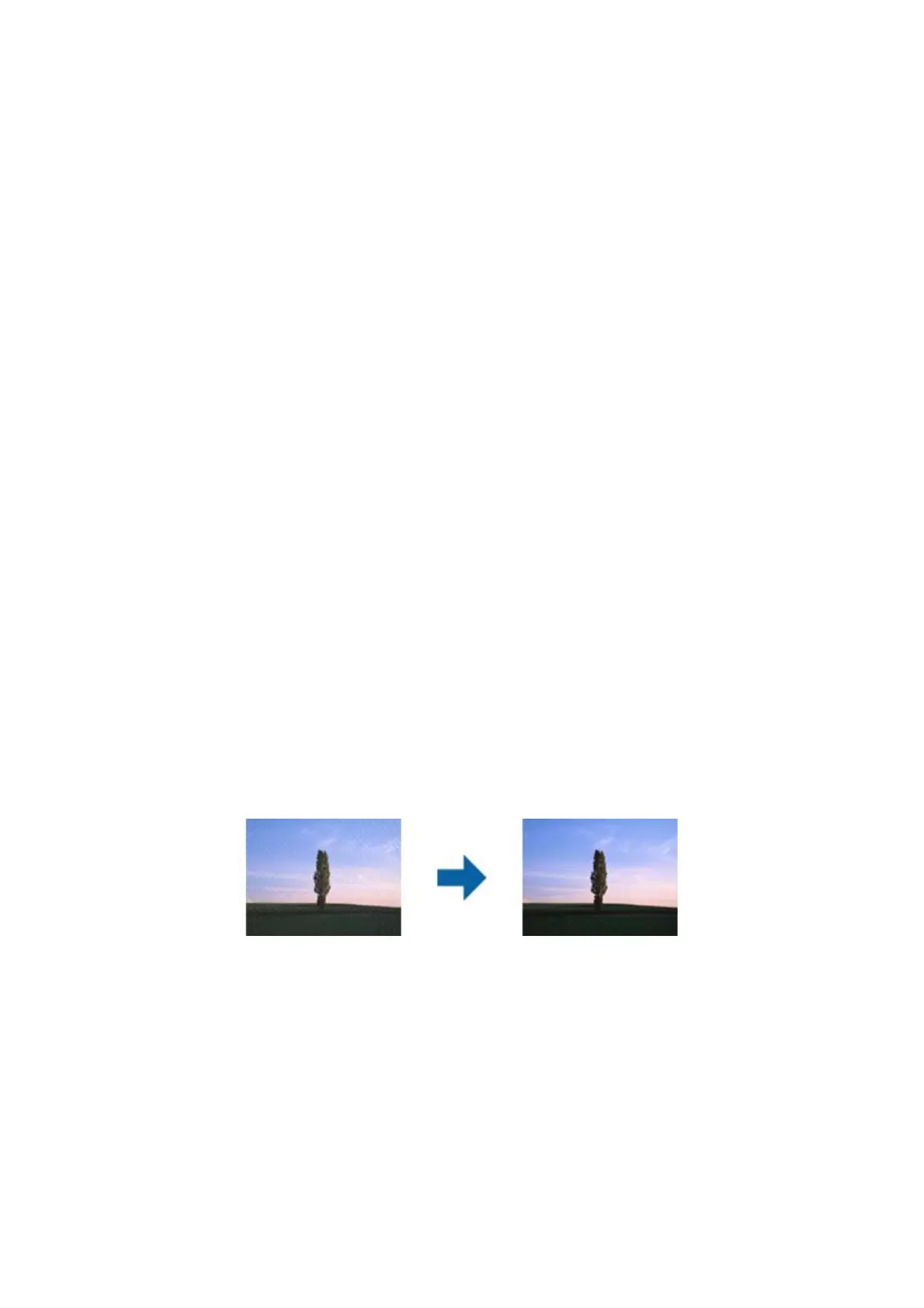
Moiré Patterns (Web-Like Shadows) Appear
If the original is a printed document, moiré patterns (web-like shadows) may appear in the scanned image.
oOn the Advanced Settings tab in Epson Scan 2, select Descreening.
o Change the resolution, and then scan again.
Related Information
& “Descreening” on page 41
You can remove moiré patterns (web-like shadows) that appear when scanning printed paper such as a
magazine.
& “Setting a Resolution at Suits the Scanning Purpose” on page 32
User's Guide
Solving Problems
76



 To Next Page