o Do not press with too much force on the original or the document cover. If you press with too much force,
blurring, smudges, and spots may occur.
Related Information
& “Cleaning the Scanner Glass” on page 66
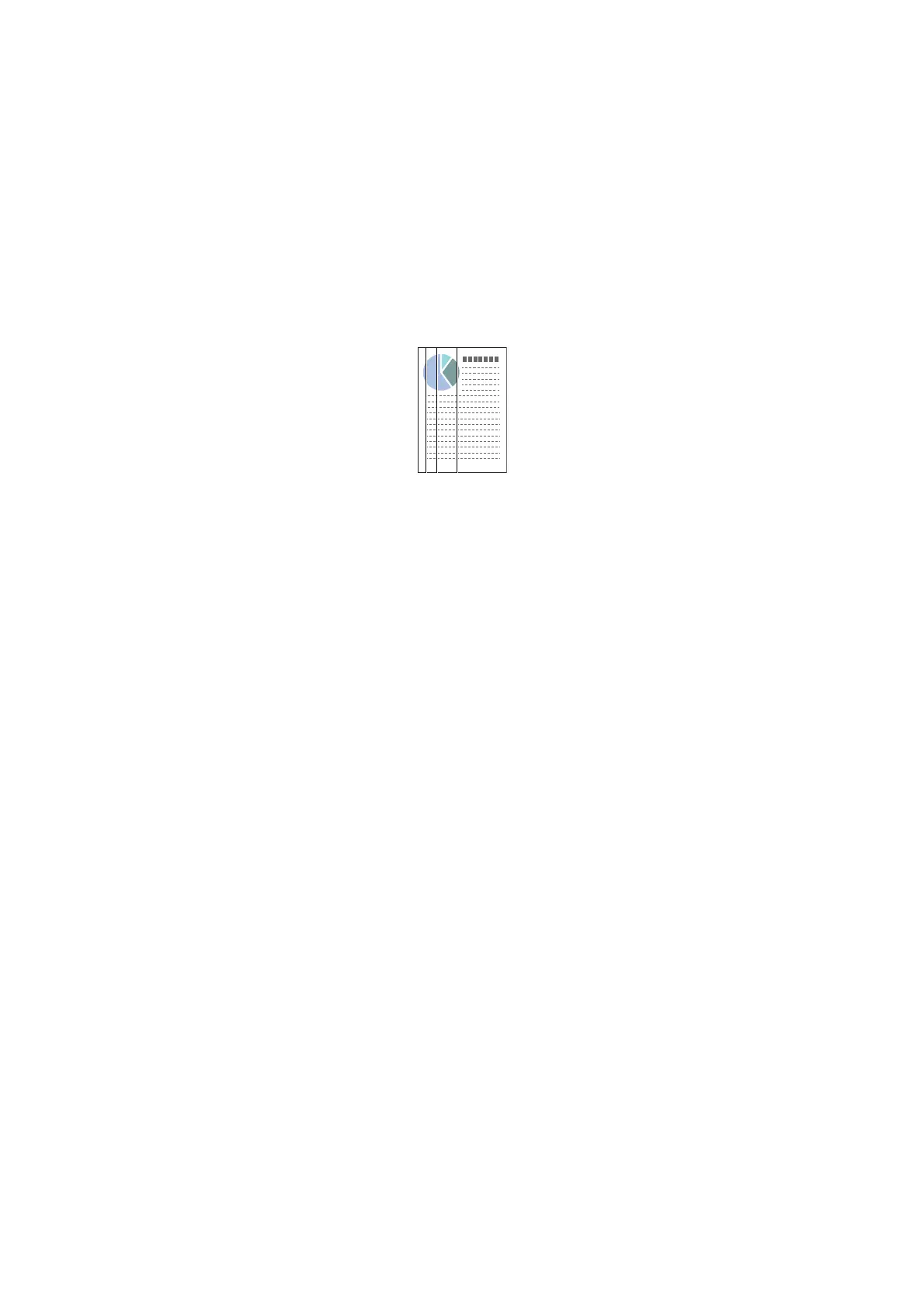
Straight Lines Appear when Scanning from ADF
oClean the ADF.
Straight lines may appear in the image when trash or dirt gets into the ADF.
Make sure you clean the clear parts of the document mat.
o Remove any trash or dirt that adheres to the original.
Related Information
& “Cleaning the ADF” on page 63
The Image Quality is Rough
o If the resolution is low, try increasing the resolution and then scanning.
o In Epson Scan 2, adjust the image using items on the Advanced Settings tab, and then scan.
Related Information
& “Setting a Resolution at Suits the Scanning Purpose” on page 32
& “Image Adjustment Features” on page 39
Oset Appears in the Background of Images
Images on the back of the original may appear in the scanned image.
o In Epson Scan 2, select the Advanced Settings tab, and then adjust the Brightness.
is feature may not be available depending on the settings on the Main Settings tab > Image Type or other
settings on the Advanced Settings tab.
o In Epson Scan 2, select the Advanced Settings tab, and then Image Option > Text Enhancement.
o When scanning from the scanner glass, place black paper or a desk pad over the original.
User's Guide
Solving Problems
75



 To Next Page