3.
Click
.
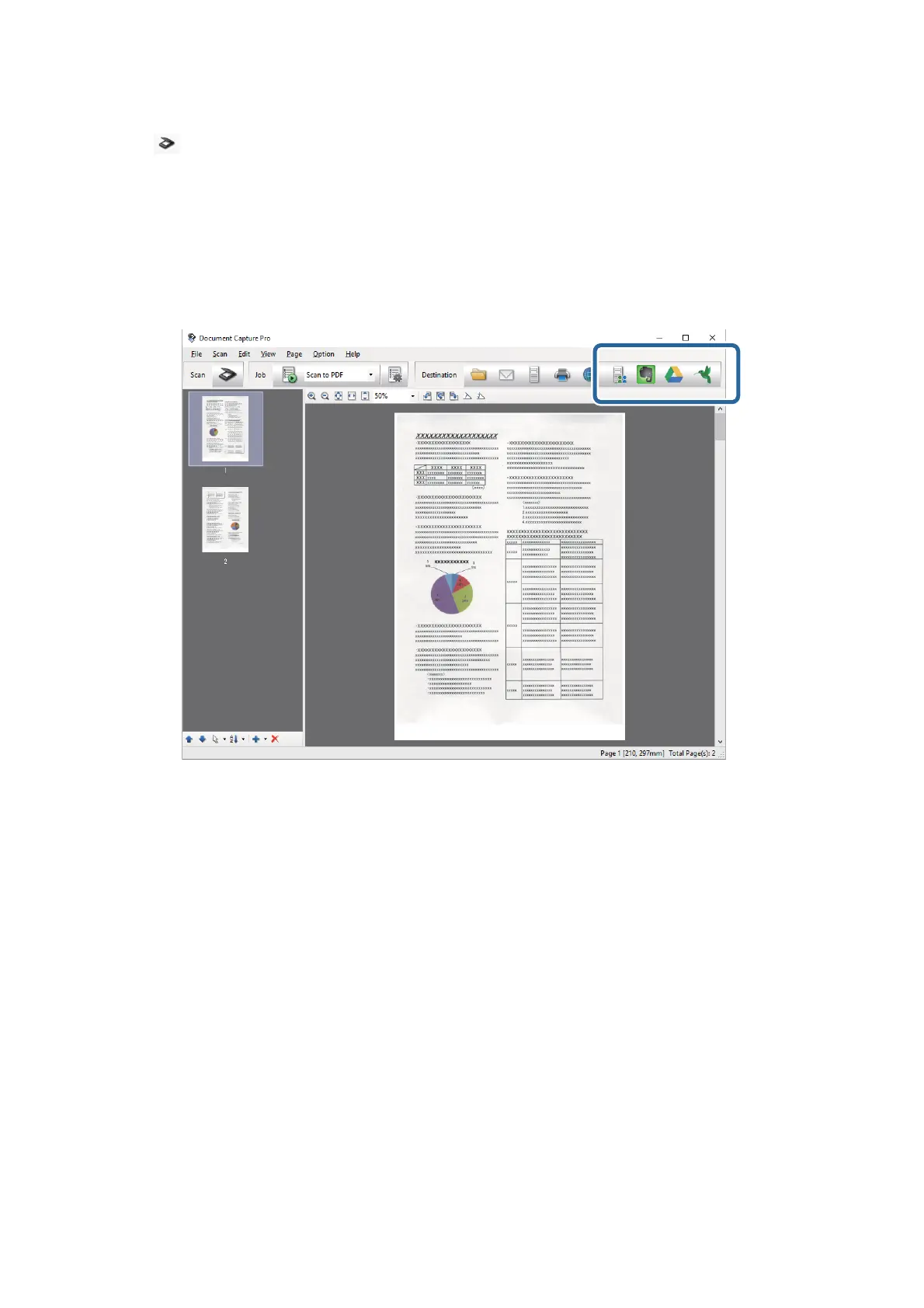
e Scan window is displayed.
4. Make the scanning settings, and then click Scan.
5. Check the scanned images, and edit them if necessary.
6. When you have nished checking the image, click the destination icon.
e Transfer Settings window is displayed.
7. Make settings for each item, and then click Send.
e
scanned Image is sent to the selected cloud service.
Related Information
& “Scanning Using Document Capture Pro (Windows)” on page 32
& “Scanning Using Document Capture (Mac OS X)” on page 36
& “Placing Originals into the ADF” on page 22
& “Placing Originals on the Scanner Glass” on page 25
Uploading to an FTP Server
You can upload scanned images to an FTP server using Document Capture Pro (Windows) or Document Capture
(Mac OS X).
1. Place the original.
User's Guide
Advanced Scanning
50



 To Next Page