3.
Click
.
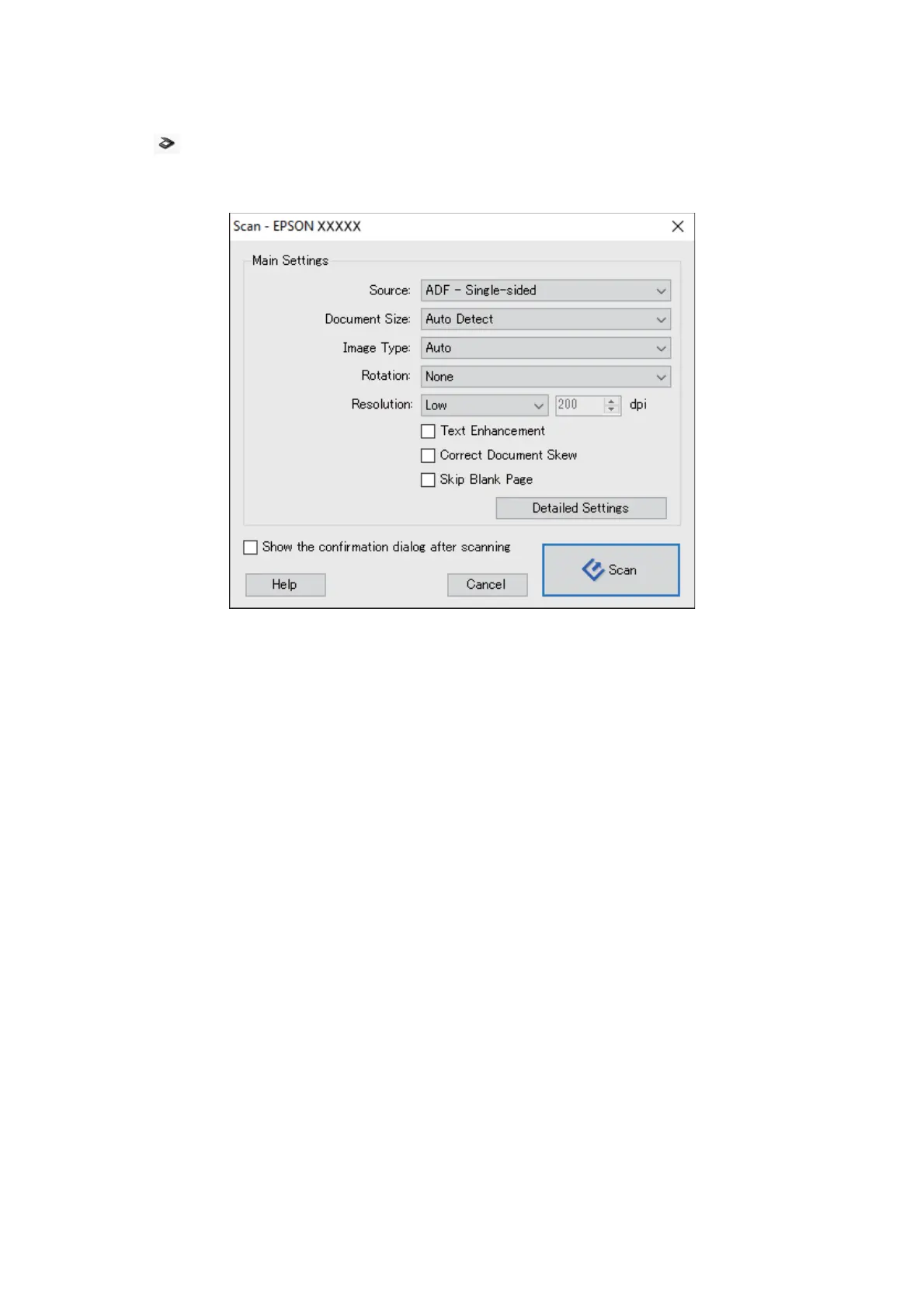
e Scan window is displayed.
4. Make the following settings.
o Source: Select the source where the original is placed.
o Document Size: Select the size of the original you placed.
o Image Type: Select the color you want to use to save the scanned image.
o Rotation: Select the rotation angle depending on the original you want to scan.
o Resolution: Select the resolution.
Note:
You can also adjust the image using following items.
o Text Enhancement: Select to make blurred letters in the original clear and sharp.
o Correct Document Skew: Select to correct the slant of the original.
o Skip Blank Page: Select to skip blank pages if there are any in the originals.
o Detailed Settings button: Select to use Epson Scan 2 features to adjust scanned images.
5.
Click Scan.
e scanned document is displayed in Document Capture Pro.
6.
Check the scanned images, and edit them if necessary.
User's Guide
Basic Scanning
34



 To Next Page