3.
Click
.
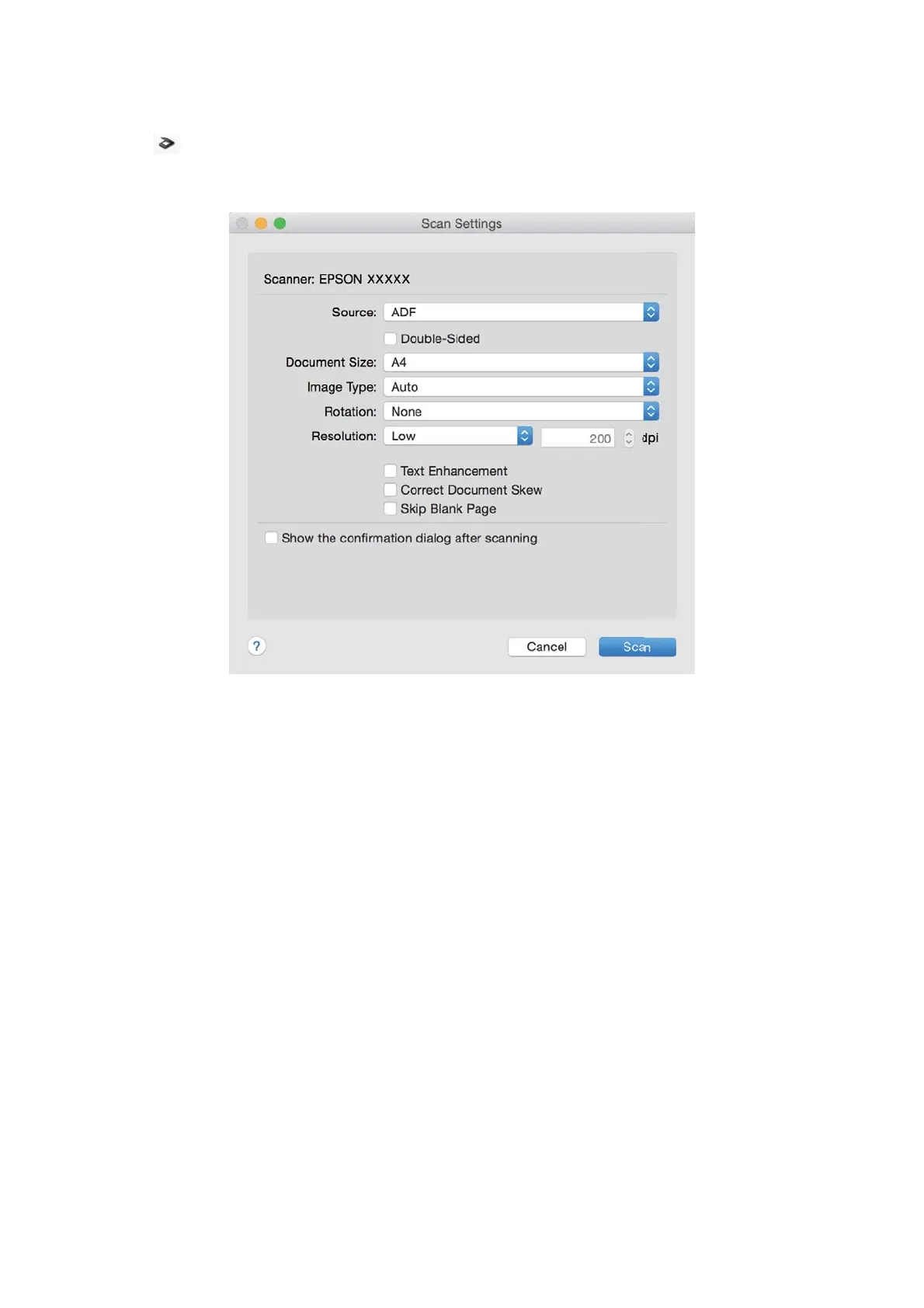
e Scan Settings window is displayed.
4. Make the following settings.
o Source: Select the source where the original is placed.
o Document Size: Select the size of the original you placed.
o Image Type: Select the color you want to use to save the scanned image.
o Rotation: Select the rotation angle depending on the original you want to scan.
o Resolution: Select the resolution.
Note:
You can also adjust the image using following items.
o Text Enhancement: Select to make blurred letters in the original clear and sharp.
o Correct Document Skew: Select to correct the slant of the original.
o Skip Blank Page: Select to skip blank pages if there are any in the originals.
5. Click Scan.
e scanned document is displayed in Document Capture.
6.
Check the scanned images, and edit them if necessary.
7. When you have nished checking the image, click one of the destination icons.
One of the transfer settings windows is displayed depending on the icon you selected.
User's Guide
Basic Scanning
37



 To Next Page