SC-F9200 Series Revision C
ADJUSTMENT Head Related Checks and Adjustments 319
SE Group Confidential (Related Staff Only)
4.11.6 Head Slant Auto Adjustment (PF direction)
PAPER USED
Size: 24 inch length or longer
Type: Premium Glossy Photo Paper (250)
EXECUTION MODE
Normal Mode
1. Load the paper into the printer.
2. Turn the printer ON.
3. From the panel menu, select the Media Setup menu, and change the Select Media
to RIP Setting “0”.
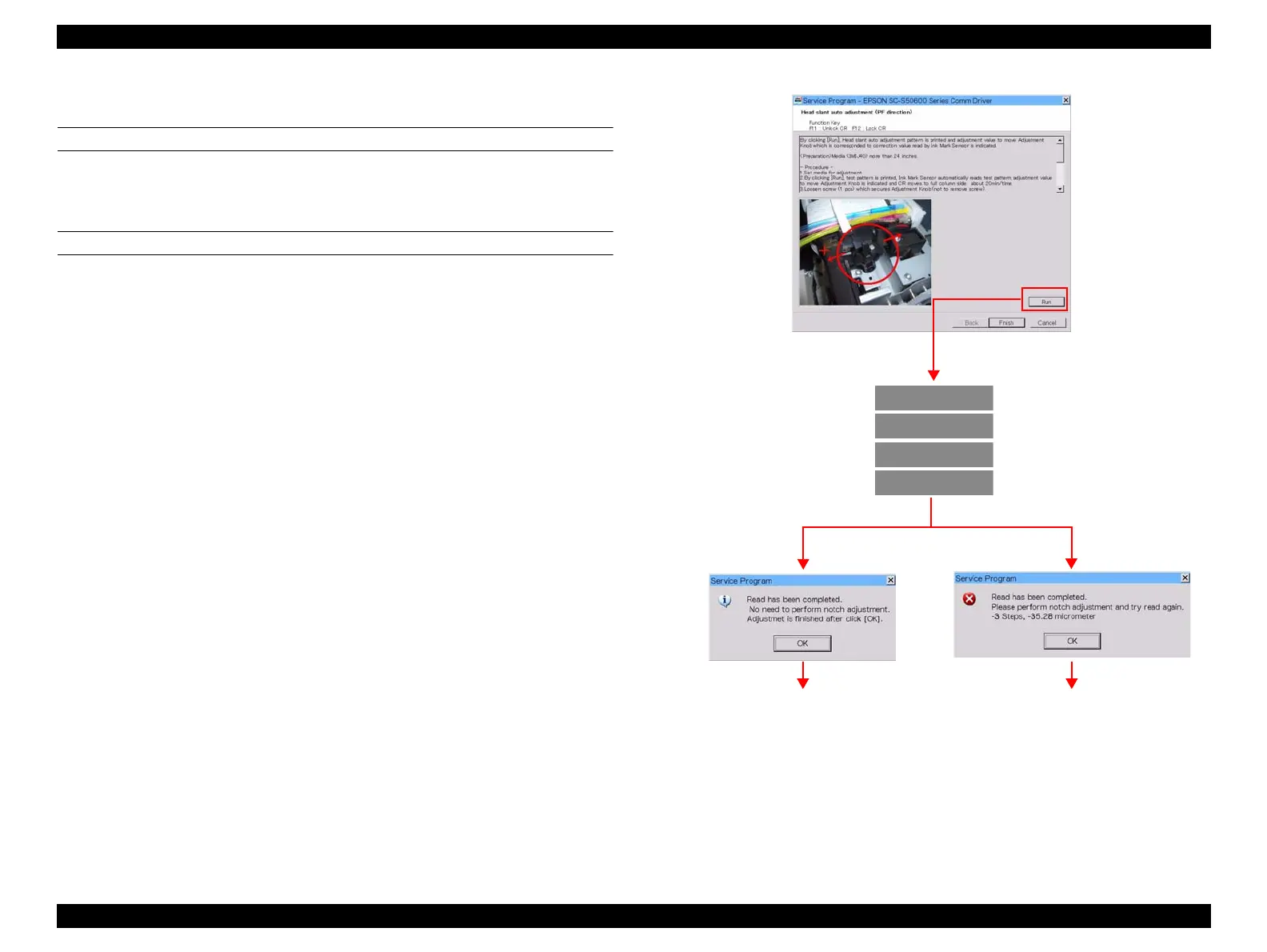
4. Start the Service Program and select Head slant auto adjustment (PF direction).
5. Click [Run]. The adjustment pattern is printed.
6. The printed pattern is scanned by the Ink Mark Sensor and the required adjustment
level (how much the Adjustment Knob should be moved) is displayed.
7. When the adjustment is necessary, click [OK]. The CR Unit moves to the
adjustment position.
Figure 4-40. [Head slant auto adjustment (PF direction)] Screen
Prints the pattern
Reading and judging
Adjustment is not necessary Adjustment is necessary


 To Next Page
 Loading...