− 33 −
bi24d1ea
8.1.1 Lock code status
In lock code status, you can activate/deactivate the lock function without deleting the
existing lock code in the event you deactivate the function. If no lock code is stored
and you try to activate the code lock, the keyboard is displayed for entering a new
lock code.
To exit lock status.
When you are in the measure screen or the fast mode menu and the code lock is
deactivated, you can exit these menus without restrictions by press QUIT or MENU
in order to go to the main menu.
If it is activated and you try to exit, the following screen appears in order to warn the
user about the lock protection.
PRESS ENTER FOR LOCK CODE...
PRESS ENTER FOR
LOCK CODE...
Here you can select QUIT to undo and return to the previous menu, or proceed by
pressing ENTER to enter the lock code.
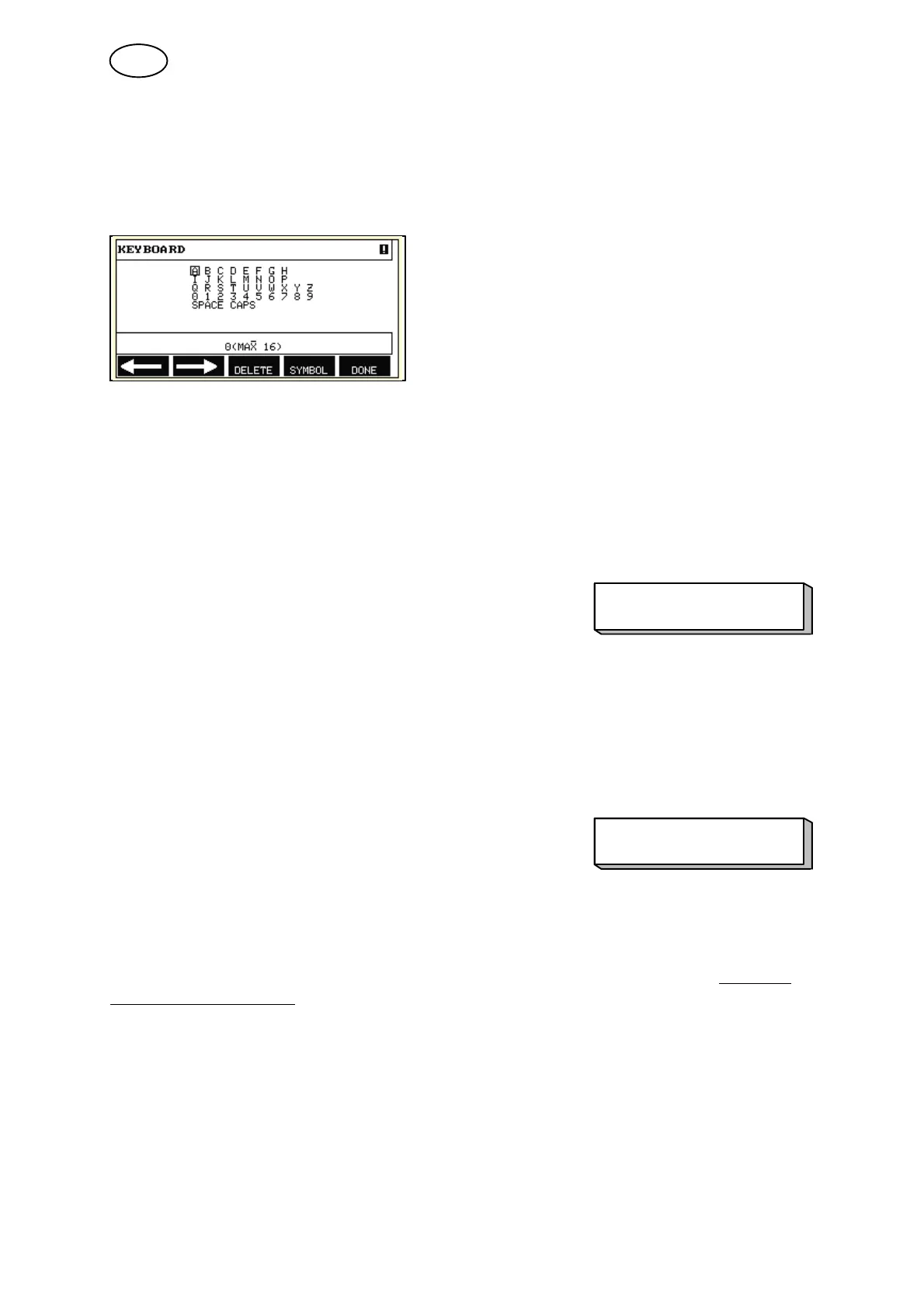
You will then move to the menu with the keyboard, where you can enter the code.
Press ENTER after each character, and confirm the code by pressing ENTER again.
The following text box appears:
UNIT UNLOCKED!
UNIT UNLOCKED!
If the code is not correct, an error message is displayed that offers the option of
trying again or returning to the original menu, i.e. the measure screen or the fast
mode menu.
If the code is correct, all blocks to other menus will be removed, although the code
lock remains activated. This means that you can leave the measure screen and the
fast mode menu temporarily, yet still retain the lock status when you return to these
menus.
8.1.2 Specify/edit lock code
In specify/edit lock code, you can edit an existing lock code or enter a new one. A
lock code can comprise a maximum of 16 optional letters or figures.
GB


 To Next Page