Working with Your Unit
114 FTB-500
Taking Screen Captures
To take a screen capture:
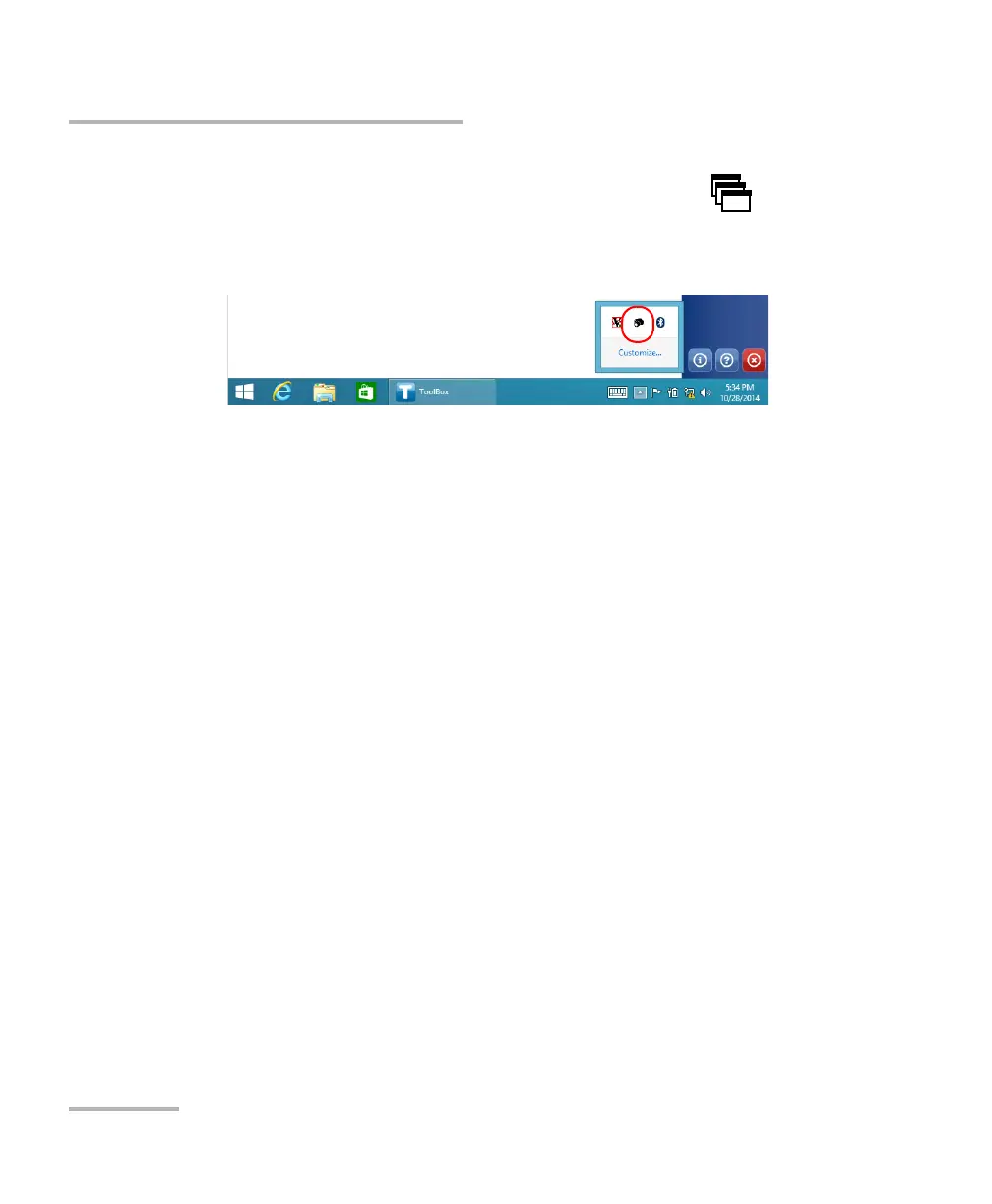
1. If necessary, from the front panel of the unit, press the button to
show the taskbar.
2. From the notification area, tap the camera icon.
3. From the shortcut menu, tap Take a screenshot.
The screen capture is automatically taken (a visual effect typical of a
camera taking a picture indicates that the capture is complete).
Note: If a keyboard is connected to your unit, you can also press the Windows
logo key + PRINT SCREEN.
Note: If you tap Exit from the shortcut menu, you will need to log off, and then log
on to be able to take screen captures again.


 To Next Page