MLC 62 Series • Hardware Setup
2-5
b
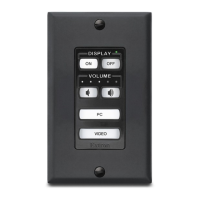
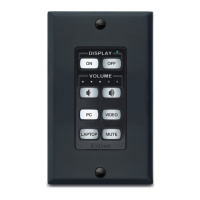
Volume buttons and LEDs — Use these buttons to adjust the
audio volume. The five LEDs above the
buttons provide a visual indication of the
current volume level. Each Volume button
flashes when pressed, and continues to flash
while being held down.
c
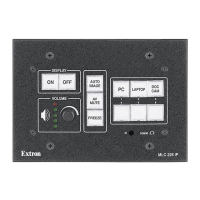
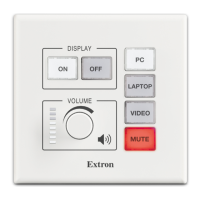
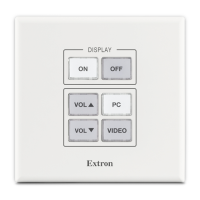
Input selection buttons — Use these buttons to select the
desired audio and video input to the display device. The
selected button lights brightly and remains lit when selected.
d
Reset LED — Blinks to indicate which reset mode is being
entered. It also blinks four times to indicate a successful reset.
(This LED is located on the rear panel of the MLC 62 EU models.
See "Rear Panel" on the next page for the location.)
e
Reset button — Press this reset button to initiate factory or
configuration resets. (See "Resetting the MLC" in chapter 3,
"Software Setup".) The reset button is on the rear panel of the
MLC 62 EU. See "Rear Panel" on the next page for the location.
f
USB configuration port — Connect a USB cable (Type A to mini
Type B) between your computer and this port to configure the
MLC via the configuration software and to update the firmware.
This port also provides power to the MLC for configuration.
N
Do not use this port as the permanent power source for the
MLC. It should be used for power only during button and
port configuration.
• On the MLC 62 D, this port is located on the front
panel (behind the wallplate). (To access this port after
installation, you must remove the wallplate from the unit.)
• On the MLC 62 EU, the USB configuration port is
located on the right side panel. (To access this port after
installation, you must detach the MLC from the wallplate
and remove the unit from the wall.)
g
DIP switches — Reserved for future use.
h
IR Learning sensor — This sensor enables the MLC to learn IR
commands from a display device's hand-held remote control.
The IR-learned commands can be assigned or configured to be
played back with any button press.
N
Before performing IR learning, check to see if an Extron
driver exists for your display device.
N
The IR Learning feature will be supported in future
releases.
Up
Down


 To Next Page