MLC 62 Series • Software Setup
3-3
Creating a New MLC 62 Configuration
Follow these steps to configure your MLC 62.
Before you begin
Connect the provided USB cable from your computer to the
Type mini B USB connector on the front panel (D models) or on
the left side panel (EU models), or connect an RS-232 cable from
your computer to the MLC's 3-pole Host/Config port.
Step one: download device drivers
Serial and IR drivers for your display devices are available free
from the Extron web site at www.extron.com.
To download device drivers:
1. Click Start > Programs > Extron Electronics > MLC 62 or
double-click the MLC 62 software icon on your desktop
to launch the MLC 62 software application. The MLC62
Configuration Program window opens, with the Start
Options window displayed in front of it.
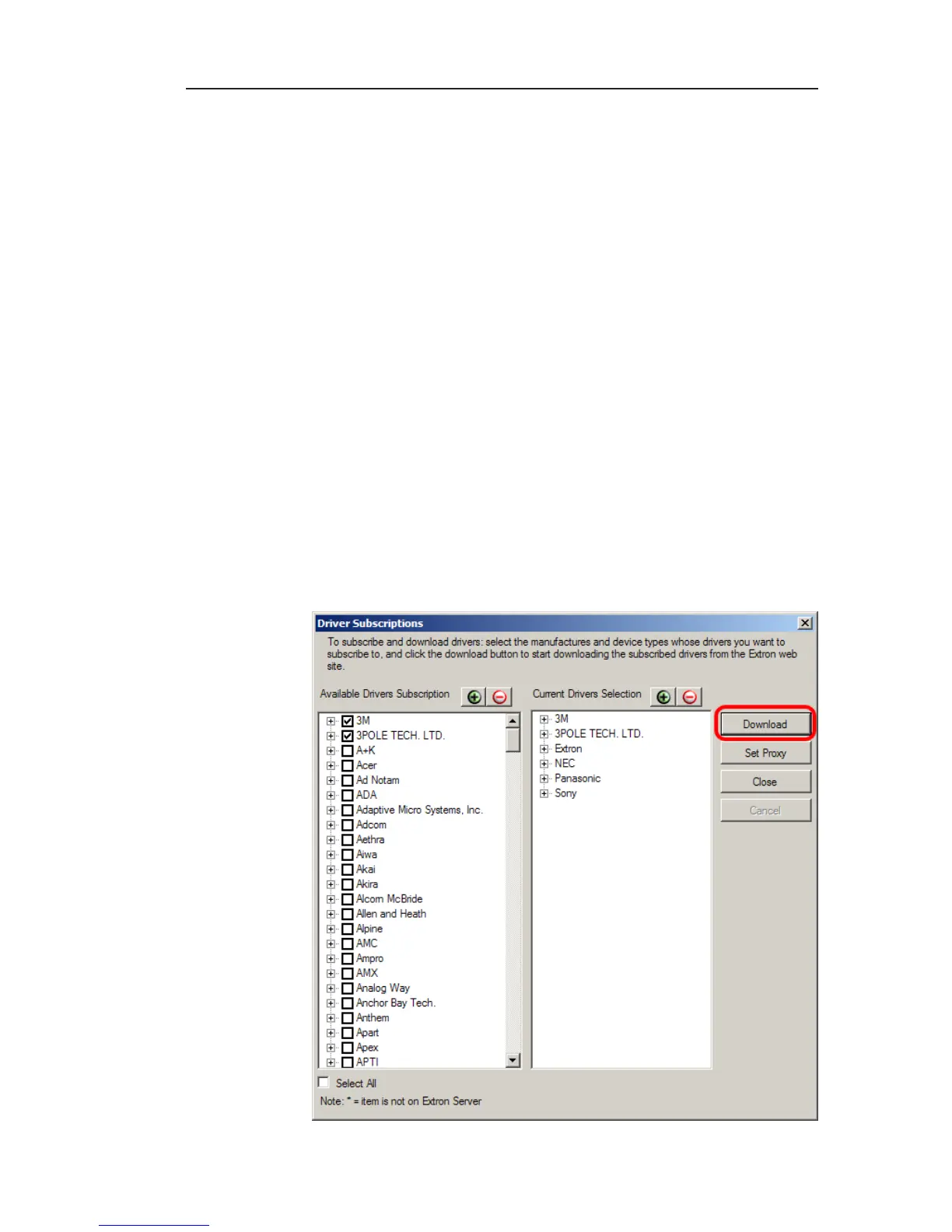
2. On the Start Options screen, click the Add Driver
Subscriptions button. The following window opens.
Driver Subscriptions window


 To Next Page