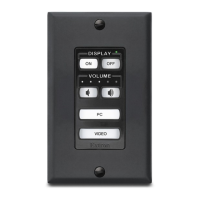
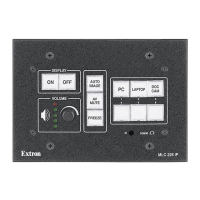
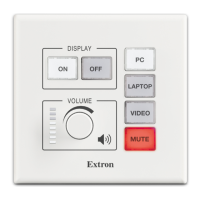
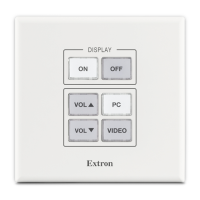
MLC 62 Series • Hardware Setup
Hardware Setup, cont’d
2-8
Installation
The MLC 62 D model can be installed in a standard one-gang
electrical wall box or a one-gang Decora mounting bracket
("mud ring"). The MLC 62 EU model can be installed in a one-
gang EU junction box.
C
Installation and service must be performed by
authorized personnel only. UL listed electrical boxes
are recommended.
Installation overview
1
Prepare the installation site as follows:
a. Measure and cut the hole in the mounting surface.
b. Prepare and pull the cables through the electrical
junction box.
c. Install the electrical box or mounting bracket.
(Installation instructions for the electrical box are
provided with it.)
2
(Optional) Make any desired changes to the buttons
installed in the faceplate, substituting any of the provided
additional buttons. (See Replacing buttons, later in this
chapter.)
3
Attach the cables to the rear of the MLC and to the display
device or switcher. Attach optional IR Emitter(s) if used.
See "Rear panels", "Wiring the Relays port", "Wiring the
IR/S port", and "Wiring the RS-232 port" as needed for
cabling information.
4
Wire and connect the MLC's power supply. (See
"Connecting power to the MLC 62".) Connect all other
power cords and turn on all the devices, including the
MLC.
5
Connect a USB Type A to Type mini B cable to the MLC's
USB configuration port and to your PC's USB port.
6
Configure the MLC's buttons and ports using the MLC 62
Windows-based Configuration Program. (See "Step 4:
configure the front panel buttons" in chapter 3, "Software
Setup." For detailed configuration procedures, refer to the
software's help file.)
When finished configuring, detach the USB cable.


 To Next Page