MLC 62 Series • Software Setup
3-9
5. Click the green right arrow between the two Button
Operations fields. The selected command is displayed in
the field to the right.
When a command is added to a button, a red triangle
covers the upper-left corner of the button on the screen.
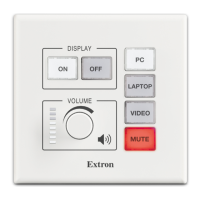
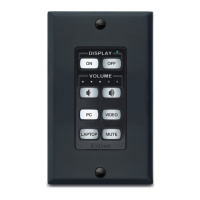
The Mute button is set up as a toggle (indicated by its
division into two different colored sections). When you
click on it, two fields, labeled Toggle On and Toggle Off,
appear in the current commands field.
To add commands to the toggle button, follow steps 3 and
4 to add a different command to each of these two fields.
6. If desired, repeat steps 3 through 5 to assign additional
commands to the button. You can add multiple commands
to any button. After the configuration has been uploaded
to the MLC, when you press the button the commands
are performed in the order they are listed in the Button
Operations field.
Step five: set up relays (optional)
Add any desired relay commands to the buttons to control
device(s) connected to one or both of the MLC's relay ports (for
example, turning room lights on and off, lowering and raising a
motorized screen, and so forth). To access the relay commands,
click the Relay sub-tab on the Front Panel tab.
For convenience, the default button configuration includes relay
commands added to the display power On and Off buttons (a
common relay setup). These relays can be used to lower or raise
a motorized screen whenever the display power is turned on or
off.
The procedure for assigning relay commands to buttons is
similar to the process used to add the driver commands. Refer
to the MLC 62 configuration software's help file for details.
Step six: configure the Digital Input port
(optional)
If desired, you can connect a switch to the Digital Input port,
to provide another means of issuing commands to devices
connected to the Display, IR/S, and/or Relay ports. The Digital
Input port is configured via the Digital Input tab (shown on the
next page).
The procedure for assigning commands to the Digital Input
port is similar to the process used to add commands to the front
panel buttons. Refer to the MLC 62 configuration software's
help file to configure this port.


 To Next Page