MLC 62 Series • Software Setup
Software Setup, cont’d
3-4
3. In the Manufacturer field on the Driver Subscriptions
window, select one or more manufacturers and device
types for your project.
• To select all device types available from a manufacturer,
select the check box in front of the manufacturer's
name.
• To select individual device types from a manufacturer,
click the + sign in front of the manufacturer's name to
expand it, then select the desired device check box(es).
Your manufacturer and device type selections are
displayed in the Current Drivers Selection field.
N
When you select a device, both the IR and serial drivers for
it are downloaded.
4. Click Download. The Driver Subscriptions Download
window opens.
5. On the Driver Subscription Download window, click Begin
to download the drivers listed in the Driver File section.
6. When the progress bar and the Status column indicate that
the download is completed, click Close to close the Driver
Subscription Download window.
7. Click Close on the Driver Subscriptions window.
Step two: create a new project
To create a new MLC 62 project file:
1. On the Start Options window, select Create a New Project.
2. Click OK. The Add Device dialog box opens.
3. On the Add Device window, enter a name for your MLC
in the Device Name field and select the MLC 62 model
(MLC 62 RS D or MLC 62 RS EU) from the Select Model
drop-down list.
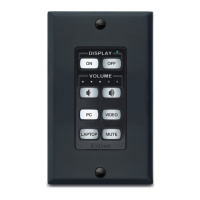
4. Click OK. The MLC 62 main window (shown on the
next page) opens, displaying a graphic representation of
your MLC's front panel buttons. In the left pane device
configuration tree, the name of your MLC configuration
is displayed, along with the two ports to which a display
device can be connected and controlled via IR or RS-232.
a. The device configuration tree enables you to
conveniently store multiple device configurations,
organize them as desired, and save them all as a single
project file.
b. The Front Panel tab enables you to configure the
buttons and assign all commands to them.


 To Next Page