MLC 62 Series • Software Setup
3-7
5. (Serial drivers only) From the Serial Port menus (Baud
Rate, Data Bits, and Parity) select the port parameters
required by the device driver.
To obtain this information, if needed, click the View Comm
Sheet button. A PDF document opens, giving information
about the selected device driver. (The port configuration
information is on the last page of the Comm Sheet under
"Serial Communication".)
N
These settings may be set automatically when the driver is
added if they are available (Display port only).
6. Click Add Driver. The driver information is displayed in
the Added Drivers field.
To delete a driver from the Added Drivers field, select it in
the field, then click the Remove Driver button.
7. If desired, follow steps 1 through 6 to configure the other
port for another device.
Step four: configure the front panel buttons
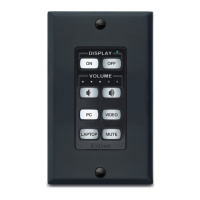
The software provides a default button configuration, which is
displayed in the diagram on the Front Panel tab when you first
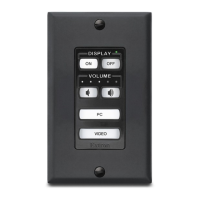
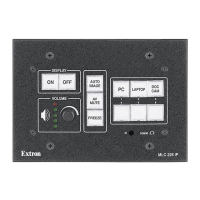
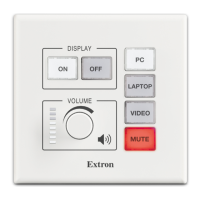
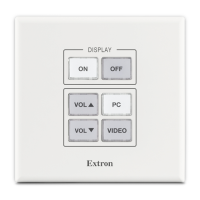
open the software. In this basic configuration, the buttons in the
diagram are labeled to match the physical buttons installed in
the MLC at the factory.
Auto filling button commands (Display port only)
If you configured the Display port in step three, the software
automatically adds the following commands (if available with
the selected driver) to the power On, power Off, and Volume
buttons.
If desired, these commands can be removed and replaced with
others, as described in the next section.
Adding commands to buttons
If you choose to keep the auto filled commands, you need to add
commands only to the last four buttons (PC, Video, Laptop, and
Mute). If you have configured the IR/Serial port or if no power
or volume commands are available with your driver, you need
to configure all of the buttons.
N
Relay 1 Pulse (1 second) and Relay 2 Pulse (1 second)
commands are automatically added to the power On and
Off buttons, respectively. This is a common configuration
that can be used to raise and lower a motorized screen that
is connected to the Relay port.


 To Next Page