MLC 62 Series • Software Setup
3-11
Resetting the MLC
If the configuration you have uploaded is not satisfactory, you
can reset the MLC to the default configuration by one of the
following procedures:
Resetting using the MLC 62 configuration software
1. Open the configuration software.
2. From the Device menu on the MLC 62 main window, select
Reset Device... .
2. Click Yes on the override warning prompt.
3. On the Device Connection window that opens, select either
USB port or Serial port, depending on which MLC port is
connected to your computer, and click OK.
4. When the reset is complete, a small window opens,
displaying "Reset Device Success". Click OK to close it.
Alternatively, you can reset the MLC by editing the
configuration and uploading it again, or by creating and
uploading another configuration.
Resetting using the Reset button
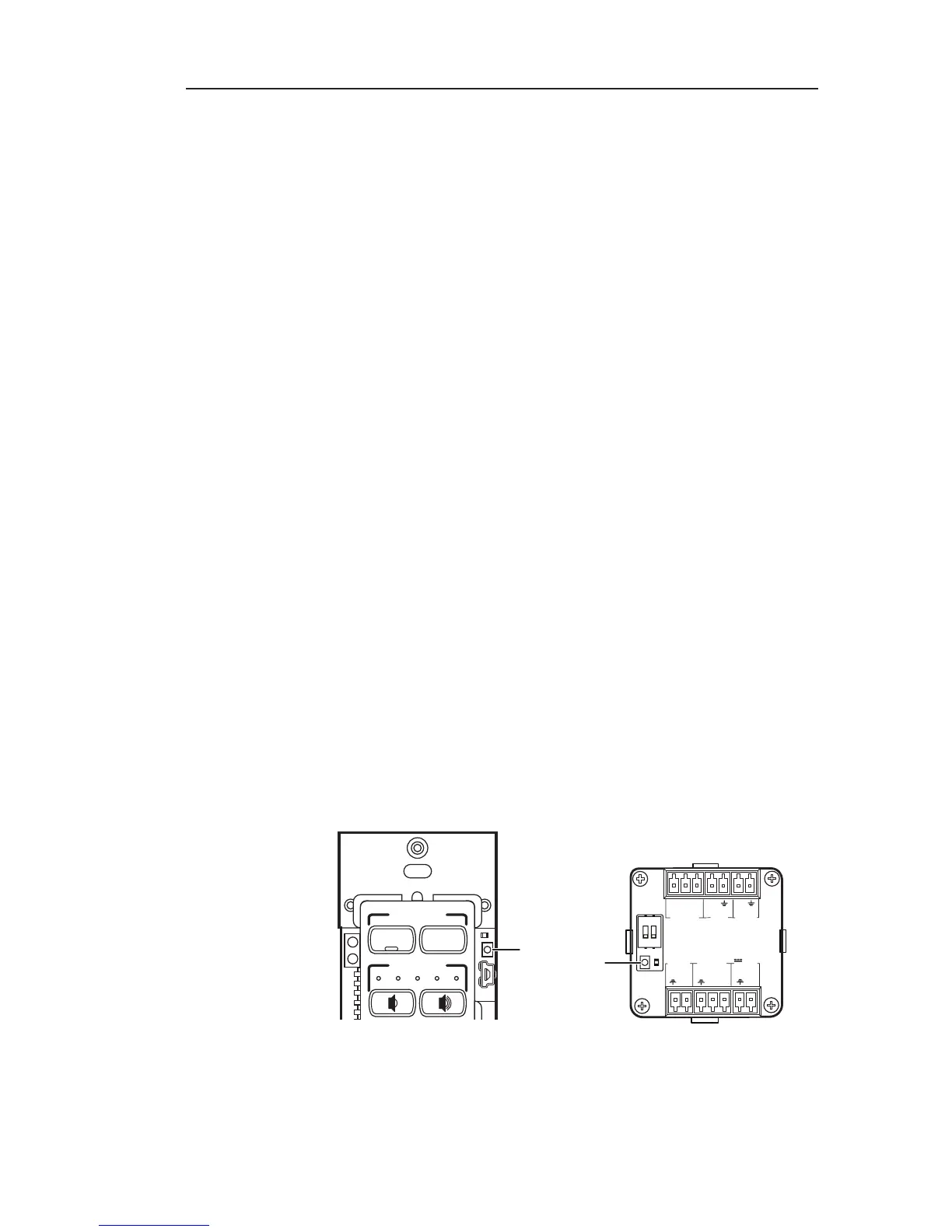
1. To access the Reset button, do one of the following:
• Remove the wallplate from the MLC 62 D (see
"Accessing covered MLC 62 D front panel features" in
chapter 2, "Hardware Setup") or
• Remove the MLC 62 EU from the wall (see "Accessing
MLC 62 EU side panel features", also in chapter 2.).
2. While the MLC is powered on, use an Extron Tweeker or
other small screwdriver to press and hold the Reset button.
The Reset button remains lit while it is being held.
VOLUME
DISPLAY


 To Next Page