MLC 62 Series • Software Setup
Software Setup, cont’d
3-10
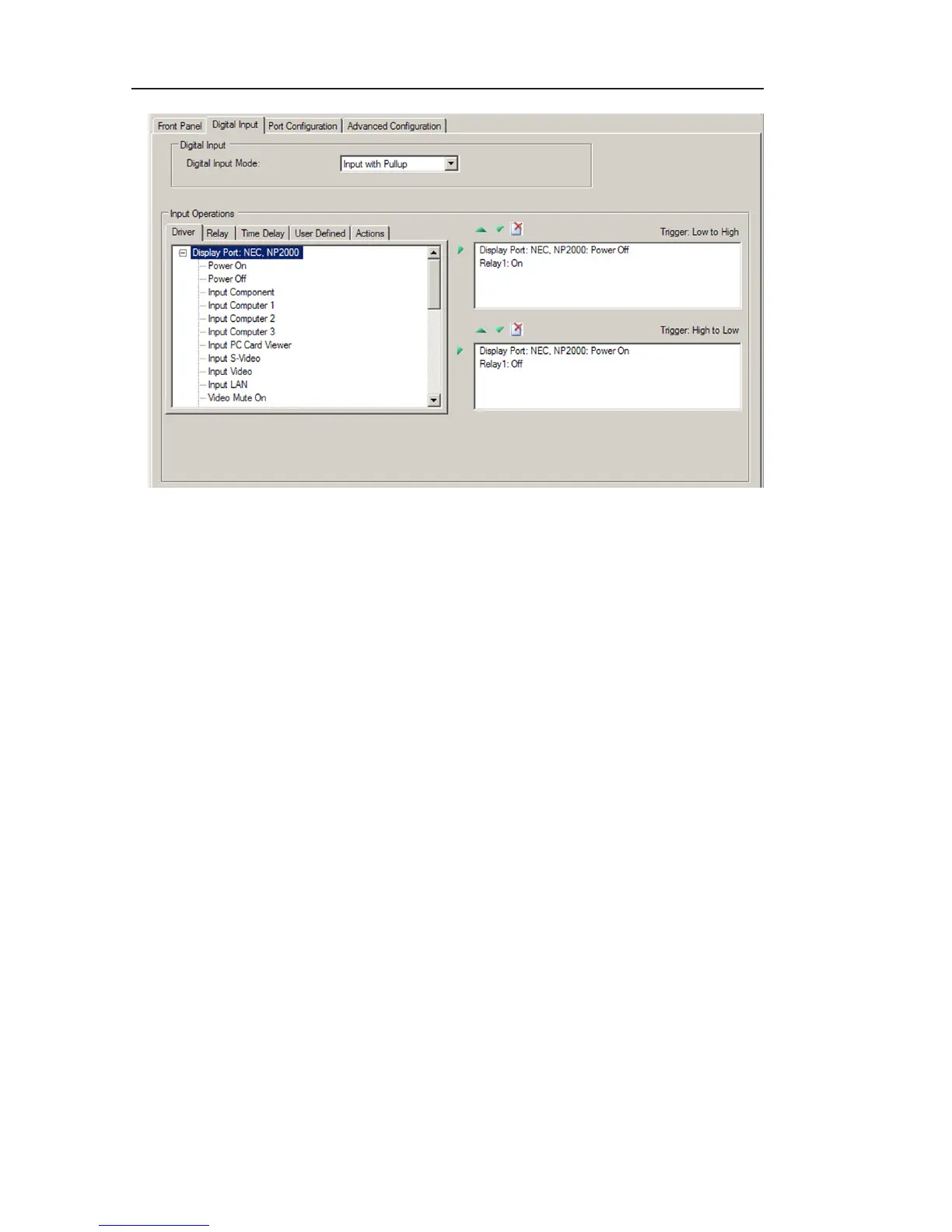
Digital Input tab
Step seven: upload the configuration to the MLC
Your final step is to upload the completed configuration to the
MLC.
1. From the File menu, select Save to save the configuration
settings. If you want to change the name or location of
your configuration, select Save As... and specify the new
name and location on the Save As window that opens.
2. Make sure that the new configuration is selected and
highlighted in the device configuration tree, then select
Upload Configuration... from the Device menu.
3. Click OK on the override warning prompt.
4. On the Device Connection window, select either USB port
or Serial port, depending on which MLC port is connected
to your computer.
5. Click OK. A window containing a progress bar opens,
showing the progress of the upload. While the upload
is in progress, the front panel buttons blink sequentially
in clockwise order. When the window closes, the
configuration has been uploaded to the connected device.
6. Test the system to ensure that the MLC 62 controls it
properly.


 To Next Page