28 | S 30.12CI H User Manual
4.7 Changing Audio Language
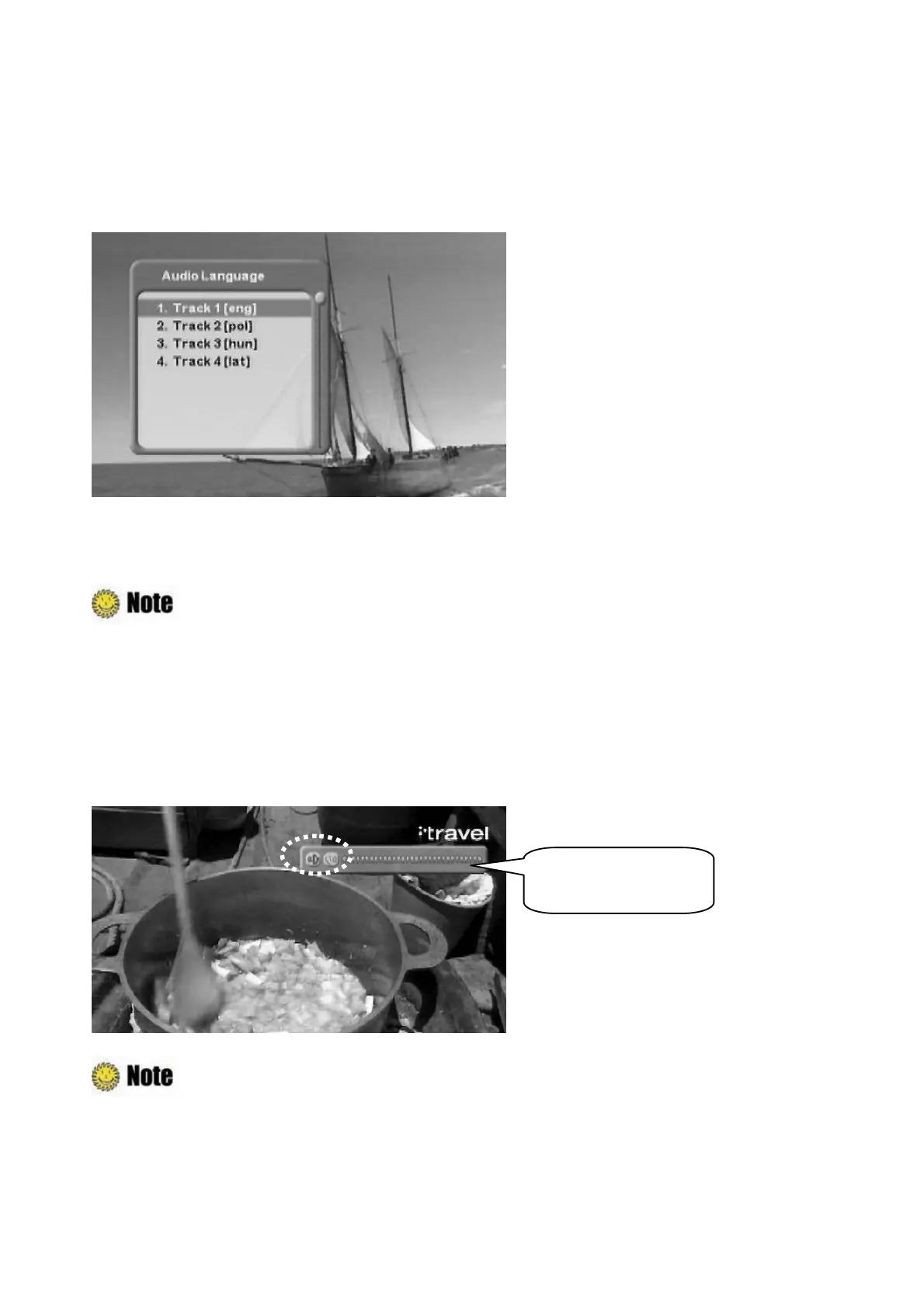
If the current program provides multiple audio languages, you can select the desired language.
1. Press the “Red” button to display the audio language list.
2. Select the desired audio language using the “
ˉG
button, and press the “OK” button. The
audio language will be changed immediately.
: You can select a default audio language by pressing the “MENU” button and
selecting the Setup–Language Setting– Audio menu in order. Refer to
Chapter
5.3.1 Language Settings
for more information.
4.8 Selecting Audio Output Direction
You can select the direction of audio output such as left, right, or stereo.
Press the “Green” button to toggle the direction of audio output among left, right, or stereo.
z
If the program supports Dolby AC-3 sound, you cannot select the direction of audio output.
z
You can select Dolby by pressing the “MENU” button and selecting the Setup–Output
Setting– S/PDIFOutput menu in order.
Audio Output Direction



 To Next Page