44 | S 30.12CI H User Manual
5.1.4 Advanced Search
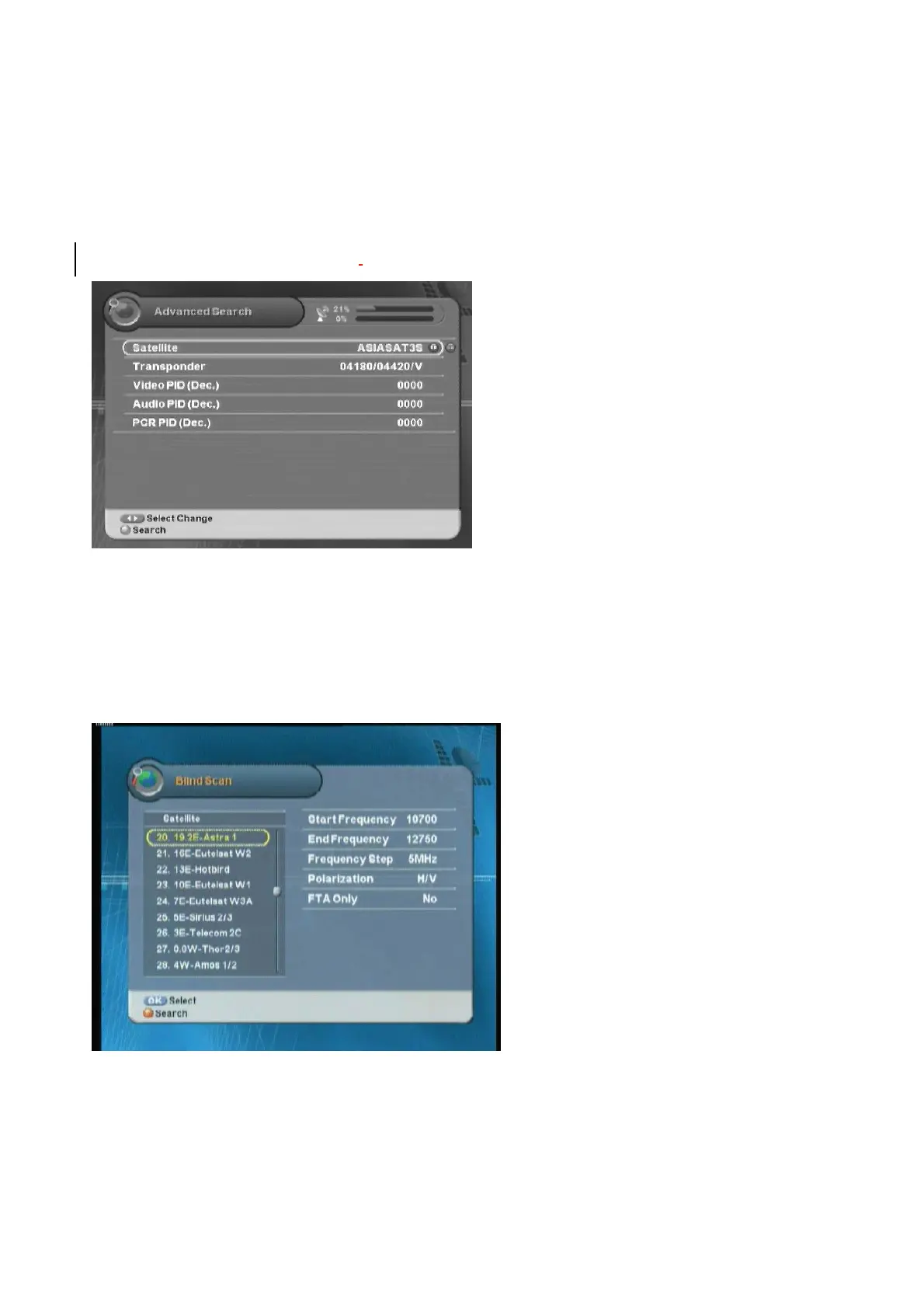
You can find the desired channel by entering Video, Audio and PCR PID directly.
ᐭ
!
Move to the Search Channel menu using the “
䯛䯝
” button, and press the “OK” button.
ᐮ
!
Move to the Advanced Search sub-menu using the “
䮨䮪
” button, and press the “OK” button.
!
ᐯࣜ
Enter your password using the
ˈ
0~9
ˉ
buttons.
G
The default password is 0000.
Video, Audio, PCR PID :
You can enter the
value using the “0~9” button. Refer to
chapter
4.3 Viewing Program Information
for getting
the values.
1. Select the desired satellite using the “
䯛䯝
” button.
2. Enter Video, Audio and PCR PID directly using the “0~9” button.
3. When you complete the entering PID values, press the “Red” button to search the channel.
5.1.5 Blind Scan
1. Blind Scan: in this search mode you can
search for cannels even if you don't know TP
information. You can search the whole
frequency rang or only a part of it.
2. Frequency Step: you can adjust the
searching frequency step.
3. Polarization: select horizontal or vertical.
4. FTA Only: select to search FTA channels only
or all.
1. When completing Channel Search, an message will appear. Move cursor to the “OK” button
and press the “OK” button to save the changes.



 To Next Page