MPC-6000 / MPC-7000 / RND-2 PROGRAMMING MANUAL
37
Printing the Primary/Backup Configuration (For Diagnostics Test Only)
The primary/backup configurations may be printed via the printer port on the panel.
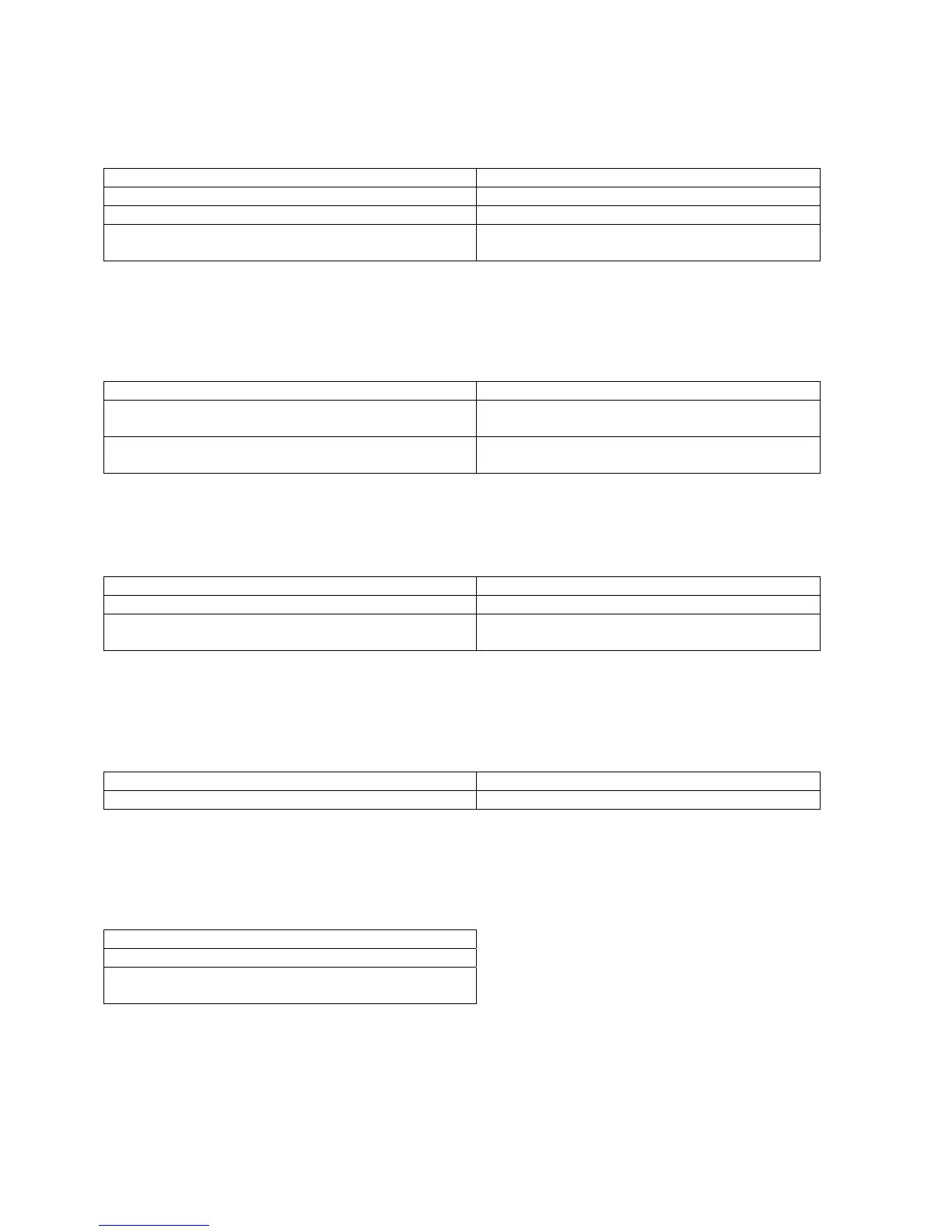
Action Result
1. Select “Print Configs”.
2. Select “Print”.
3. Select “Print Primary” or “Print Backup”. The configuration will be printed on the printer
connected to the panel printer port.
Validating the Backup Configuration
The validation process will check to see that the configuration in the backup memory is
correct.
Action Result
1. Use “Cmor” and select
“Validate”.
The display
will indicate
that the validity check is
running
Display will show invalid settings in the
configuration if found.
Activating the Backup*
When the configuration is correct it may be made the primary configuration as follows:
Action Result
1. Use “Cmor” and select
“Activate”.
2. Select “Cyes” to switch to the backup
configuration.
The display will show the swap in progress.
*Refer to Programming Concepts on page 9 for a description of Primary and Backup configurations.
Hard Reset
This function re-initializes the panel in the same way as power up:
Action Result
1. Use “Cmor” and select “Hard Reset”. The panel will re-initialize.
Changing Access Passwords
The passwords used to access the Maintenance and Technician Levels may be
changed as follows:
Action
1. Use “Cmor” and select ”Change PWs”.
2. Change the maintenance and technician
passwords as needed and press “Bsav”.


 To Next Page