MPC-6000 / MPC-7000 / RND-2 PROGRAMMING MANUAL
40
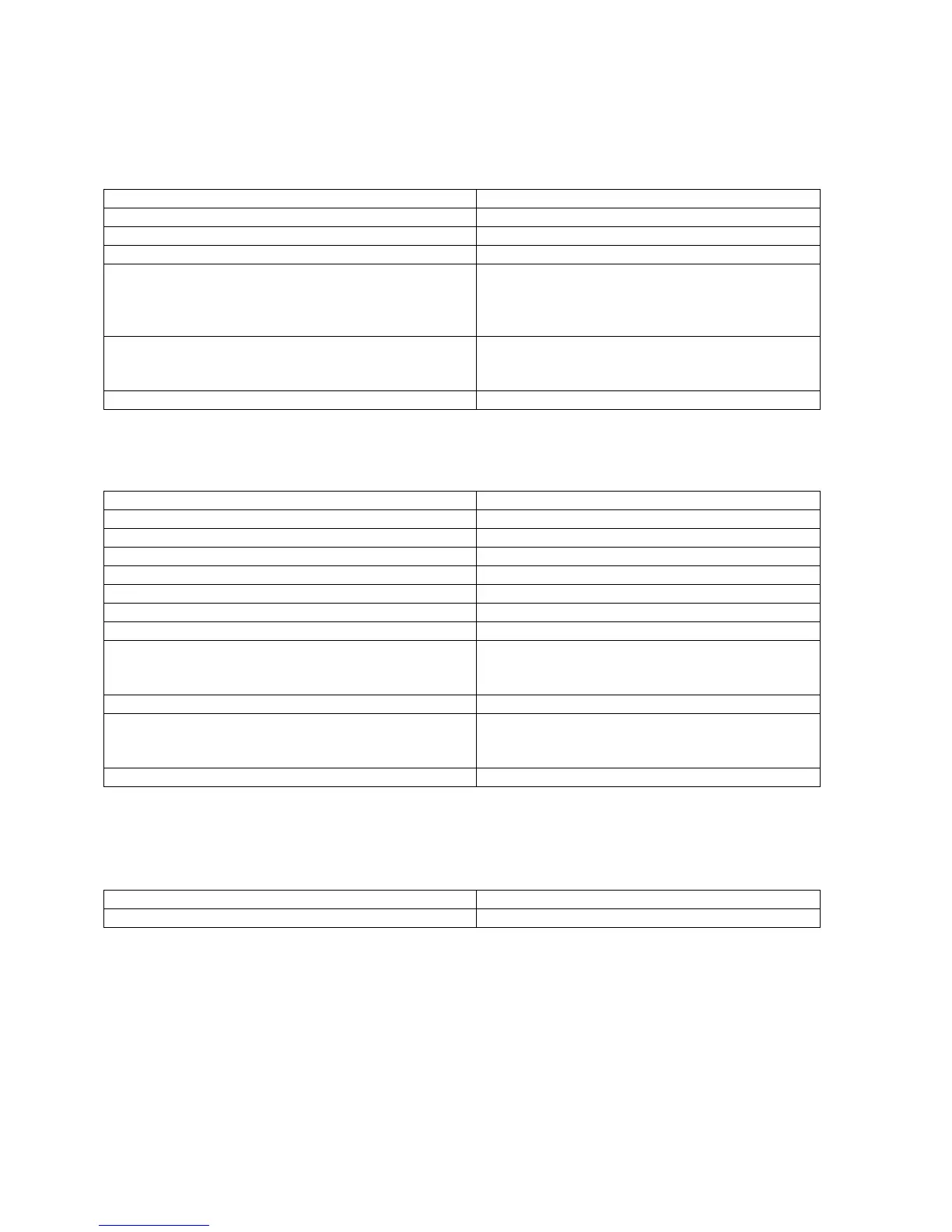
Assigning a Message to a Network Link
This setting only appears when a network connection has been enabled. The network
link in the panel can be assigned a text message as follows:
Action Result
1. Select “Edit”.
2. Select “Manual Pgm”.
3. Press “Cmor” twice to select “Network Link”.
4. Type in the number of the node to which this
panel will report.
The default setting is 01. The maximum setting
is 99. Assignments can be made in the Input
Group Configuration to have this link observe
or control activity.
5. A custom message can be assisgned to this link.
Follow the instructions on page 5 of this manual
for entering alphanumeric characters.
6. Press Bsav to save the settings.
Creating the Notify Link and the Observe Link
This setting is used to create the Notify link and Observe link.
Action Result
1. Select “Edit”.
2. Select “Manual Pgm”.
3. Selectr “Groups”.
4. Select “Input Groups”.
5. Select “Fire”, then Dnxt.
6. Select “Coding”, then Dnxt.
7. Select “Output Zones”, then Dxnt.
8. Type in the number of the link that you wish this
input group to notify.
Be certain to enter leading zeros if the total
number of nodes is from 1-9. The maximum
node number is 255; 0 = none.
9. Select Dxnt .
10. Type in the number of the link that you wish this
input group to observe.
Be certain to enter leading zeros if the total
number of nodes is from 1-9. The maximum
node number is 255; 0 = none.
11. Select Bsav to save the setting.
Exiting the Technician Level
Follow the steps below to exit the Technician Level and return to User Level:
Action Result
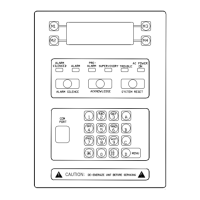
1. Use “Cmor” and select ”Exit Tech LvL”. The Display will return to the user level.


 To Next Page