GPSMAP
®
585 Plus
27
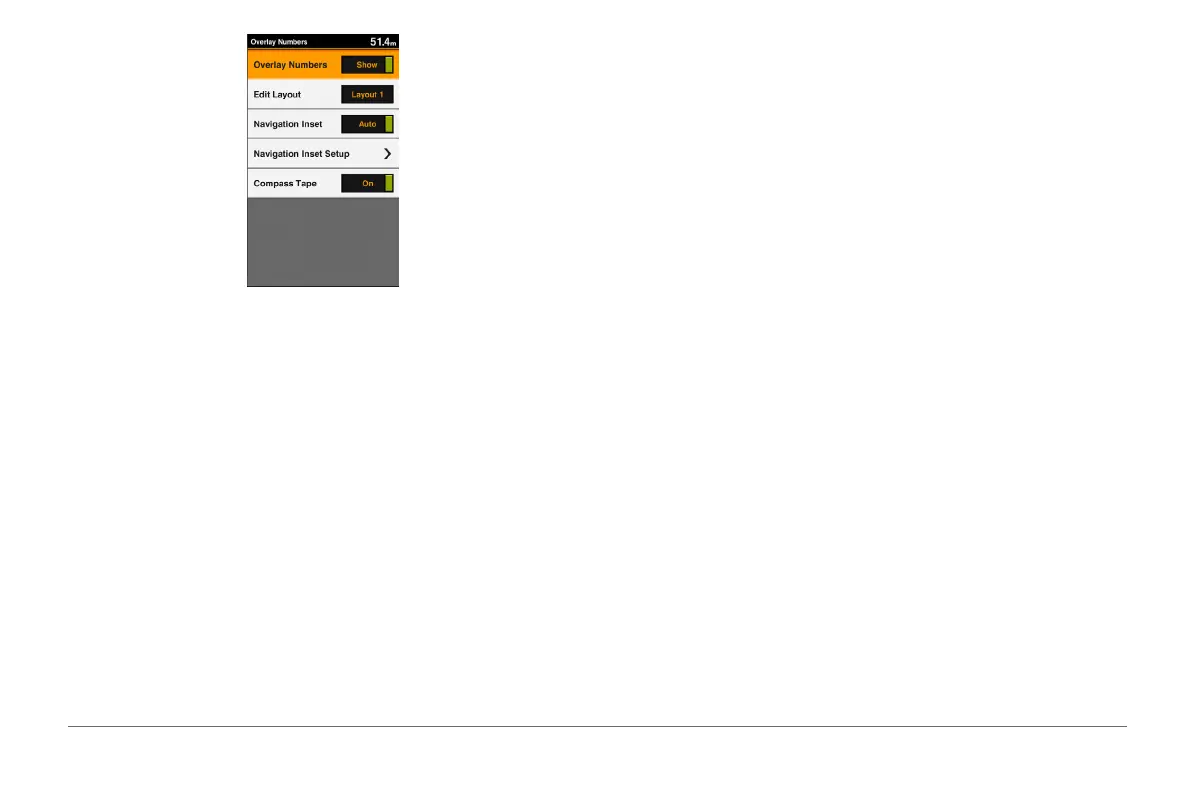
Edit Layout: Sets the layout of the data overlay, or data elds. You can select
the data to be shown within each data eld.
Navigation Inset: Shows the navigation inset when the vessel is navigating
to a destination.
Navigation Inset Setup: Allows you to congure the navigation inset to show
Route Leg Details, and to control when the inset appears before a turn or
destination.
Compass Tape: Shows the compass tape data bar when the vessel is
navigating to a destination.
Editing the Data Fields
You can change the data shown in the overlay numbers displayed on the
charts and other screens.
1 From a screen that supports overlay numbers, select MENU.
2 If necessary, select Chart Setup.
3 Select Overlay Numbers > Edit Layout.
4 Select a layout.
5 Select a data eld.
6 Select the type of data shown in the eld.
Available data options vary based on the chartplotter and network
conguration.
Showing a Navigation Inset
You can control whether a navigation inset appears on some chart views. The
navigation inset is shown only when the boat is navigating to a destination.
1 From a chart or 3D chart view, select MENU.
2 If necessary, select Chart Setup.
3 Select Overlay Numbers > Navigation Inset > Auto.
4 Select Navigation Inset Setup.
5 Complete an action:
• To show waypoint velocity made good (VMG) when navigating a route
with more than one leg, select Route Leg Details > On.
• To show next-turn data based on distance, select Next Turn >
Distance.
• To show next-turn data based on time, select Next Turn > Time.
• To indicate how the destination data appears, select Destination, and
select an option.
Chart Appearance Settings
You can adjust the appearance of the different charts and 3D chart views.
Each setting is specic to the chart or chart view being used.
NOTE: Not all settings apply to all charts and 3D chart views and chartplotter
models. Some options require premium maps or connected accessories.
From a chart or 3D chart view, select MENU > Chart Setup > Chart


 To Next Page