40
GPSMAP
®
585 Plus
1 From the AIS Radar screen, select MENU > Adjust VRM/EBL > Move
VRM/ EBL.
2 Use the arrow keys to adjust the VRM and EBL.
3 Select SELECT.
Measuring the Range and Bearing to a Target Object
1 From the AIS Radar screen, select the target location.
2 Select SELECT > Measure Distance.
The range and the bearing to the target location appear.
3 If necessary, use the arrow keys to move the target to a new location.
4 Select BACK.
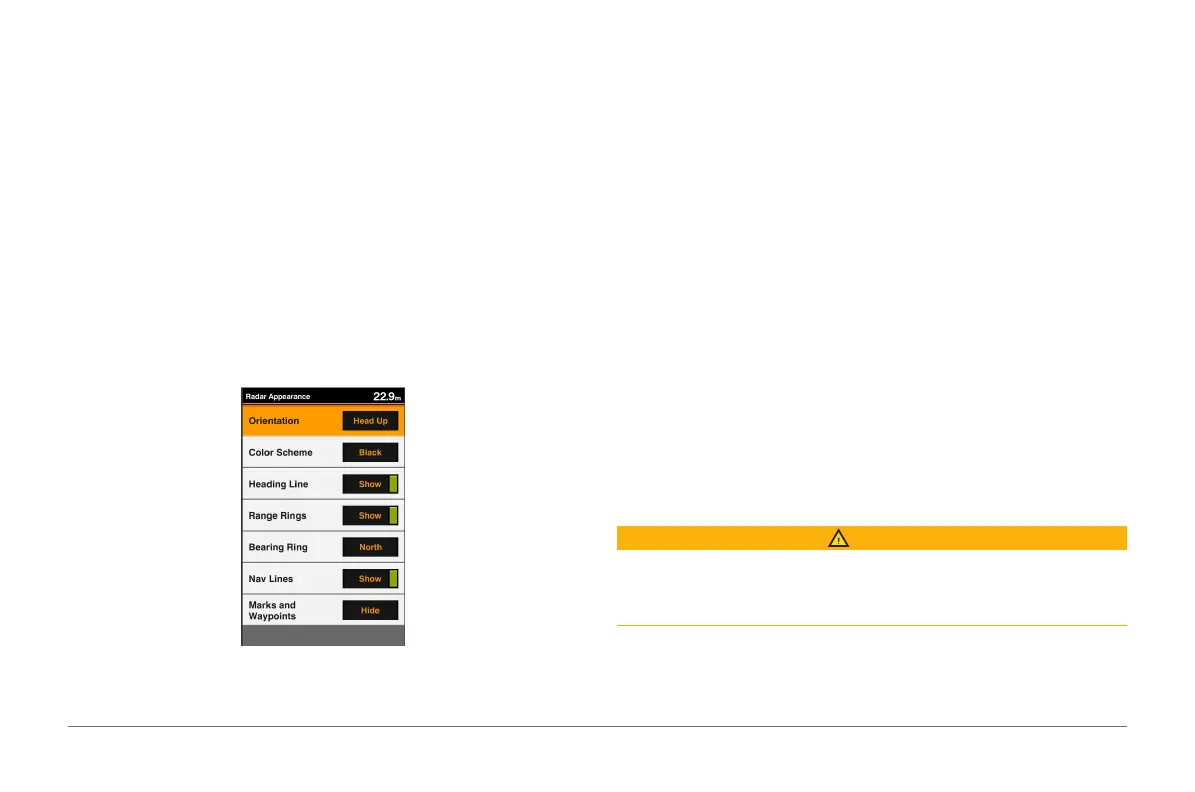
AIS Radar Appearance Settings
From the AIS Radar screen, select MENU > Appearance.
Orientation: Sets the perspective of the AIS Radar screen.
Color Scheme: Sets the color scheme for the AIS Radar screen.
Heading Line: Shows an extension from the bow of the boat in the direction
of travel on the AIS Radar screen.
Range Rings: Shows the range rings that help you to visualize distances on
the AIS Radar screen.
Bearing Ring: Shows a bearing relative to your heading or based on a north
reference, to help you determine the bearing to an object shown on the
AIS Radar screen.
Nav Lines: Shows the navigation lines that indicate the course you have set
using Route To, Auto Guidance, or Go To.
Marks/Waypoints: Shows waypoints on the AIS Radar screen.
Highway Page
The highway page provides steering guidance as you navigate to your
destination. The graphic highway display shows each route waypoint in
sequence. The line down the center of the highway represents your preferred
track line. You can customize the page layout and data elds.
Opening the Highway Page
Before you can use the Highway page, you must be navigating to a
destination.
CAUTION
The highway feature is based on electronic chart information. That data does
not ensure obstacle and bottom clearance. Carefully compare the course to
all visual
sightings, and avoid any land, shallow water, or other obstacles that may be
in your path.
From the home screen, select Highway.


 To Next Page