GPSMAP
®
585 Plus
35
2 Pan the waypoint map to select the starting location of the route.
3 Follow the onscreen instructions to add a turns.
4 Select MENU > Navigate To.
5 Select an option.
Creating and Navigating a Route Using the Waypoint
Map
The starting point can be your present location or another location.
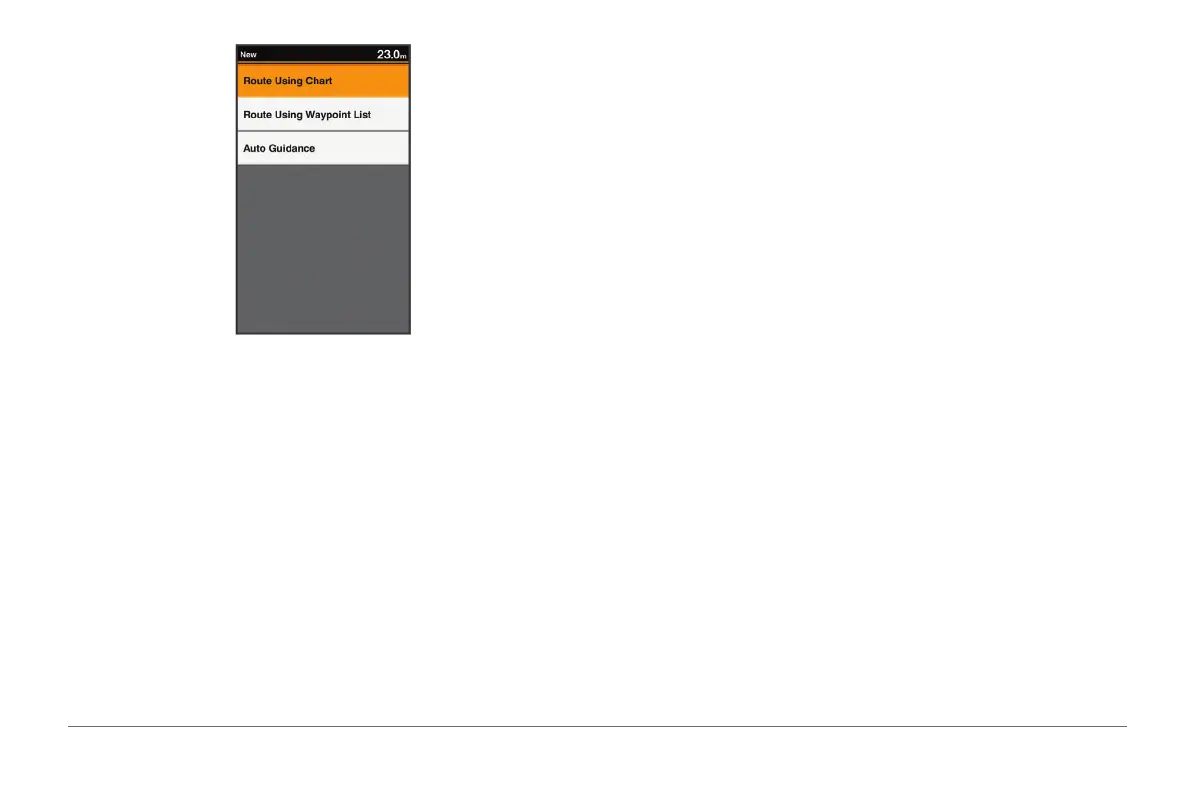
1 Select User Data > Routes & Auto Guidance Paths > New > Route
Using Chart.
2 Pan the waypoint map to select the starting location of the route.
3 Follow the onscreen instructions to add a turns.
4 Select MENU > Navigate To.
5 Select an option.
Creating and Navigating a Route Using the Waypoint
List
1 Select User Data > Routes & Auto Guidance Paths > New > Route
Using Waypoint List.
2 Select waypoints.
3 Select BACK > Navigate To.
Editing a Saved Route
You can change the name of a route or change the turns the route contains.
1 Select User Data > Routes & Auto Guidance Paths.
2 Select a route.
3 Select Edit Route.
4 Select an option:
• To change the name, select Name, and enter the name.
• To select a waypoint from the turn list, select Edit Turns > Use Turn
List, and select a waypoint from the list.
• To select a turn using the chart, select Edit Turns > Route Using
Chart, and select a location on the chart.
Viewing a List of Routes
Select User Data > Routes & Auto Guidance Paths.


 To Next Page