8 Activities and Apps
• To use your current location when you are near a
tide station, select Add > Current Location.
• To select a saved location, select Add > Saved.
• To enter coordinates for a location, select Add >
Coordinates.
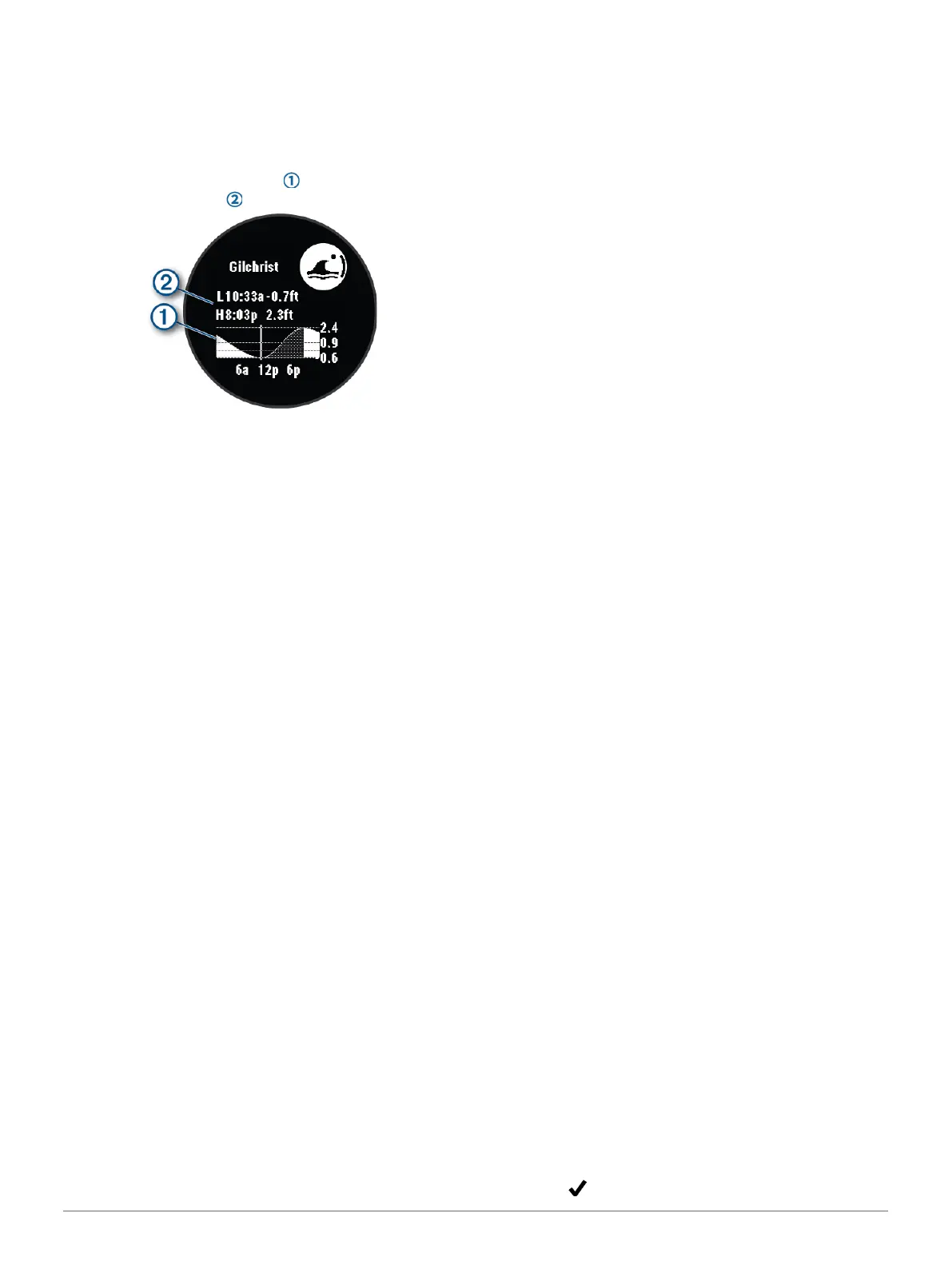
A 24-hour tide chart appears for the current date
with the current tide height and information
about the next tide .
4 Press DOWN to see tide information for upcoming
days.
5 Press GPS, and select Set as Favorite to set this
location as your favorite tide station.
Your favorite tide station appears at the top of the
list in the app and in the glance.
Setting a Tide Alert
1 From the Tides app, select a saved tide station.
2 Press GPS, and select Set Alerts.
3 Select an option:
• To set an alarm to sound before the peak tide,
select Til High Tide.
• To set an alarm to sound before the low tide,
select Til Low Tide.
Customizing Activities and Apps
You can customize the activities and apps list, data
screens, data fields, and other settings.
Adding or Removing a Favorite Activity
The list of your favorite activities appears when you
press GPS from the watch face, and it provides quick
access to the activities you use most frequently. The
first time you press GPS to start an activity, the watch
prompts you to select your favorite activities. You can
add or remove favorite activities at any time.
1 Hold MENU.
2 Select Activities & Apps.
Your favorite activities appear at the top of the list.
3 Select an option:
• To add a favorite activity, select the activity, and
select Set as Favorite.
• To remove a favorite activity, select the activity,
and select Remove from Favorites.
Changing the Order of an Activity in the Apps List
1 Hold MENU.
2 Select Activities & Apps.
3 Select an activity.
4 Select Reorder.
5 Press UP or DOWN to adjust the position of the
activity in the apps list.
Customizing the Data Screens
You can show, hide, and change the layout and content
of data screens for each activity.
1 Hold MENU.
2 Select Activities & Apps.
3 Select the activity to customize.
4 Select the activity settings.
5 Select Data Screens.
6 Select a data screen to customize.
7 Select an option:
• Select Layout to adjust the number of data fields
on the data screen.
• Select a field to change the data that appears in
the field.
• Select Reorder to change the location of the data
screen in the loop.
• Select Remove to remove the data screen from
the loop.
8 If necessary, select Add to add a data screen to the
loop.
You can add a custom data screen, or select one of
the predefined data screens.
Adding a Map to an Activity
You can add the map to the data screens loop for an
activity.
1 Hold MENU.
2 Select Activities & Apps.
3 Select the activity to customize.
4 Select the activity settings.
5 Select Data Screens > Add > Map.
Creating a Custom Activity
1 From the watch face, press GPS.
2 Select Add.
3 Select an option:
• Select Copy Activity to create your custom
activity starting from one of your saved activities.
• Select Other > Other to create a new custom
activity.
4 If necessary, select an activity type.
5 Select a name or enter a custom name.
Duplicate activity names include a number, for
example: Bike(2).
6 Select an option:
• Select an option to customize specific activity
settings. For example, you can customize the
data screens or auto features.
• Select Done to save and use the custom activity.
7 Select to add the activity to your list of favorites.














 To Next Page