Appearance 17
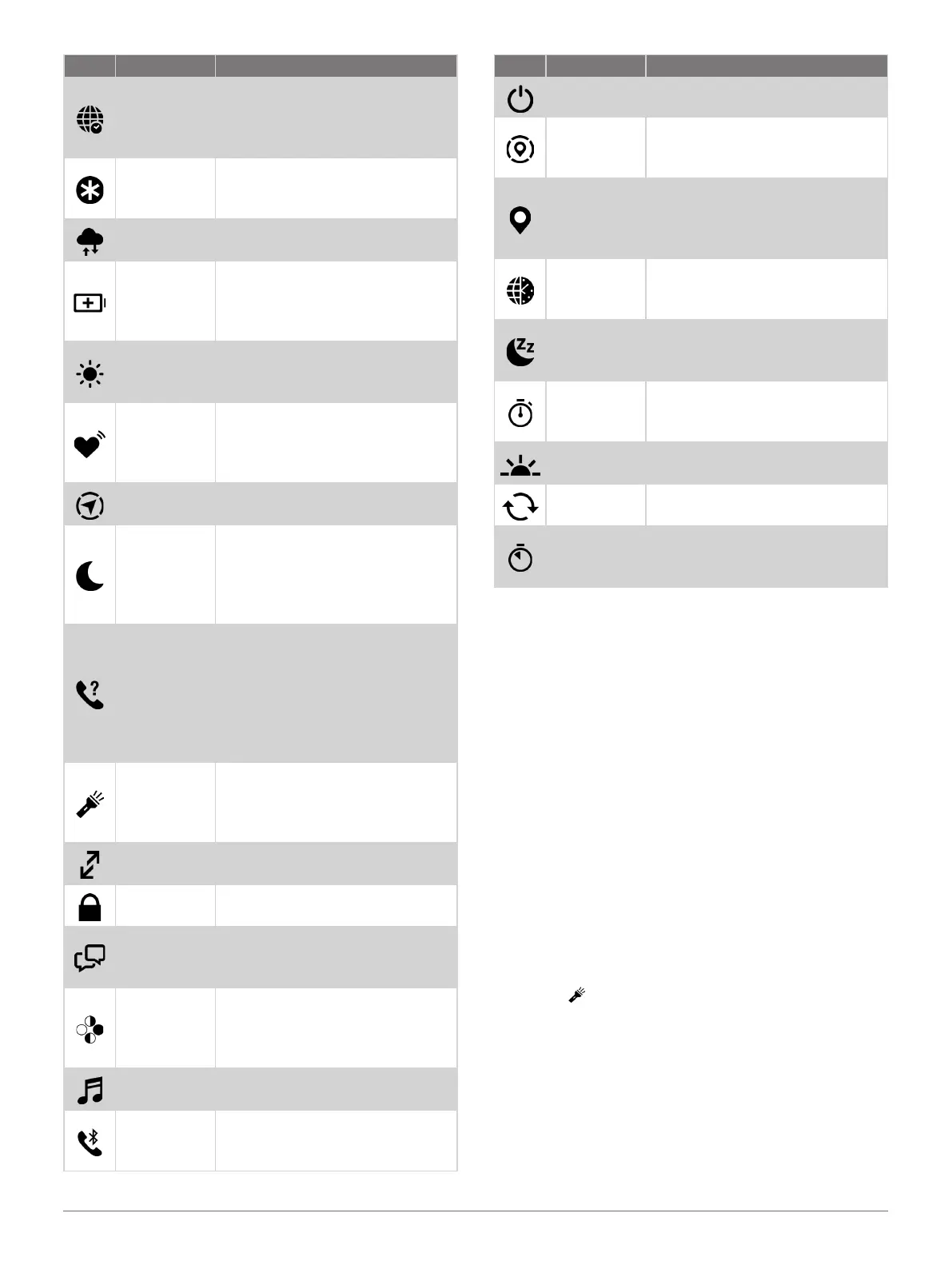
Icon Name Description
Alt. Time
Zones
Select to view the current time
of day in additional time zones
(Adding Alternate Time Zones,
page12).
Assistance
Select to send an assistance
request (Requesting Assistance,
page30).
Barometer
Select to open the barometer
screen.
Battery
Saver
Select to enable the battery
saver feature (Customizing
the Battery Saver Feature,
page34).
Backlight
Select to adjust the screen
brightness (Changing the Screen
Settings, page35).
Broadcast
Heart Rate
Select to turn on heart rate
broadcasting to a paired device
(Broadcasting Heart Rate Data,
page19).
Compass
Select to open the compass
screen.
Do Not
Disturb
Select to enable do not disturb
mode to dim the screen and
disable alerts and notifications.
For example, you can use this
mode while watching a movie.
Find My
Phone
Select to play an audible alert on
your paired phone, if it is within
Bluetooth range. The Bluetooth
signal strength appears on the
Instinct watch screen, and it
increases as you move closer to
your phone.
Flashlight
Select to turn on the screen to
use your watch as a flashlight
(Using the Flashlight Screen,
page17).
Garmin
Share
Select to open the Garmin Share
app (Garmin Share, page27).
Lock Keys
Select to lock the buttons to
prevent inadvertent presses.
Messenger
Select to open the Messenger
app (Using the Messenger
Feature, page27).
Moon Phase
Select to view moonrise and
moonset times, along with the
moon phase, based on your GPS
position.
Music
Controls
Select to control music playback
on your phone.
Phone
Select to disable Bluetooth
technology and your connection
to your paired phone.
Icon Name Description
Power Off Select to turn off the watch.
Reference
Point
Select to set a reference
point for navigation (Setting a
Reference Point, page31).
Save
Location
Select to save your current
location to navigate back to
it later (Using the Saved App,
page7).
Set Time
with GPS
Select to sync your watch with
the time on your phone or using
satellites.
Sleep Mode
Select to enable or disable Sleep
Mode (Customizing Sleep Mode,
page35).
Stopwatch
Select to start the stopwatch
(Using the Stopwatch,
page11).
Sunrise &
Sunset
Select to view sunrise, sunset,
and twilight times.
Sync
Select to sync your watch with
your paired phone.
Timers
Select to set a countdown timer
(Using a Countdown Timer,
page11).
Customizing the Controls Menu
You can add, remove, and change the order of the
shortcut menu options in the controls menu (Controls,
page16).
1 Hold MENU.
2 Select Appearance > Controls.
3 Select a shortcut to customize.
4 Select an option:
• Select Reorder to change the location of the
shortcut in the controls menu.
• Select Remove to remove the shortcut from the
controls menu.
5 If necessary, select Add New to add an additional
shortcut to the controls menu.
Using the Flashlight Screen
Using the flashlight can reduce battery life.
1 Hold CTRL.
2 Select .
Morning Report
Your watch displays a morning report based on your
normal wake time. Press DOWN to view the report,
which includes weather, sleep, overnight heart rate
variability status, and more (Customizing Your Morning
Report, page17).
Customizing Your Morning Report
NOTE: You can customize these settings on you watch














 To Next Page