Phone Connectivity Features 25
iPhone also appear on your watch.
• If you are using an Android phone, from the
Garmin Connect app, select > Settings >
Notifications > App Notifications, and select the
notifications that you want to appear on your
watch.
Turning On and Off Phone Connection Alerts
You can set the Instinct E watch to alert you when
your paired phone connects and disconnects using
Bluetooth technology.
NOTE: Phone connection alerts are turned off by
default.
1 Hold MENU.
2 Select System > Phone > Alerts.
Turning Off the Bluetooth Phone Connection
You can turn off the Bluetooth phone connection from
the controls menu.
NOTE: You can add options to the controls menu
(Customizing the Controls Menu, page17).
1 Hold CTRL to view the controls menu.
2 Select to turn off the Bluetooth phone connection
on your Instinct watch.
Refer to the owner’s manual for your phone to turn
off Bluetooth technology on your phone.
Phone Apps and Computer Applications
You can connect your watch to multiple Garmin phone
apps and computer applications using the same
Garmin account.
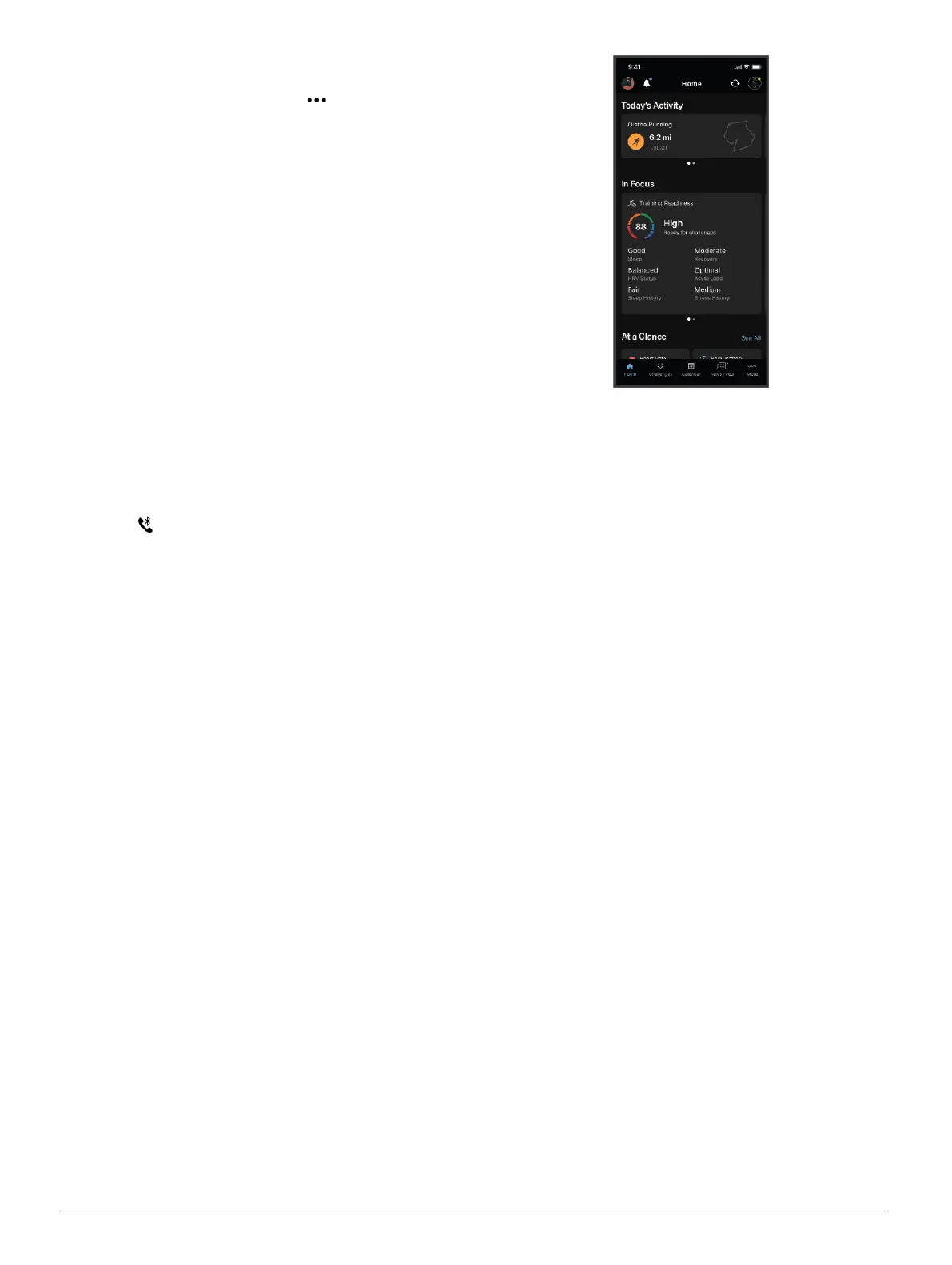
Garmin Connect
You can connect with your friends on Garmin Connect.
Garmin Connect gives you the tools to track, analyze,
share, and encourage each other. Record the events
of your active lifestyle including runs, walks, rides,
swims, hikes, triathlons, and more. To sign up for a
free account, you can download the app from the app
store on your phone (Garmin.com/connectapp), or go to
connect.Garmin.com.
Store your activities: After you complete and save an
activity with your watch, you can upload that activity
to your Garmin Connect account and keep it as long
as you want.
Analyze your data: You can view more detailed
information about your activity, including time,
distance, elevation, heart rate, calories burned,
cadence, running dynamics, an overhead map view,
pace and speed charts, and customizable reports.
NOTE: Some data requires an optional accessory
such as a heart rate monitor.
Plan your training: You can choose a fitness goal and
load one of the day-by-day training plans.
Track your progress: You can track your daily steps,
join a friendly competition with your connections,
and meet your goals.
Share your activities: You can connect with friends to
follow each other’s activities or share links to your
activities.
Manage your settings: You can customize your watch
and user settings on your Garmin Connect account.
Instant Keyboard: Allows you to quickly enter text to
your device using your smartphone’s keyboard.
Using the Garmin Connect App
After you pair your watch with your phone (Pairing Your
Phone, page24), you can use the Garmin Connect
app to upload all of your activity data to your Garmin
Connect account.
1 Verify the Garmin Connect app is running on your
phone.
2 Bring your watch within 10 m (30 ft.) of phone.
Your watch automatically syncs your data with the
Garmin Connect app and your Garmin Connect
account.
Updating the Software Using the Garmin Connect App
Before you can update your watch software using the
Garmin Connect app, you must have a Garmin Connect
account, and you must pair the watch with a compatible
phone (Pairing Your Phone, page24).
Sync your watch with the Garmin Connect app
(Using the Garmin Connect App, page25).
When new software is available, the Garmin
Connect app automatically sends the update to
your watch. The update is applied when you are
not actively using the watch. When the update is
complete, your watch restarts.
Entering Text with Instant Keyboard
Instant Keyboard allows you to quickly enter text to your














 To Next Page