16 Appearance
compatible chest heart rate monitor. If you are using
a chest heart rate monitor, you must put it on and
pair it with your watch (Pairing Your Wireless Sensors,
page21).
For the most accurate estimate, complete the user
profile setup (Setting Up Your User Profile, page28),
and set your maximum heart rate (Setting Your Heart
Rate Zones, page29). The estimate may seem
inaccurate at first. The watch requires a few runs to
learn about your running performance. You can disable
VO2 max. recording for ultra run and trail run activities
if you do not want those run types to affect your VO2
max. estimate (Activities and App Settings, page9).
1 Start a running activity.
2 Run for at least 10 minutes outdoors.
3 After your run, select Save.
4 Press UP or DOWN to scroll through the
performance measurements.
Getting Your VO2 Max� Estimate for Cycling
This feature requires a power meter and wrist-based
heart rate or a compatible chest heart rate monitor. The
power meter must be paired with your watch (Pairing
Your Wireless Sensors, page21). If you are using a
chest heart rate monitor, you must put it on and pair it
with your watch.
For the most accurate estimate, complete the user
profile setup (Setting Up Your User Profile, page28)
and set your maximum heart rate (Setting Your Heart
Rate Zones, page29). The estimate may seem
inaccurate at first. The watch requires a few rides to
learn about your cycling performance.
1 Start a cycling activity.
2 Ride at a steady, high intensity for at least 20
minutes.
3 After your ride, select Save.
4 Press UP or DOWN to scroll through the
performance measurements.
Viewing Your Predicted Race Times
For the most accurate estimate, complete the user
profile setup (Setting Up Your User Profile, page28),
and set your maximum heart rate (Setting Your Heart
Rate Zones, page29).
Your watch uses the VO2 max. estimate and your
training history to provide a target race time (About
VO2 Max. Estimates, page15). The watch analyzes
several weeks of your training data to refine the race
time estimates.
1 From the watch face, press UP or DOWN to view the
performance glance.
2 Press GPS to view glance details.
3 Press UP or DOWN to view a predicted race time.
4 Press GPS to view predictions for other distances.
NOTE: The predictions may seem inaccurate at
first. The watch requires a few runs to learn about
your running performance.
Heart Rate Variability Status
Your watch analyzes your wrist heart rate readings
while you are sleeping to determine your heart rate
variability (HRV). Training, physical activity, sleep,
nutrition, and healthy habits all impact your heart rate
variability. HRV values can vary widely based on gender,
age, and fitness level. A balanced HRV status may
indicate positive signs of health such as good training
and recovery balance, greater cardiovascular fitness,
and resilience to stress. An unbalanced or poor status
may be a sign of fatigue, greater recovery needs, or
increased stress. For best results, you should wear the
watch while sleeping. The watch requires three weeks
of consistent sleep data to display your heart rate
variability status.
Status Description
Balanced
Your seven-day average HRV is within
your baseline range.
Unbalanced
Your seven-day average HRV is above or
below your baseline range.
Low
Your seven-day average HRV is well
below your baseline range.
Poor
No status
Your HRV values are averaging well
below the normal range for your age.
No status means that there is
insufficient data to generate a seven-
day average.
You can sync your watch with your Garmin Connect
account to view your current heart rate variability
status, trends, and educational feedback.
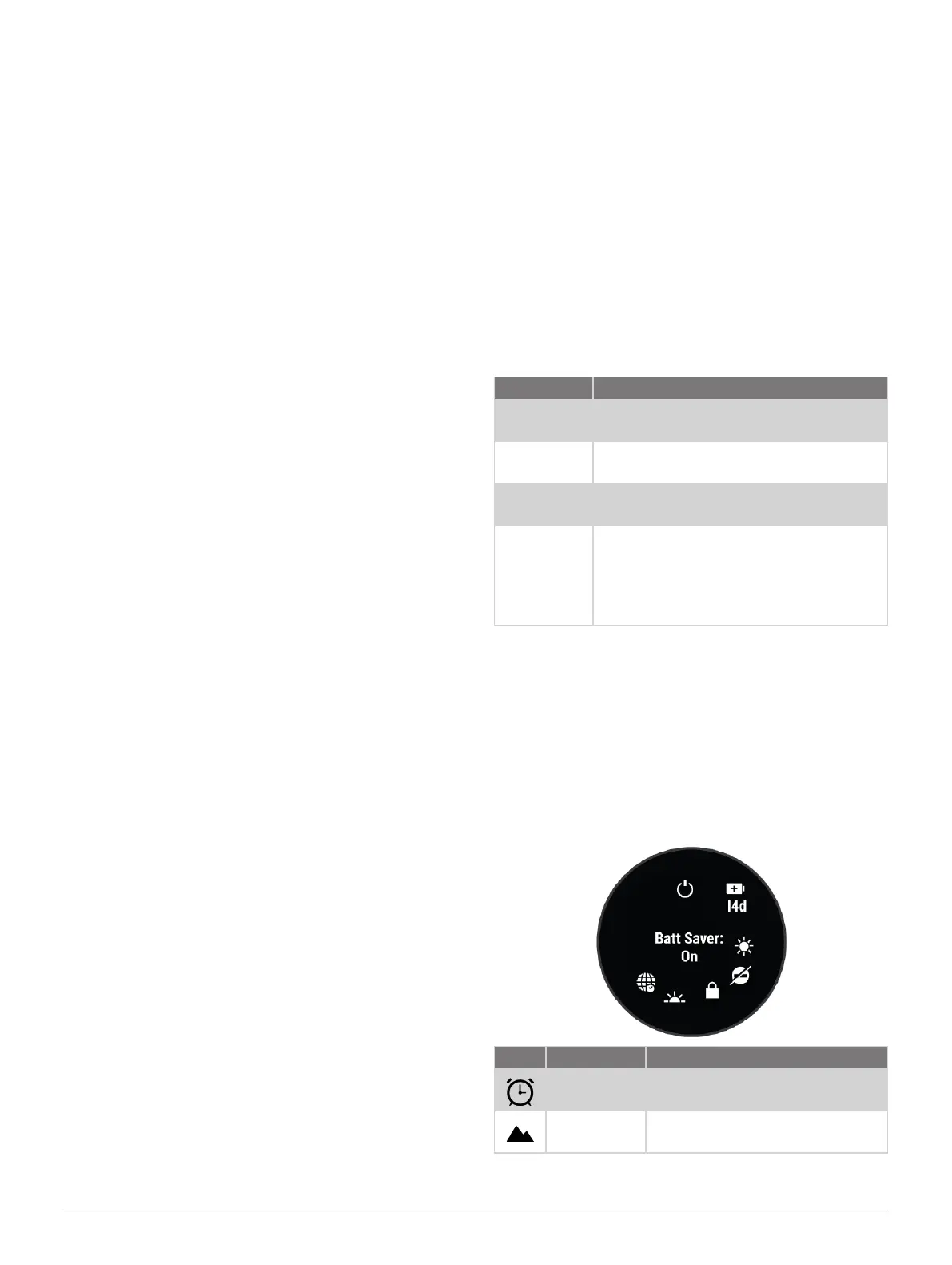
Controls
The controls menu lets you quickly access watch
features and options. You can add, reorder, and remove
the options in the controls menu (Customizing the
Controls Menu, page17).
From any screen, hold CTRL.
Icon Name Description
Alarm Clock
Select to add or edit an alarm
(Setting an Alarm, page11).
Altimeter
Select to open the altimeter
screen.














 To Next Page