Clocks 11
battery life but decreases the quality of recorded
activities. You should use the UltraTrac feature
for activities that demand longer battery life and
for which frequent sensor data updates are less
important.
Clocks
Setting an Alarm
You can set multiple alarms. You can set each alarm to
sound once or to repeat regularly.
1 From any screen, hold SET.
2 Select Alarms.
3 Select an option:
• To set and save an alarm for the first time, enter
the alarm time.
• To set and save additional alarms, select Add
Alarm, and enter the alarm time.
Editing an Alarm
1 From any screen, hold SET.
2 Select Alarms > Edit.
3 Select an alarm.
4 Select an option:
• To turn on or off the alarm, select Status.
• To change the alarm time, select Time.
• To set the alarm to repeat regularly, select
Repeat, and select when the alarm should repeat.
• To select the type of alarm notification, select
Sound and Vibe.
• To turn on or off the backlight with the alarm,
select Backlight.
• To select a description for the alarm, select
Label.
• To delete the alarm, select Delete.
Using a Countdown Timer
1 From any screen, hold SET.
2 Select Timers.
3 Select an option:
• To set a countdown timer for the first time, enter
the time using the UP and DOWN buttons.
• To set a saved countdown timer, select the saved
timer.
• To set a new countdown timer without saving it,
select Quick Timer, and enter the time.
• To set and save a new countdown timer, select
Add Timer, and enter the time.
4 If necessary, select an option:
• To save the timer, press MENU, and select Save
Timer.
• To automatically restart the timer after it expires,
press MENU, and select Restart.
• To customize the timer notification, press MENU,
and select Sound and Vibe.
5 Press GPS to start the timer.
6 If necessary, select an option:
• To stop the timer, press GPS.
• To restart the timer, press ABC.
Deleting a Countdown Timer
1 From any screen, hold SET.
2 Select Timers.
3 Select a timer.
4 Press MENU.
5 Select Delete.
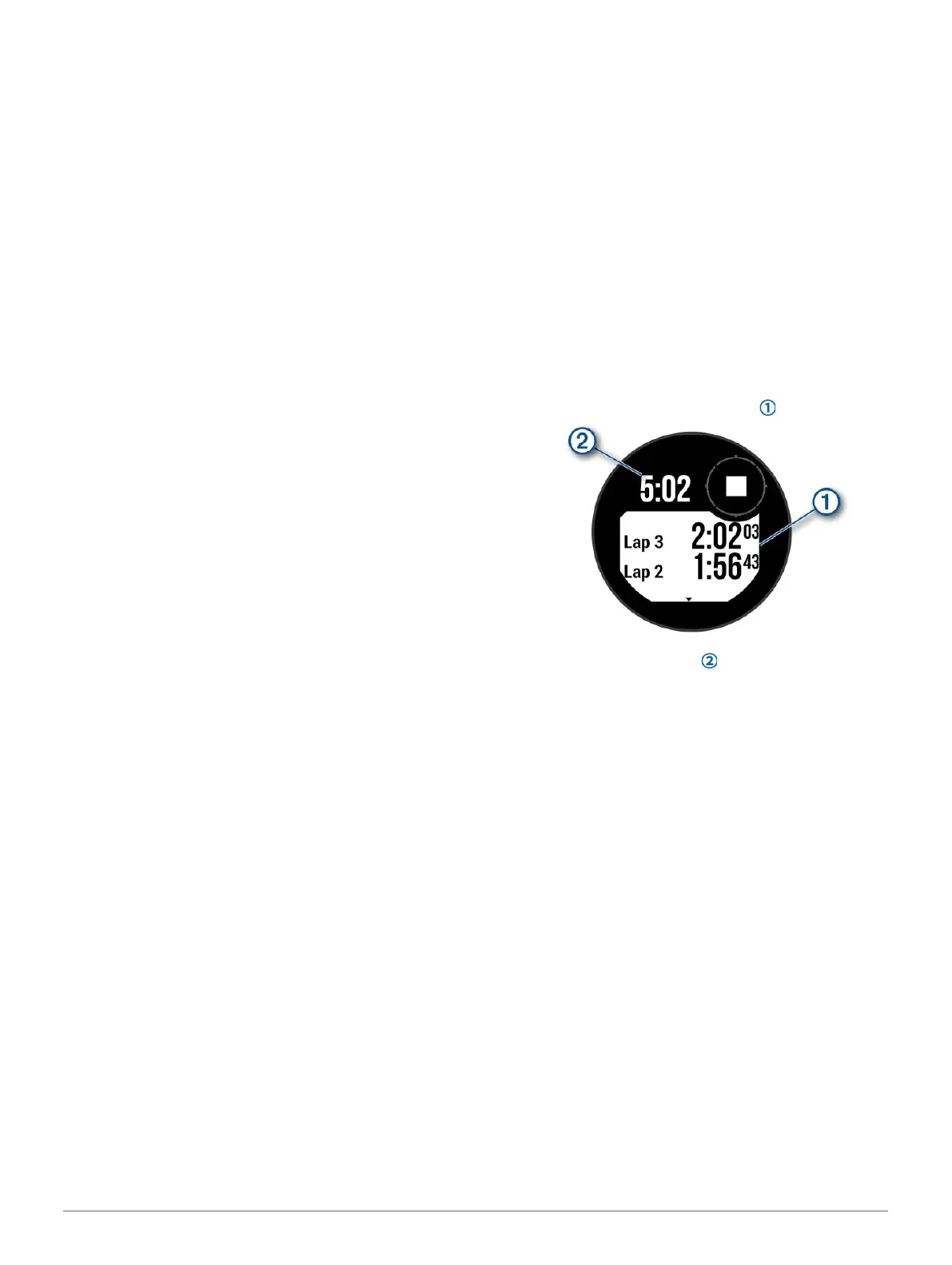
Using the Stopwatch
1 From any screen, hold SET.
2 Select Stopwatch.
3 Press GPS to start the timer.
4 Press SET to restart the lap timer .
The total stopwatch time continues running.
5 Press GPS to stop both timers.
6 Select an option:
• To reset both timers, press DOWN.
• To save the stopwatch time as an activity, press
MENU, and select Save Activity.
• To reset the timers and exit the stopwatch, press
MENU, and select Done.
• To review the lap timers, press MENU, and select
Review.
NOTE: The Review option only appears if there
have been multiple laps.
• To return to the watch face without resetting the
timers, press MENU, and select Go to Watchface.
• To enable or disable lap recording, press MENU,
and select Lap Key.
Syncing the Time with GPS
Each time you turn on the device and acquire satellites,
the device automatically detects your time zones and
the current time of day. You can also manually sync the
time with GPS when you change time zones, and to
update for daylight saving time.
1 From any screen, hold SET.
2 Select Set Time with GPS.
3 Wait while the device locates satellites (Acquiring














 To Next Page