Safety and Tracking Features 29
If you do not know your maximum heart rate, use one
of the calculators available on the Internet. Some gyms
and health centers can provide a test that measures
maximum heart rate. The default maximum heart rate
is 220 minus your age.
Setting Your Heart Rate Zones
The watch uses your user profile information from the
initial setup to determine your default heart rate zones.
You can set separate heart rate zones for sport profiles,
such as running, cycling, and swimming. For the most
accurate calorie data during your activity, set your
maximum heart rate. You can also set each heart rate
zone and enter your resting heart rate manually. You
can manually adjust your zones on the watch or using
your Garmin Connect account.
1 Hold MENU.
2 Select User Profile > Heart Rate Zones.
3 Select Max. HR, and enter your maximum heart
rate.
You can use the Auto Detection feature to
automatically record your maximum heart
rate during an activity (Detecting Performance
Measurements Automatically, page29).
4 Select Resting HR > Set Custom, and enter your
resting heart rate.
You can use the average resting heart rate
measured by your watch, or you can set a custom
resting heart rate.
5 Select Zones > Based On.
6 Select an option:
• Select %Max� HR to view and edit the zones as a
percentage of your maximum heart rate.
• Select %HRR to view and edit the zones as a
percentage of your heart rate reserve (maximum
heart rate minus resting heart rate).
7 Select a zone, and enter a value for each zone.
8 Select Sport Heart Rate, and select a sport profile
to add separate heart rate zones (optional).
9 Repeat the steps to add sport heart rate zones
(optional).
Letting the Watch Set Your Heart Rate Zones
The default settings allow the watch to detect your
maximum heart rate and set your heart rate zones as a
percentage of your maximum heart rate.
y Verify that your user profile settings are accurate
(Setting Up Your User Profile, page28).
y Run often with the wrist or chest heart rate monitor.
y Try a few heart rate training plans, available from
your Garmin Connect account.
y View your heart rate trends and time in zones using
your Garmin Connect account.
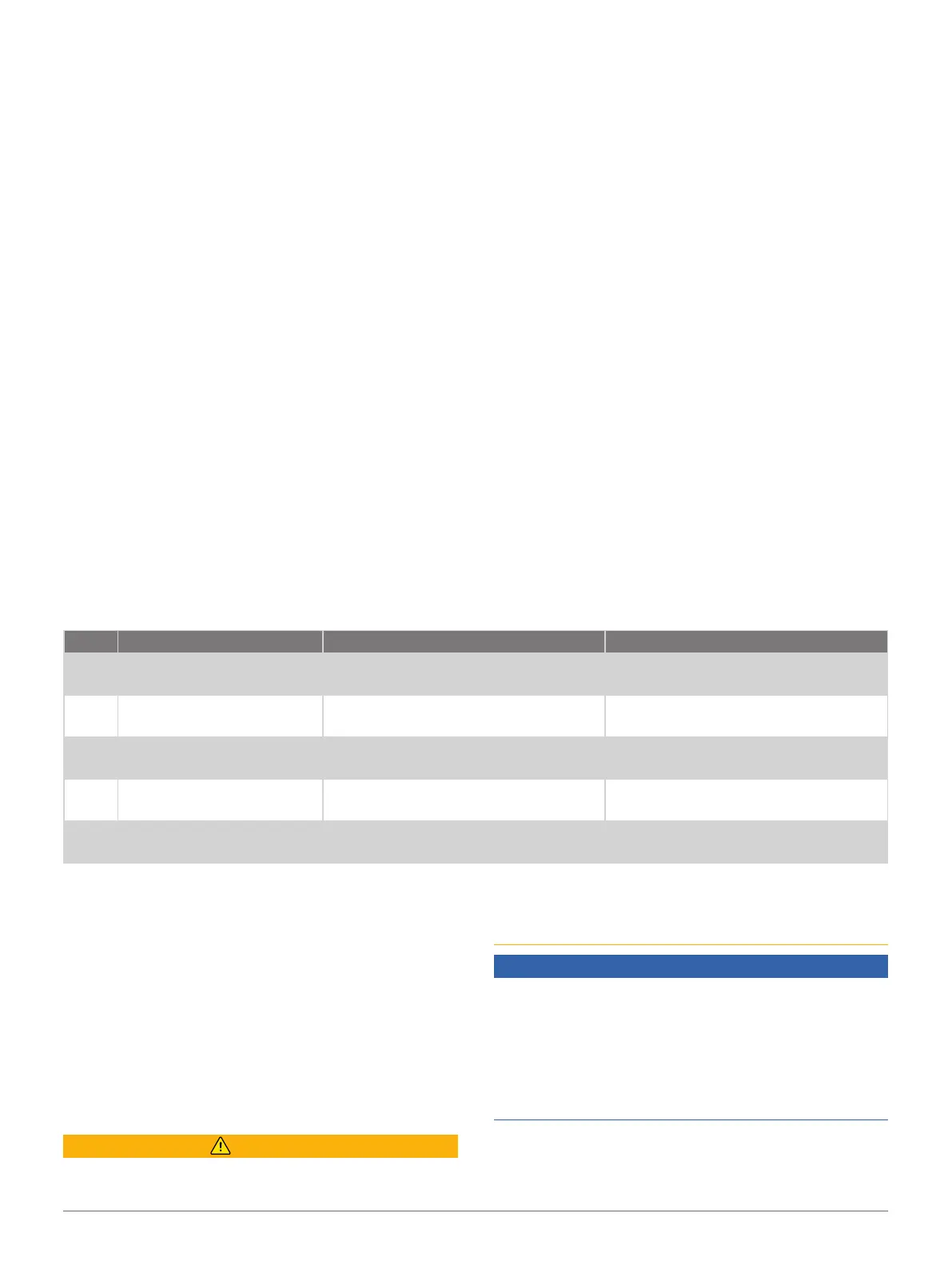
Heart Rate Zone Calculations
Zone % of Maximum Heart Rate Perceived Exertion Benefits
1 50–60%
Relaxed, easy pace, rhythmic
breathing
Beginning-level aerobic training,
reduces stress
2 60–70%
Comfortable pace, slightly deeper
breathing, conversation possible
Basic cardiovascular training, good
recovery pace
3 70–80%
Moderate pace, more difficult to hold
conversation
Improved aerobic capacity, optimal
cardiovascular training
4 80–90%
Fast pace and a bit uncomfortable,
breathing forceful
Improved anaerobic capacity and
threshold, improved speed
5 90–100%
Sprinting pace, unsustainable for long
period of time, labored breathing
Anaerobic and muscular endurance,
increased power
Detecting Performance Measurements
Automatically
The Auto Detection feature is turned on by default. The
watch can automatically detect your maximum heart
rate and lactate threshold during an activity.
1 Hold MENU.
2 Select User Profile > Auto Detection.
3 Select an option.
Safety and Tracking Features
CAUTION
The safety and tracking features are supplemental
features and should not be relied on as a primary
method to obtain emergency assistance. The Garmin
Connect app does not contact emergency services on
your behalf.
NOTICE
To use the safety and tracking features, the Instinct
E watch must be connected to the Garmin Connect
app using Bluetooth technology. Your paired phone
must be equipped with a data plan and be in an area
of network coverage where data is available. You can
enter emergency contacts in your Garmin Connect
account.
For more information about safety and tracking
features, go to Garmin.com/safety.
Assistance: Allows you to send a message with your














 To Next Page