Introduction 1
Introduction
WARNING
See the Important Safety and Product Information guide
in the product box for product warnings and other
important information.
Always consult your physician before you begin or
modify any exercise program.
Getting Started
When using your watch the first time, you should
complete these tasks to set it up and get to know the
basic features.
1 Hold CTRL to turn on the watch (Buttons,
page1).
2 Follow the on-screen instructions to complete the
initial setup.
During the initial setup, you can pair your phone
with your watch to receive notifications, sync
your activities, and more (Pairing Your Phone,
page24).
3 Charge the watch (Charging the Watch, page36).
4 Start an activity (Starting an Activity, page2).
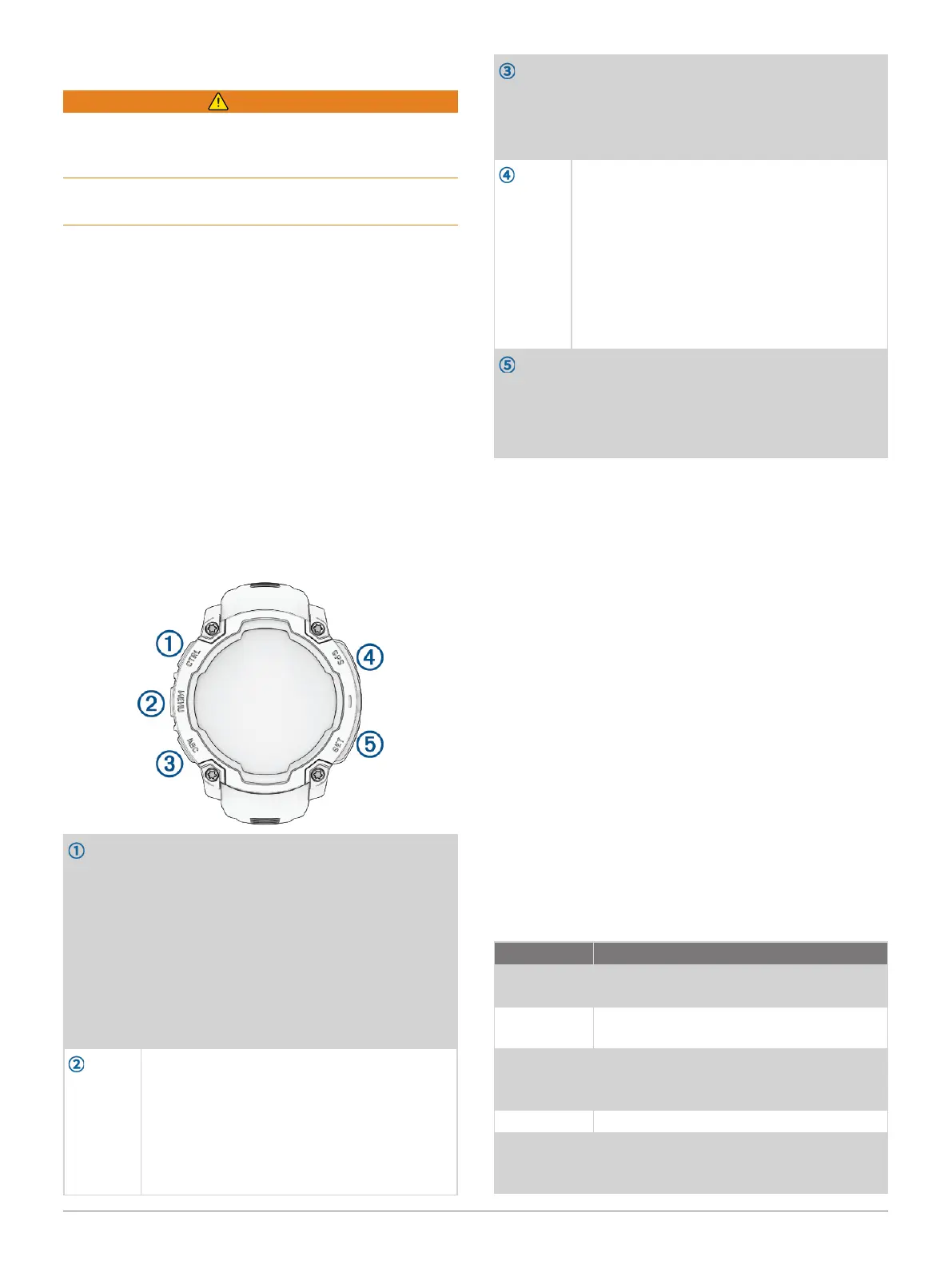
Buttons
LIGHT
CTRL
• Press to turn on the device.
• Press to illuminate the screen.
• Quickly press twice to turn on or off the
flashlight (Using the Flashlight Screen,
page17).
• Hold for two seconds view the controls
menu (Controls, page16).
• Hold for five seconds to request
assistance (Requesting Assistance,
page30).
UP
MENU
• Press to scroll through the glance loop
and menus.
• From the watch face, hold to access the
main menu.
• Hold to access a contextual menu, if
one is available in that part of the user
interface.
DOWN
ABC
• Press to scroll through the glance loop
and menus (Viewing the Glance Loop,
page14).
• Hold to view the altimeter, barometer, and
compass (ABC) screen.
GPS
• Press to choose an option in a menu.
• From the watch face, press to open the
apps and activities menu (Activities and
Apps, page1).
• Press to view the activity list and start
or stop an activity (Starting an Activity,
page2).
• Hold to view GPS coordinates and save
your location.
BACK
SET
• Press to return to the previous screen.
• During an activity, press to record a lap,
rest, or advance to the next workout step.
• Hold to view the clock menu (Clocks,
page11).
Activities and Apps
Your watch can be used for indoor, outdoor, athletic,
and fitness activities. When you start an activity, the
watch displays and records sensor data. You can create
custom activities or new activities based on default
activities (Creating a Custom Activity, page8). When
you finish your activities, you can save and share them
with the Garmin Connect community.
You can also add Connect IQ activities and apps to your
watch using the Connect IQ app (Connect IQ Features,
page26).
For more information about activity tracking and fitness
metric accuracy, go to Garmin.com/ataccuracy.
Activities and Apps List
From the watch face, press GPS and press DOWN to
scroll through the activities and apps list. Your favorite
activities list appears at the top of the list (Customizing
Activities and Apps, page8).
NOTE: Some activities appear in more than one
category.
Category Activities
Outdoor
Archery, Climb, Expedition, Fish, Hike,
Horseback, Hunt, Walk
Running
Indoor Track, Run, Track Run, Trail Run,
Treadmill, Obstacle Racing, Virtual Run
Cycling
Bike, Bike Commute, Bike Tour, BMX,
Cyclocross, eBike, eMTB, Gravel Bike,
MTB, Road Bike
Swimming Open Water, Pool Swim
Gym
Cardio, Climb Indoor, Elliptical, Floor
Climb, HIIT, Pilates, Row Indoor, Stair
Stepper, Strength, Yoga














 To Next Page