JF-240UV User Manual
79
• Single click points will become the view center.
• Single click and drag any sections you would like to enlarge.
Scale the image to fit the view window.
Set default preview pane
Select one of the three available views from the list at the top of the preview pane.
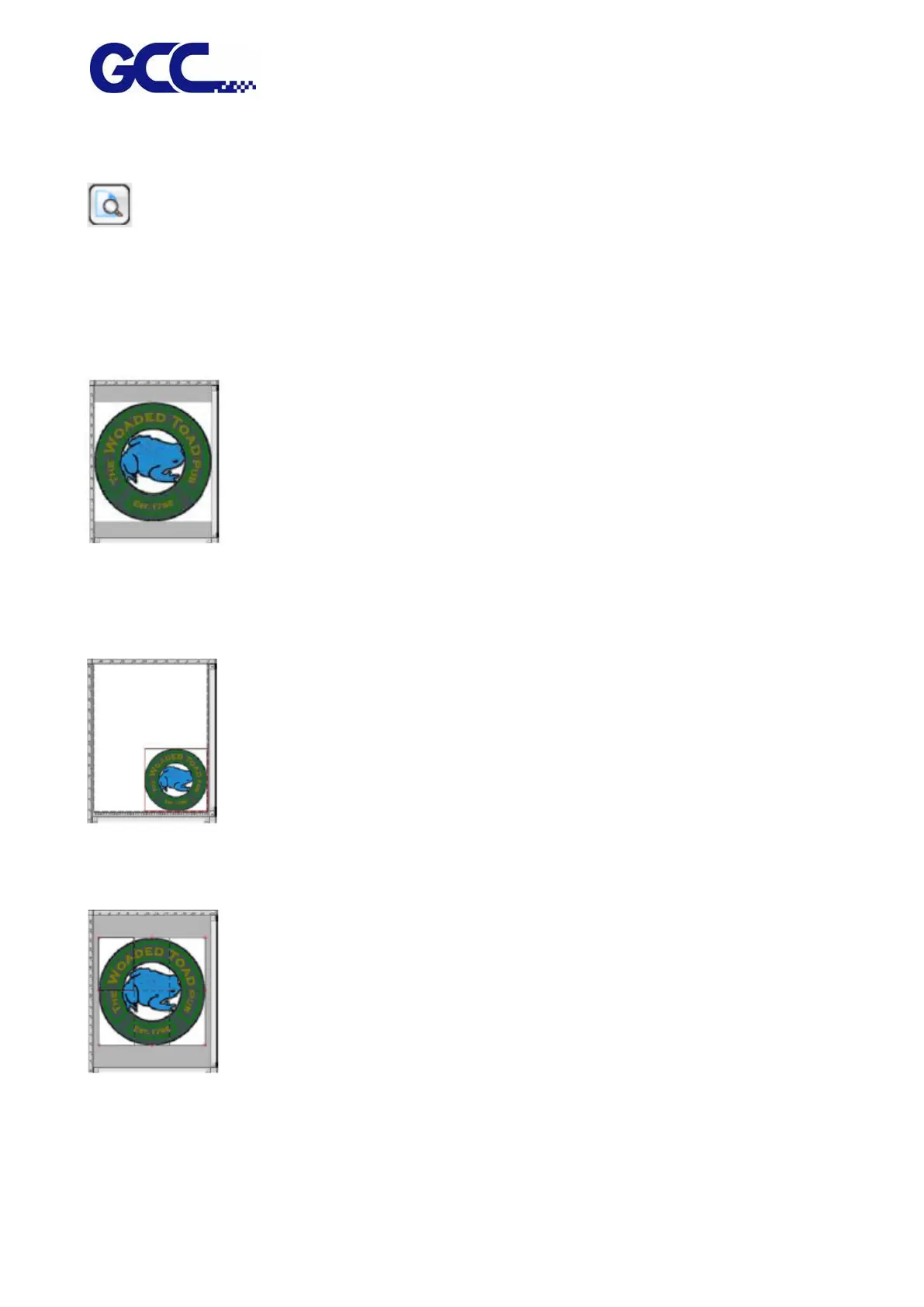
Page preview
Layout preview
Tiling Preview
Display each page of the job scaled to fill the preview area.
If there is more than one page in the job, a list of the page numbers will
appear above the preview, allowing you to select the page to display.
* If you are using FlexiPRINT, only the first page is displayed in Page Preview.
** This option will be selected automatically when the Workflow, Color
Management, Printer Options or Color Adjustment tab is selected
Display the job as it will appear on the output media. The preview is scaled
so that the output media fills the preview area.
* This option will be selected automatically when the Layout, Labels or
Separations tab is selected.
Display the job broken up into tiles to show how it will look when output.
* This option will be selected automatically when the Tiling tab is selected.




 To Next Page