JF-240UV User Manual
82
Spot Colors Printing
1. To assign spot colors to be applied on the output design component:
2. Select “Palette Editor” from the Tool menu in CorelDRAW.
a. Add spot colors definition:
i. Select “User Defined Inks” from color palette drop down list on the top of the dialog box.
In CorelDRAW X3 and X4, it is “Custom Spot Colors”.
ii. Click on “Add Color”.
iii. Select “Models” tab, and select the color to be used as the spot color on the screen.
* At this moment, no need for entering the name for the color.
iv. Click on “Add to Palette”.
v. Repeat the process for all the other colors to be added as the spot colors.
vi. Click on the “Close” button.
b. Edit Spot Colors:
i. Select the colors which are added to the Palette Editor.
* They will use the default name, such as Ink (1).
ii. Change the color name in the “Name” field in the “Selected Palette Color”.
* To make it function normally, the name must be mapped to the name in the “Spot
Colors List”.
5.2.6 JOB Server Settings
JOB Server is a feature to configure a print server that allows several computers sharing the network
to send and print documents utilizing the same printer.
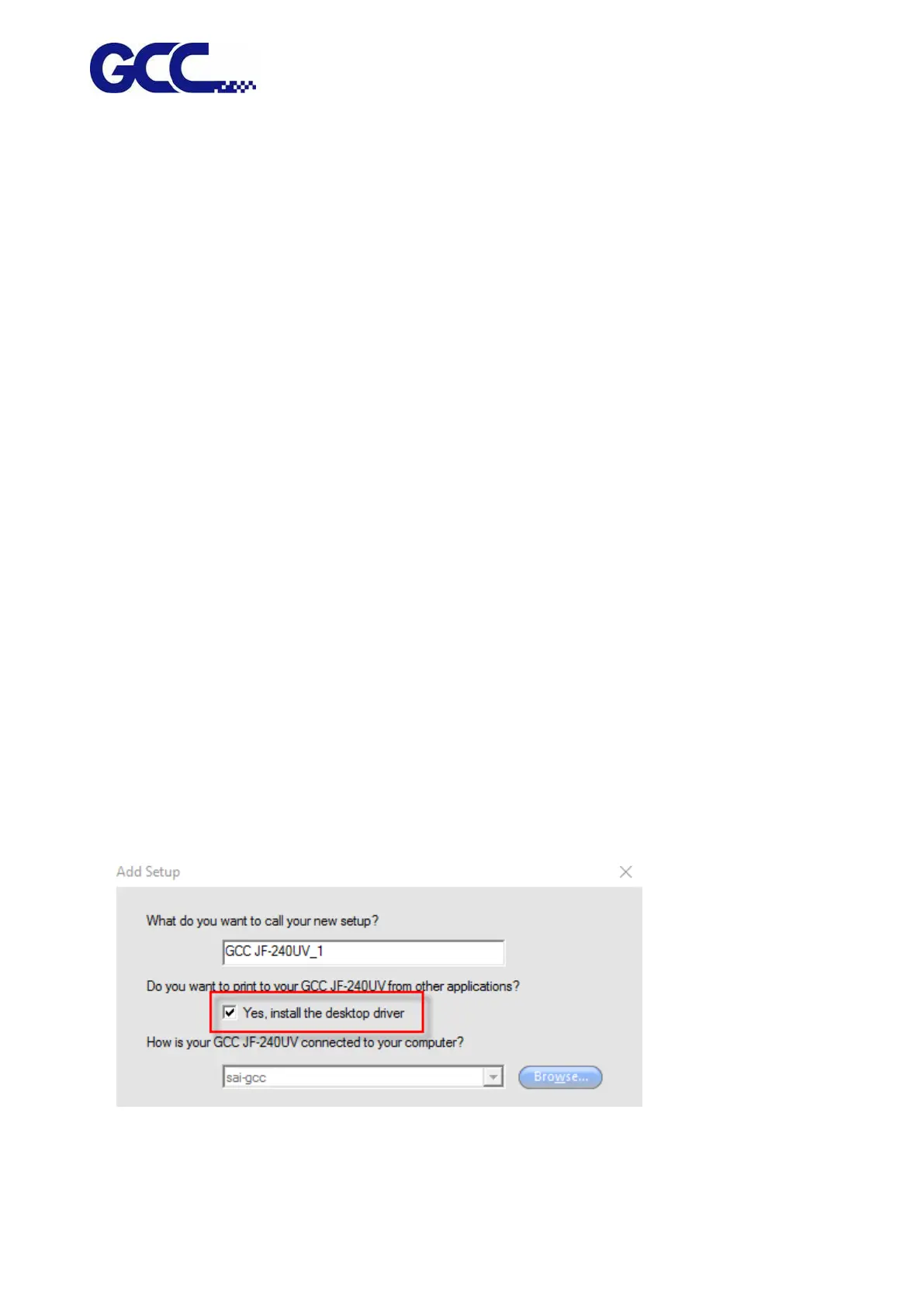
1. Add GCC JF-240UV printer driver and tick “Yes, install the desktop driver”.




 To Next Page