Instruction Manual ProfiLux 4 / 4e
EN 2019-01-22 34
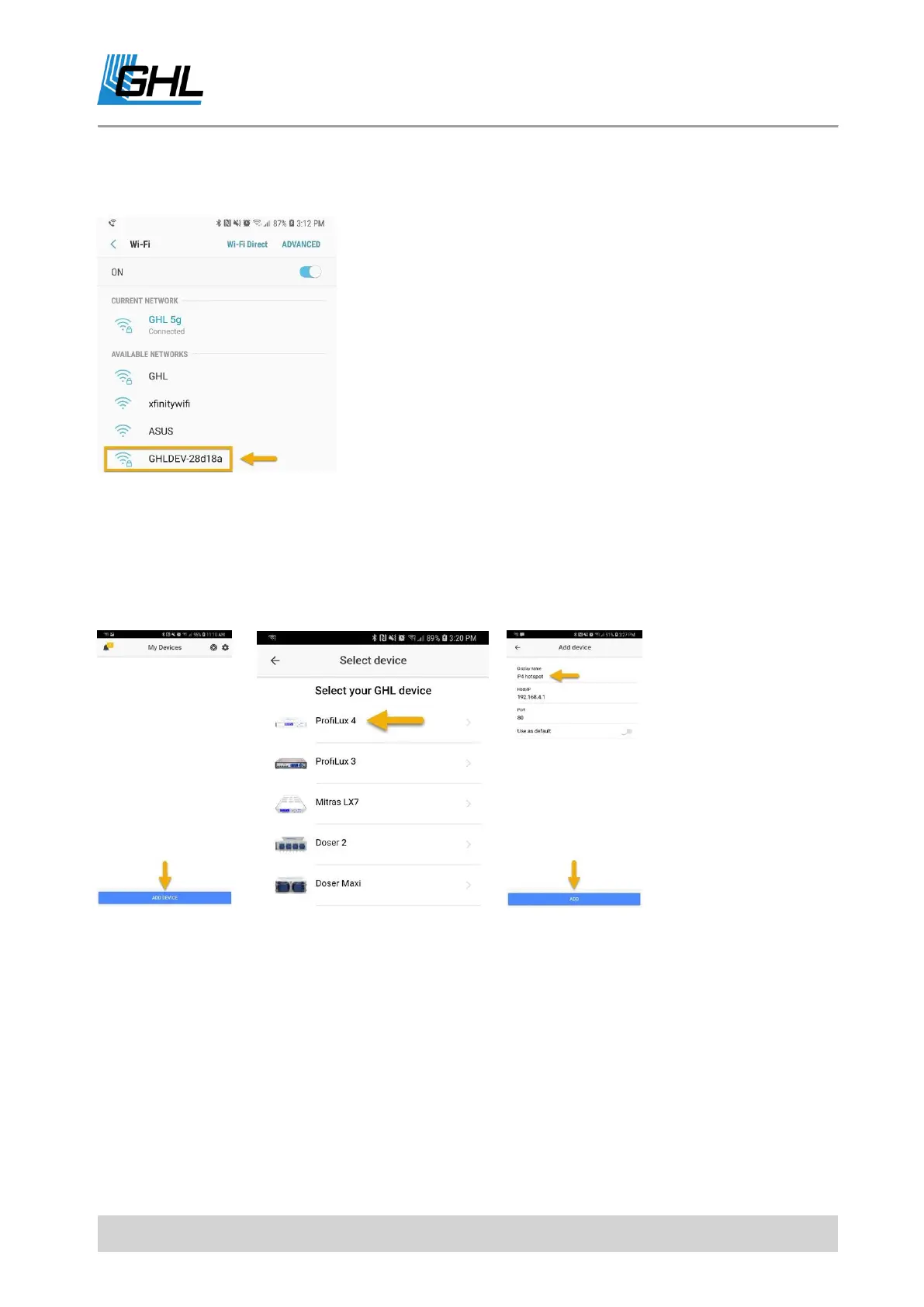
Step 2: Power ON controller, wait for controller to fully boot up, then use your device to
search for nearby Wi-Fi networks. Select GHLDEV, enter password Starfish and wait for your
device to connect to this network.
NOTE: GHLDEV network should show within a few seconds of
powering ON the ProfiLux 4 / 4e. If not, power cycle the
controller, wait 15-30 seconds and try again.
TIP: Every time you connect to the ProfiLux 4 / 4e’s hotspot,
the YELLOW Wi-Fi light on the P4 / P4e itself will turn ON. This
indicates that a device has connected to its hotspot signal.
Some flashing of this LED is normal.
Step 3: Open GHL Connect app, select Add device, select the ProfiLux 4 / 4e, give this
connection any name (P4 hotspot), leave other fields as-is, press Add, select the newly made
connection.
6.2.2 General Settings Setup
Step 4: Press the menu icon (top left), select General. Change language to English, set date
and time, set time zone, press Save.



 To Next Page