Instruction Manual ProfiLux 4 / 4e
EN 2019-01-22 36
NOTE: After saving your settings and confirming,
you will be disconnected from the default P4
hotspot signal (GHLDEV). This is normal as the
Wi-Fi module must reset itself in order to display
the new name of the hotspot network.
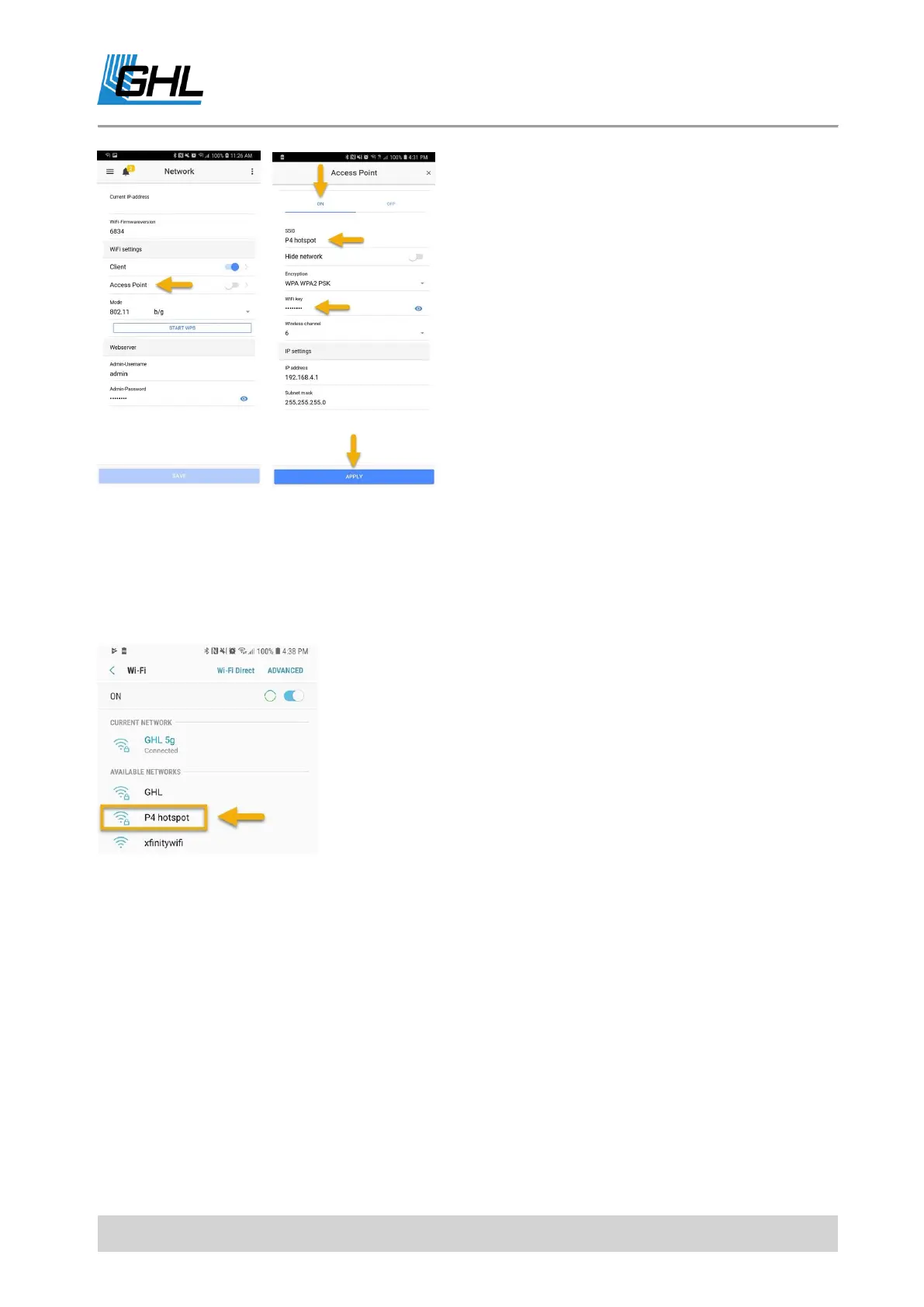
Step 5: Use your device to search again for nearby networks, select the NEW name of the
hotspot network and connect to it. Enter the password you assigned when prompted. Once
connected, open the GHL Connect app and connect to your device.
NOTE: When searching for nearby Wi-Fi networks, you should
now see the new name of your P4 / P4e’s hotspot network. In
step 4, we called the new name of this network, P4 hotspot. See
illustration (Left).
TIP: Now that you’ve setup your P4 / P4e’s hotspot, anytime you
wish to connect via the app, you can do so by connecting
directly to the hotspot signal.
6.2.4 Assign PAB-Devices
Step 6: Connect PAB devices to P4 / P4 e. This can be Powerbar(s), Touch display, Doser 2.1 etc.
Powerbars must be connected to either the P4 / P4e PAB port or an existing Powerbar. All
other devices can be chained off of other PAB devices. For more information please refer to
5.7 CONNECTION OF PAB-DEVICES. Make sure the PAB-devices are powered ON.
Step 7: On the P4 / P4e itself, press the up or down arrow key, select System -> Configure
PAB -> Assign devices. Detected devices will be listed. Press the right arrow key to select
each device, then press the check-mark key to confirm.



 To Next Page