Omnia Maintenance Through USB Retrieving Logs
Page 6-8 MDE-5369G FlexPay™ IV (with Omnia V04.07) Programming and Service Manual · March 2021
Retrieving the Omnia Configuration (YES Network Reset)
To retrieve the Omnia Configuration (YES Network Reset), proceed as follows:
1 Open the OmniaOp.json file with a Text Editor (e.g. Notepad++).
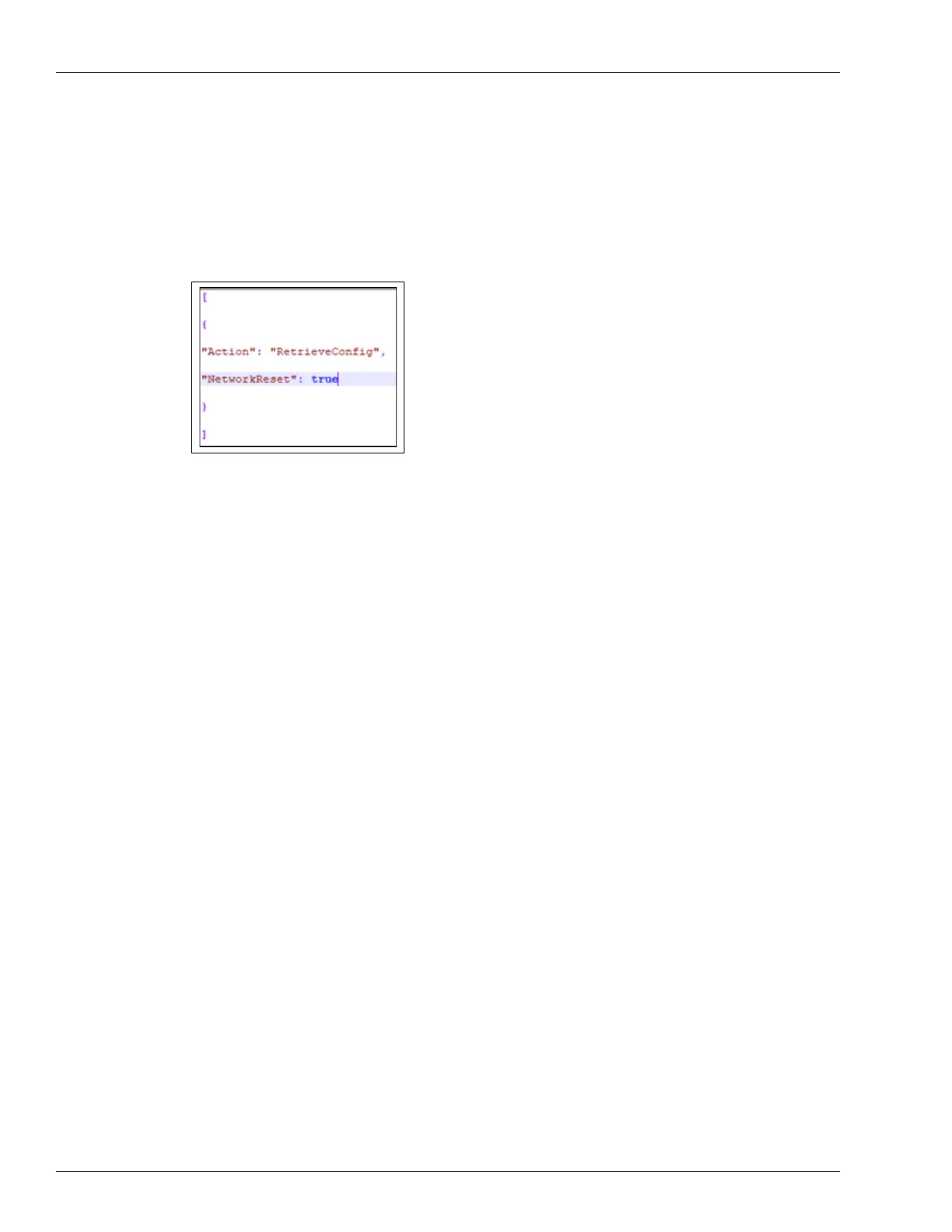
2 Enter the information as shown in the following figure:
3 Save the file.
4 Plug the USB drive into Omnia board. Depending on the success or failure of the operation,
LEDs start glowing as follows:
• LED D32 goes Solid RED, LED D29 starts blinking slowly
• LED D29 goes Solid GREEN, indicating that the operation is successfully completed.
• LED D29 will start blinking fast, indicating that the operation failed.
If the operation is successful, LED D32 goes OFF. If the operation fails, the LED D32 will
start blinking together with LED D29.
5 Remove the USB drive.
Note: After this operation, Omnia external IP address will be no longer available. Omnia
WebUI will be reachable only at the Internal IP Address 172.20.100.254 by connecting
an Ethernet cable from your PC/Laptop to Service Port.



 To Next Page