Retrieving Logs Omnia Maintenance Through USB
MDE-5369G FlexPay™ IV (with Omnia V04.07) Programming and Service Manual · March 2021 Page 6-9
Retrieving the Omnia Configuration and Checking Files on the USB Report
To perform the operation, proceed as follows:
1 Insert the USB drive used to install packages on Omnia in your PC/Laptop.
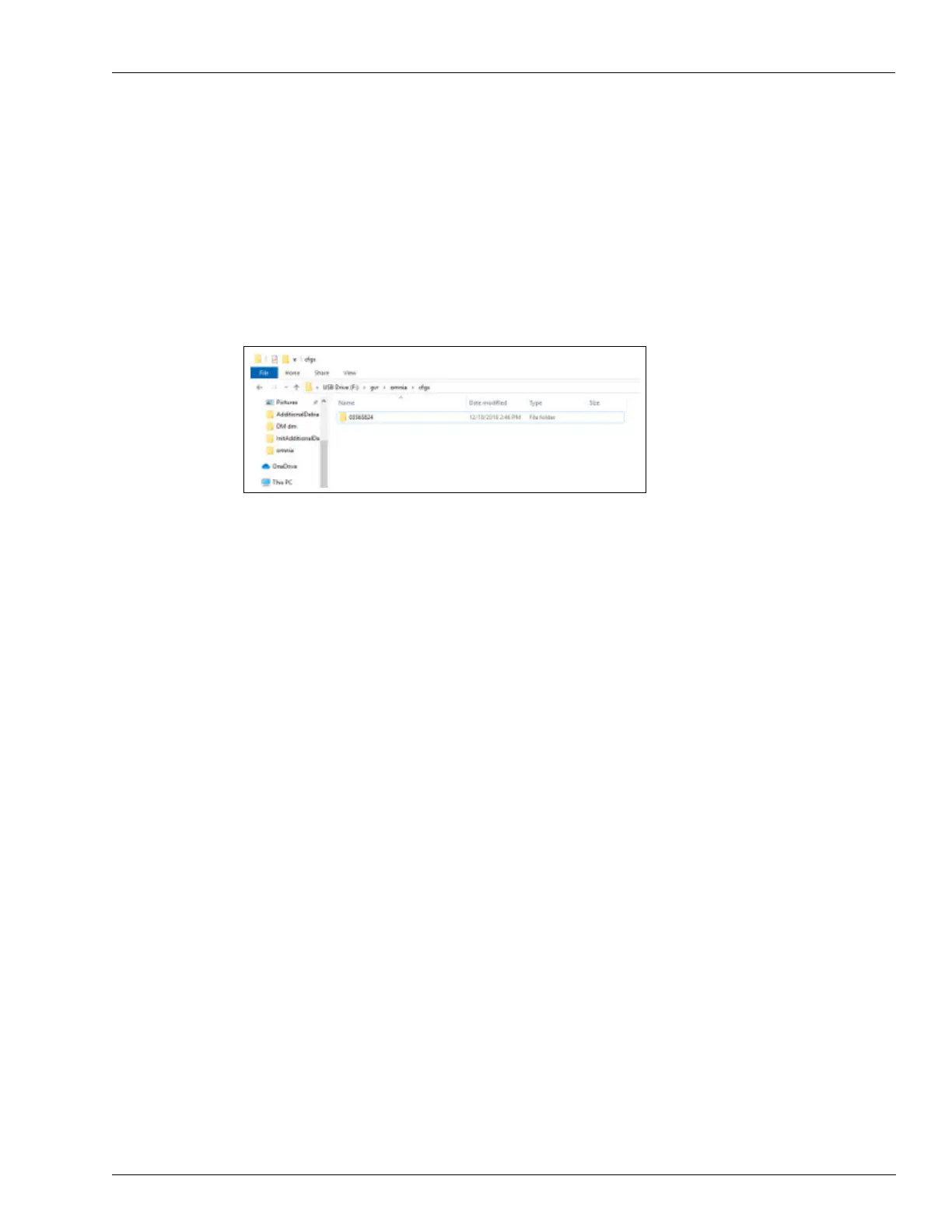
2 Go to gvr\omnia\cfgs. Open the folder with the name of the Omnia PPN, as shown in the
following figure:
Figure 6-10: Omnia PPN Folder Structure
3 Open the file named “OmniaConfig.txt”. This text file contains all of the information about the
Omnia configuration.
4 Open the file “OmniaSession-YYYYMMDDhhmmss.txt”. This text file includes information
about operations performed during the Maintenance session (until the USB drive was attached
to the Omnia).
5 Check the files to validate the configuration and maintenance operations performed.



 To Next Page