MDE-5369G FlexPay™ IV (with Omnia V04.07) Programming and Service Manual · March 2021 Page 7-11
Resetting the Network Configuration to Factory Values Troubleshooting
Resetting the Network Configuration to Factory Values
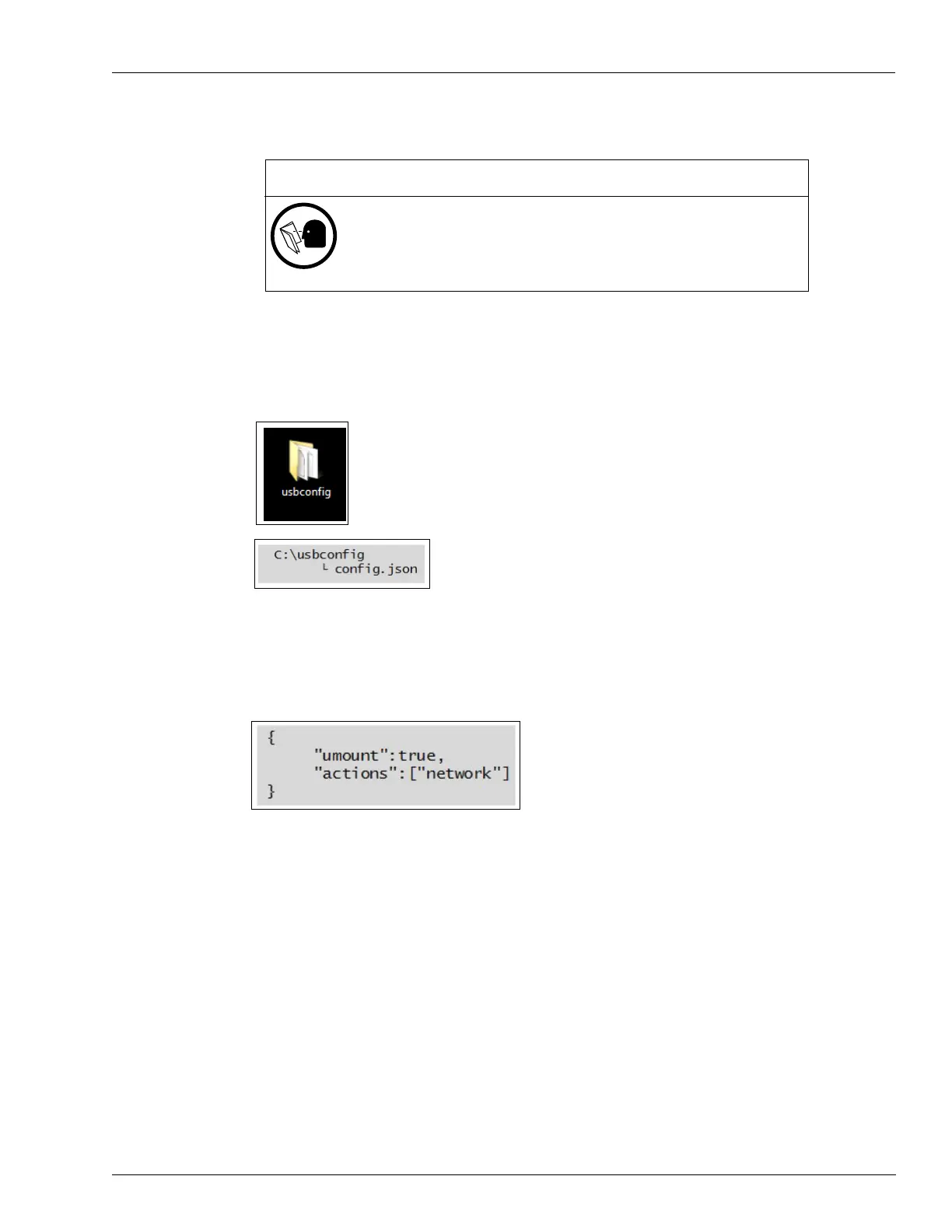
1 Create a folder on the Windows desktop with the name “usbconfig”. In that, create a file with
the name “config.json”.
Figure 7-9: Creating Folder
2 Using an editor of your choice (for example, Windows Notepad), type the following command
exactly as shown in Figure 7-10.
Figure 7-10: Command
3 Save the file as config.json to the Windows desktop.
4 Copy and paste the config.json file into the “usbconfig” folder.
5 Copy the usbconfig folder and its content in the root directory of an empty, FAT-formatted,
USB drive.
6 Plug the USB drive into the USB connector of the Omnia.
The Omnia board automatically detects the file and command on the USB drive (reboot is not
required) and then resets the network settings back to factory default Omnia IP address
(172.20.100.254). The process takes no longer than 2 minutes. When the operation has
finished, D28-D32 LEDs will be ON.
After completing the procedure, you can access the configuration web application using the
default IP parameters and apply any changes to the Omnia configuration.
The procedure described below will modify the networking settings of the
Omnia, potentially making the dispenser or the entire site temporarily
inoperative!
Execute the procedure only under direction and supervision of Gilbarco
Help Desk.
IMPORTANT INFORMATION



 To Next Page