GKB 4CH/8CH VFire Server
101
Click on this icon to call up Search-by-time dialog. Please select the time (Year,
Month, Date, Hour, and Minute) and recorded video/audio type (Alarm, Motion,
Video Loss, and Normal) to search for playback. Click on Search button to start
the search of the recorded video/audio. (If it failed, the result will be shown on
the title of the dialog.) Now, you may use the playback buttons to play the
recorded video/audio. If there’s not any camera in playback mode, all cameras
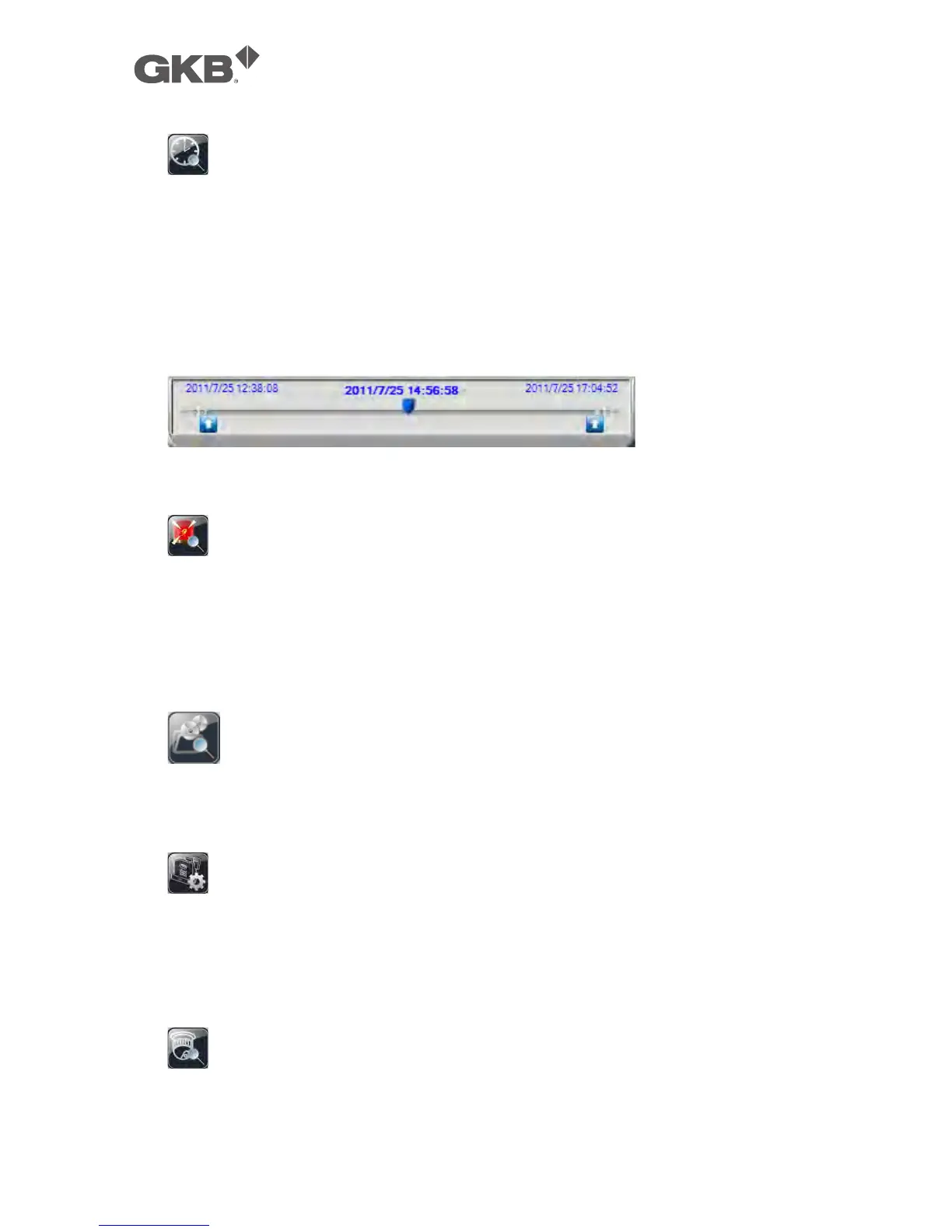
will be searched and played. A playback slider will be shown at playback for
“Search By Time”.
The operations are similar to DVR/NVR local operations, except the user may click
on the bottom area of the playback slider to drag it to a different location.
Click on this icon to call up Search-by-event dialog. The event logs will be shown
on the screen. Please select the device, event type, and source ID to search for
the event logs. Click on Refresh, Up, or Down to update the event logs. Click on
the desired event log to highlight and select it. Click on the OK button to search
the recorded video/audio for the highlighted event log. Now, you may use the
playback buttons to play the recorded video/audio.
Click on this icon to call up search-PC-video dialog. Please select the file(s), and
then click on Open. Now, you may use the playback buttons to play the recorded
video/audio in the file(s).
Click on this icon to call up POS-Search dialog. Please select the DVR/NVR,
camera, key word, and start/end time, and click on “Search”, then the matched
POS data will be shown. Please select the desired POS data, and click on
“Backup” or “Play” to backup or play the recorded video/audio corresponding to
the POS data.
Click on this icon to show/hide full PTZ control panel. The user can click on the
PTZ Panel (but outside of any object in it) (to call up the Context menu) to move it.



 To Next Page