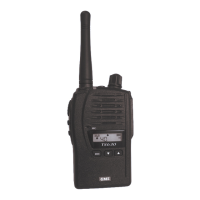
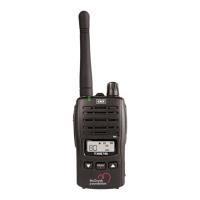
TX6600PRO INSTRUCTION MANUAL
33
2. Rotate the Channel knob or press the keys until INFO is
displayed. Press the
MENU
F
key to access the sub-menu.
3. Rotate the Channel knob or press the keys to select one of the
available sub-menu options. MODEL, SERNO, FWVER, HWVER, or
OWNID will be displayed. (see list below for details).
4. With the desired option displayed, press the
MENU
F
key to view the
selected information.
5. Hold the
MENU
F
key to return to the sub-menu or press the
MENU
F
key to
exit and return to normal operation.
Available INFO Options
• MODEL: Displays your radio’s model name.
• SERNO: Displays your radio’s serial number.
• FWVER: Displays your radio’s rmware (operating software) version.
• HWVER: Displays your radio’s hardware (PCB assembly) version.
• OWNID: Displays your radio’s own SelCall Ident.
FACTORY RESET
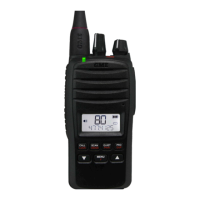
The TX6600PRO has a factory reset option that allows you to restore the radio
back to its out-of-the-box settings. Activating the factory reset will delete any
changes you have made to the radio including any receive-only channels, scan
memories and CTCSS/DCS settings and will reset all the menu settings to their
defaults.
To activate the factory reset procedure:
1. Hold the
MENU
F
key to access the menu. The last selected menu item
will be displayed.
2. Rotate the Channel knob or press the keys until RESET is
displayed then press
MENU
F
.
3. The channel number will change to – – – and RESET? HOLD SIDE-
BOTTOM will scroll on the display.
4. Hold the Side-Bottom button (below the PTT Key) for several
seconds until the radio beeps.
5. RESET? HOLD TOP RED BUTTON will scroll on the display.
6. Hold the top RED button for several seconds until the radio beeps.


 To Next Page